
Getting started & setup
Services
In short
This guide explains Services in the Getting started & setup area of ClinicSoftware. It provides a clear operational explanation of how the capability works, then outlines the practical benefits for saving staff time, converting clients and leads, and protecting clinic revenue.
On this page
Overview
This guide explains Services in the Getting started & setup area of ClinicSoftware. It provides a clear operational explanation of how the capability works, then outlines the practical benefits for saving staff time, converting clients and leads, and protecting clinic revenue.
How it works
From this page, you can manage the services in the system.
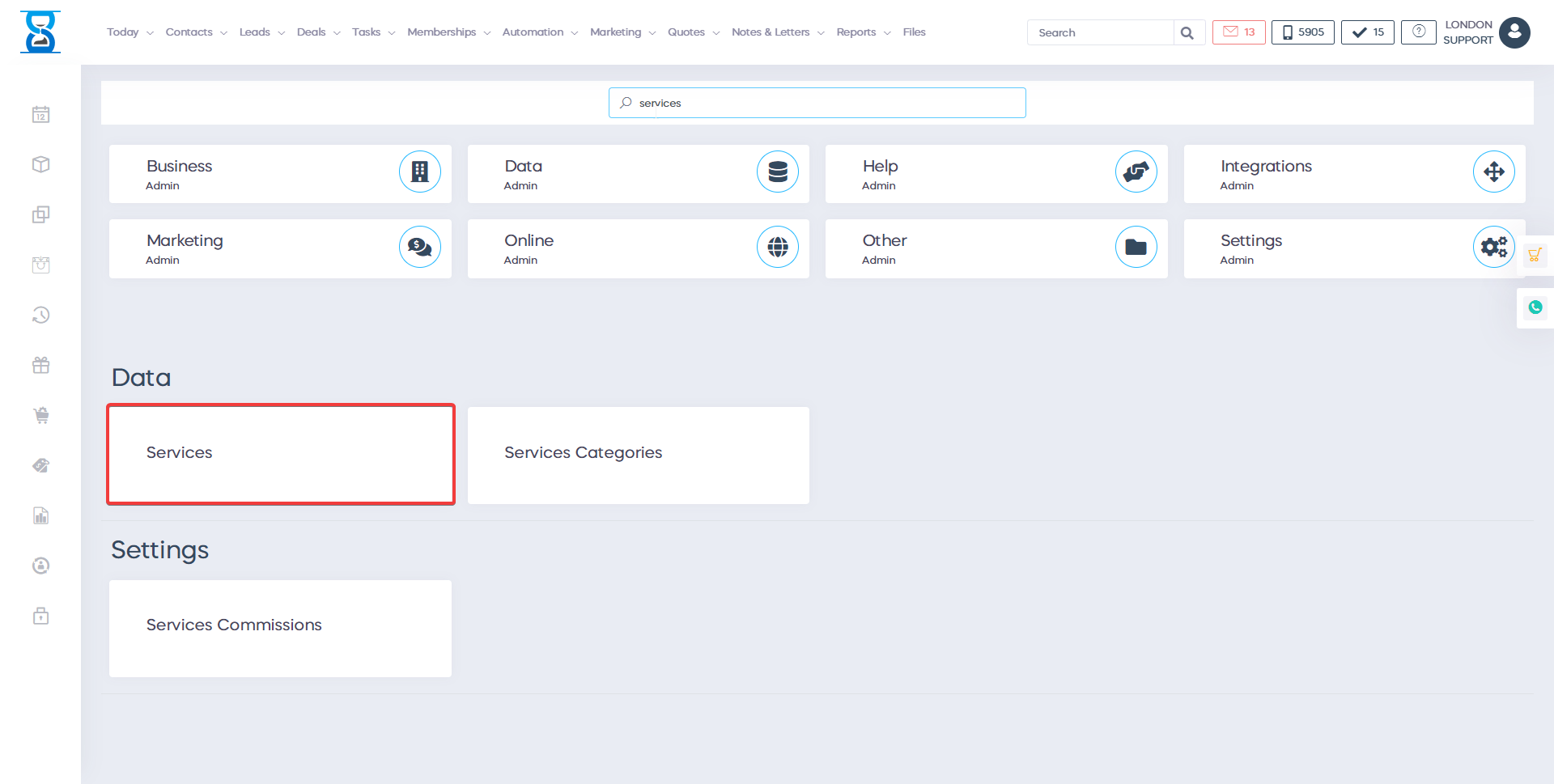
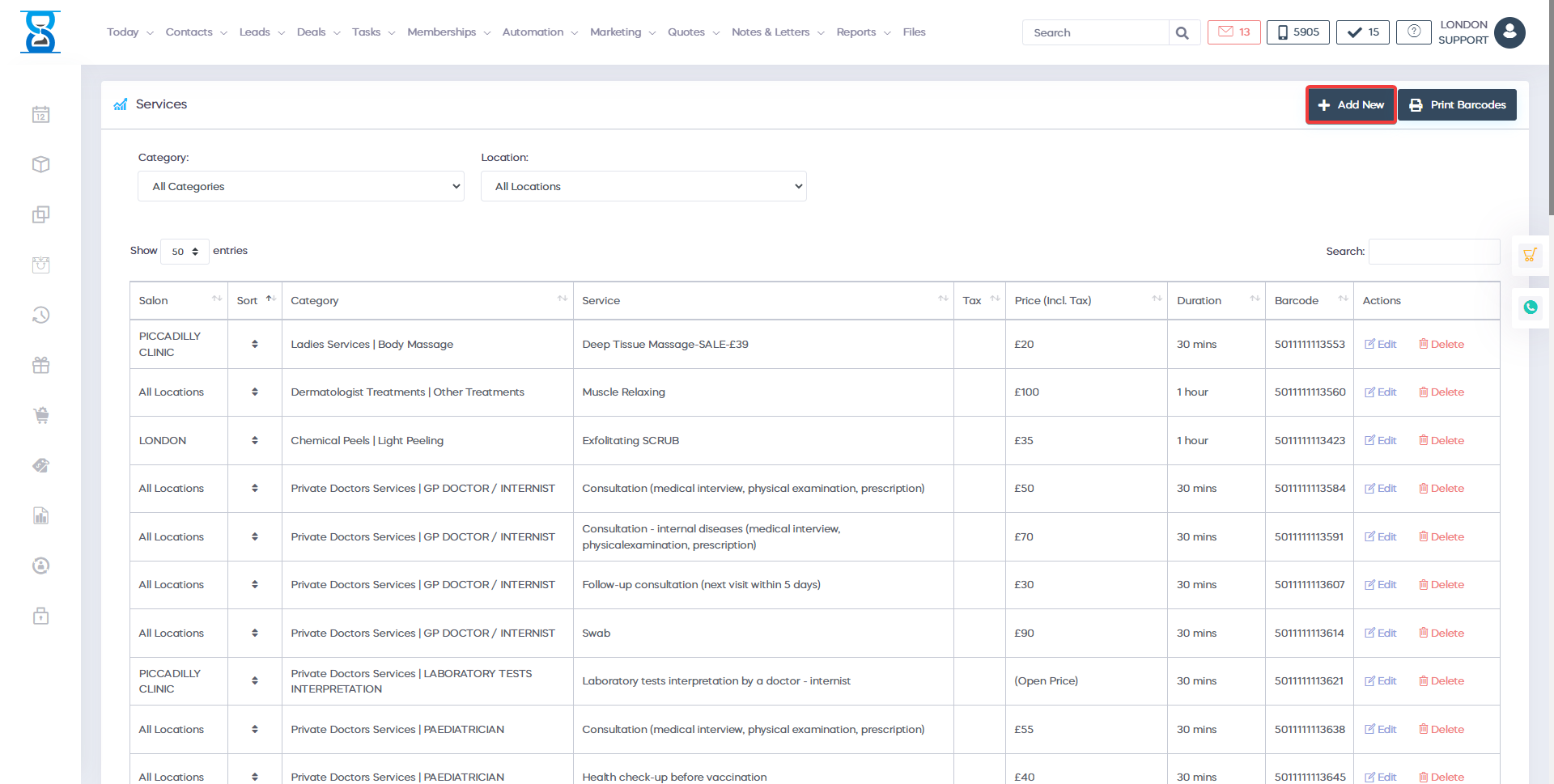
The services can be available at one or all locations.
To display the services available at one location, select the location from the top drop box.
Also, the services are organised in categories, to display only the services of a category, select the category from the top drop box.

The services are organised in categories, to display only the services of a category, select the category from the top drop box.
To filter the list/search for a service, use the “Filter List” field from the top section of the page.
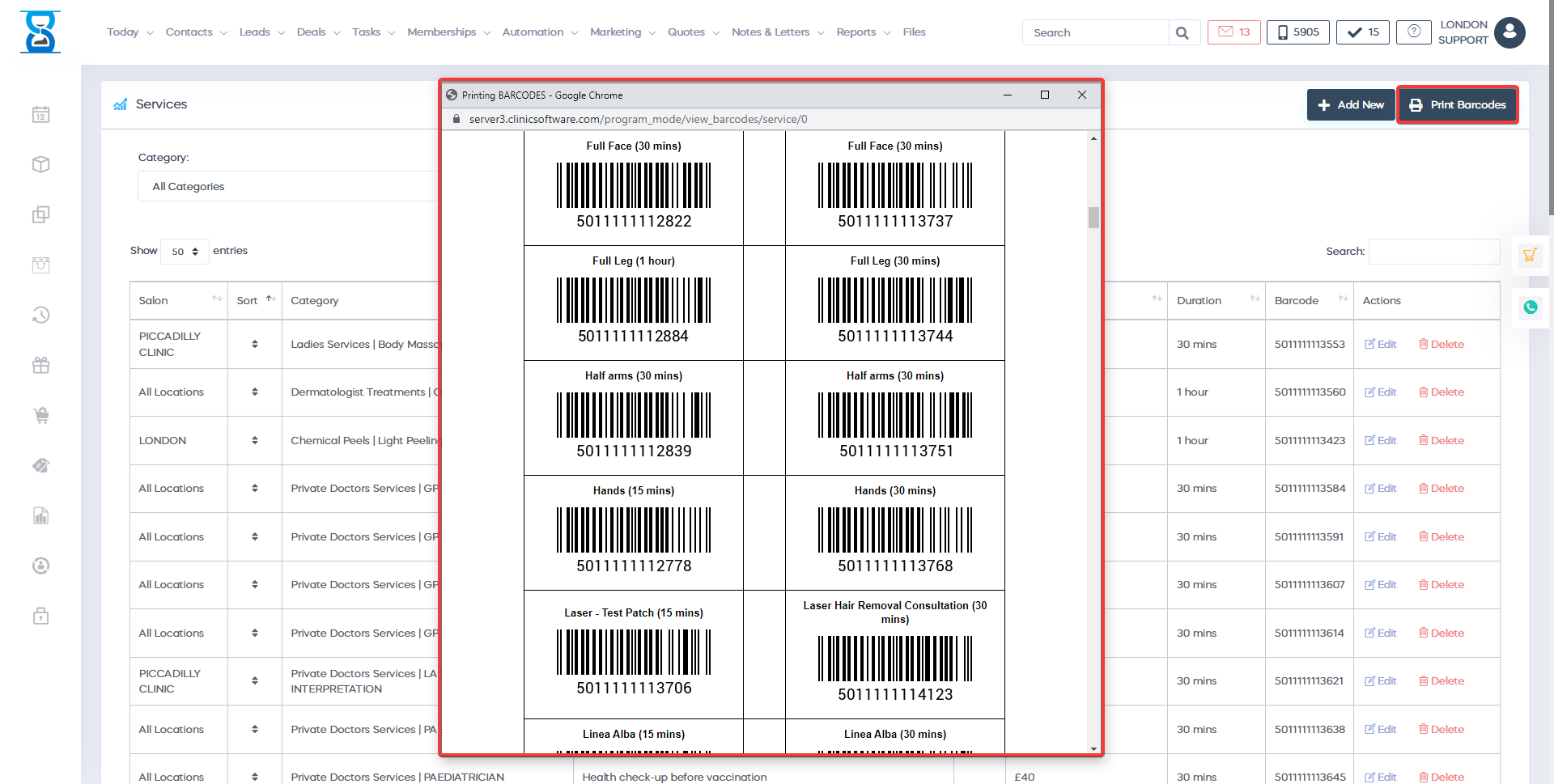
To print the barcodes list of the services, select the “Print Barcodes” button located in the top left section of the page.
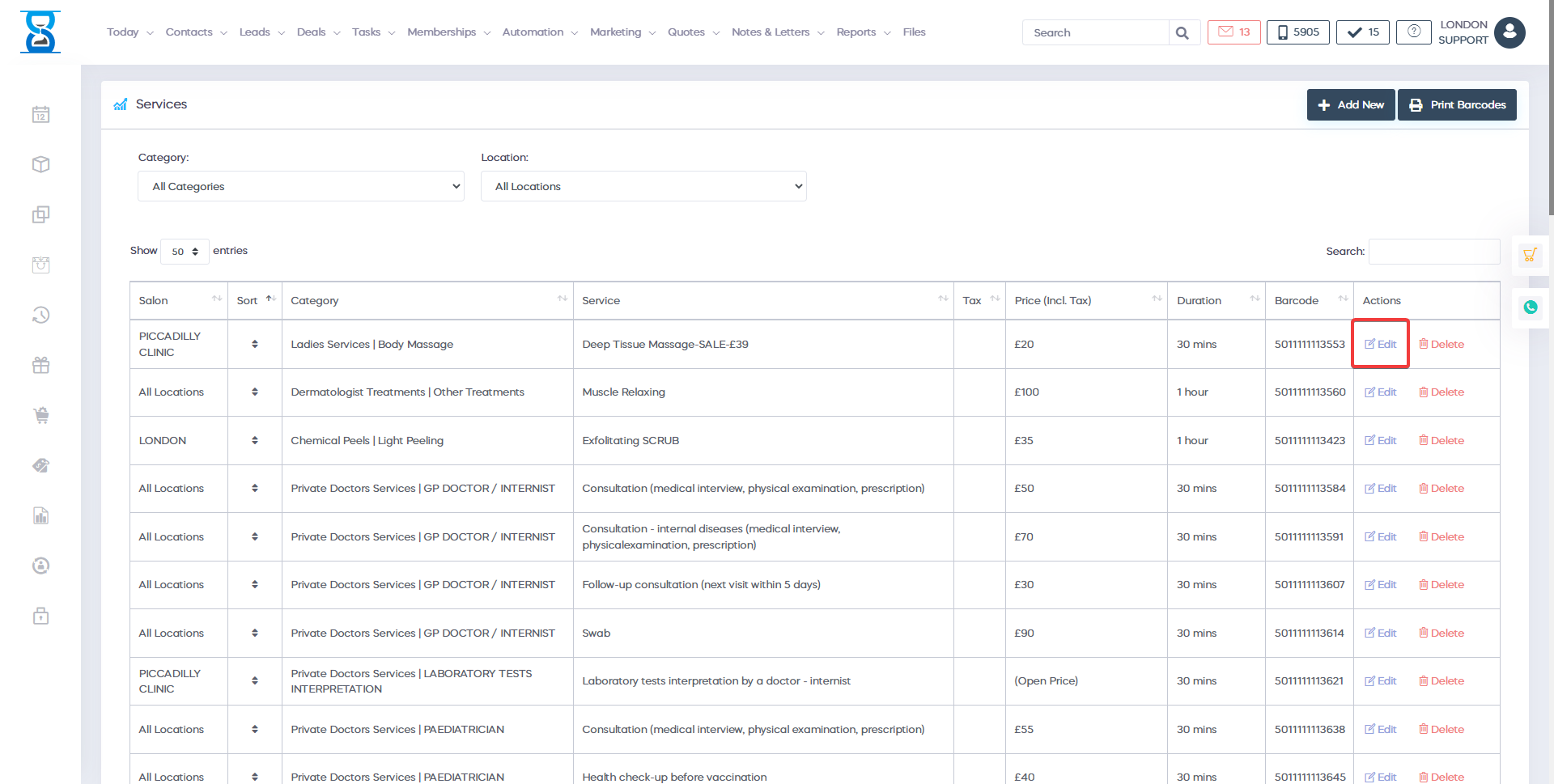
To edit or delete an existing service, use the “Edit” and “Delete” buttons of the service.
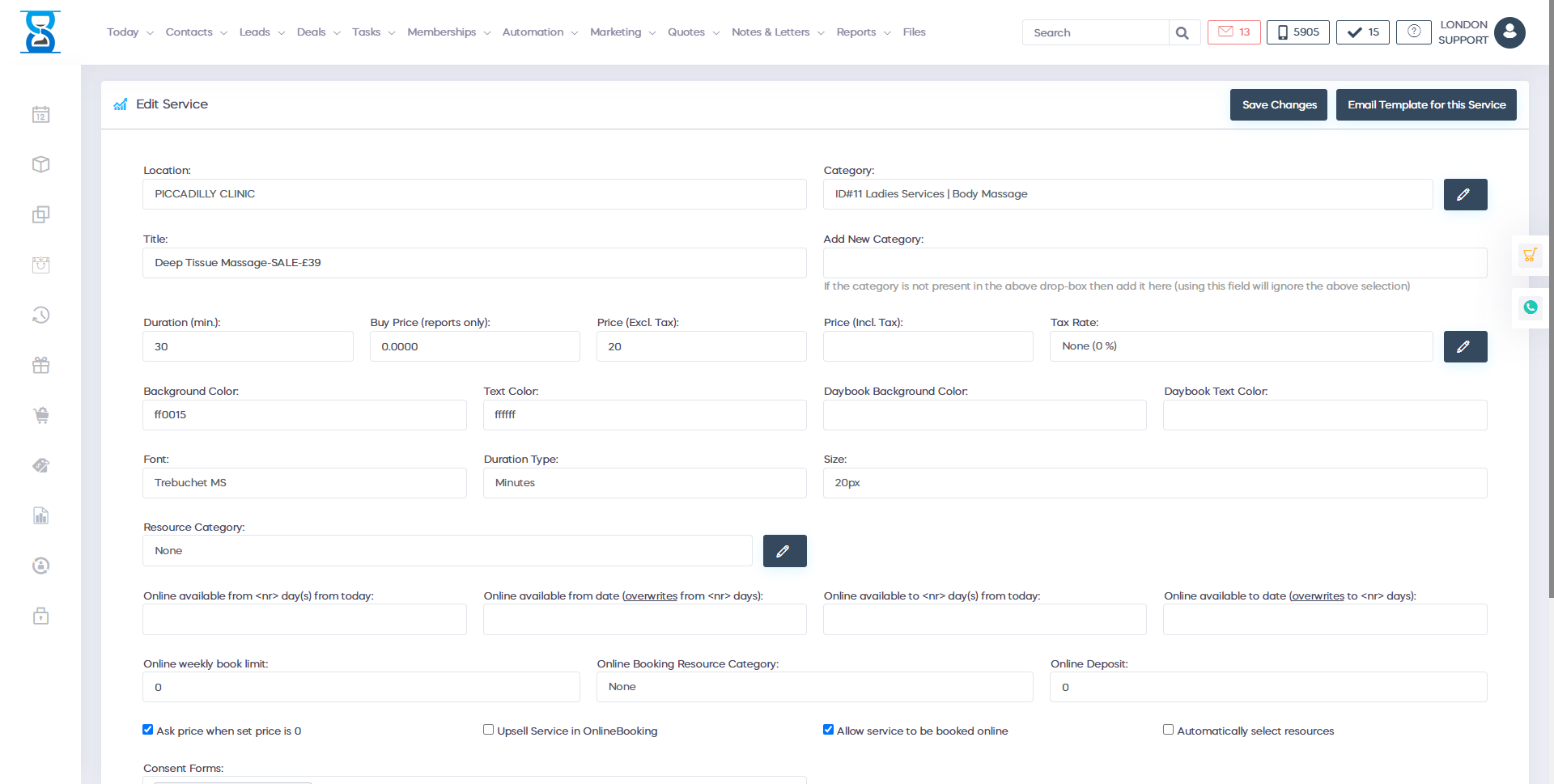
To add a new service, select the “Add New” button from the top left section of the page.
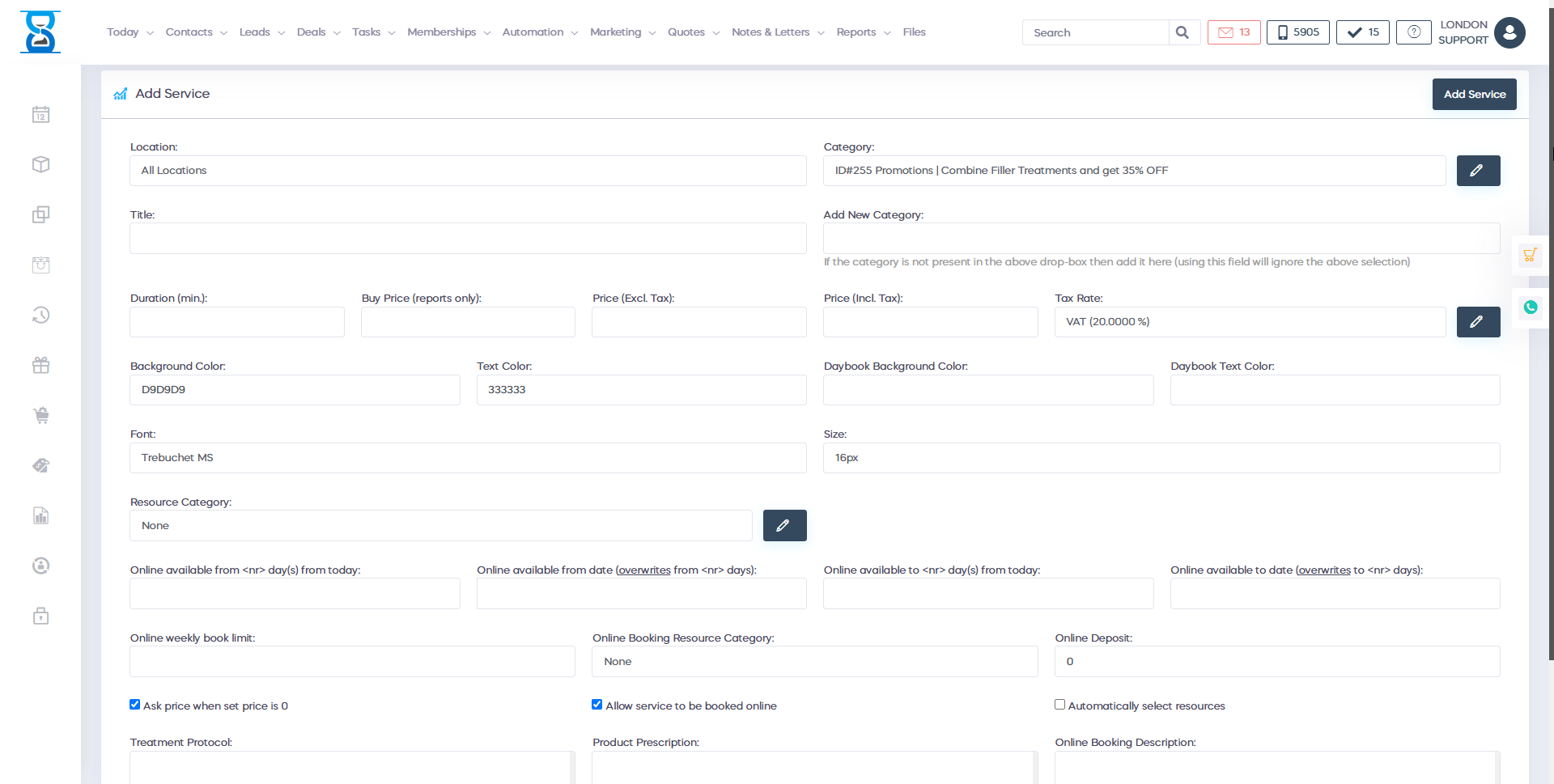
From the “Salon” drop box you can select the availability of the service.
E.g. if you wish to have the service displayed for all or only one location.
The categories can be configured in the Admin Area / “SERVICES CATEGORIES” page.
The “Resource category” drop box is used to specify what resources the service will need for the resources system.
From the “Allow service to be booked online” checkbox you can toggle the availability of the service for the online booking website.
The “Treatment Protocol” and “Product Prescription” fields are displayed in the appointment details window when pressing their corresponding buttons and also sent to the staff automatically if configured on client arrival.
The “Online Booking Description” field is used to display a description of the service under the service name in the online booking website.
Benefits for your clinic
- Save time: Reduces set-up friction so new staff can learn Services quickly and follow a consistent process from day one.
- Win clients and leads: A clear foundation helps your team capture enquiries correctly and avoid losing potential clients during onboarding.
- Generate revenue: Faster, more reliable day-to-day operation protects appointment capacity and reduces costly mistakes that delay billing.