Getting started & setup
Faq
In short
This guide explains Faq in the Getting started & setup area of ClinicSoftware. It provides a clear operational explanation of how the capability works, then outlines the practical benefits for saving staff time, converting clients and leads, and protecting clinic revenue.
On this page
Overview
This guide explains Faq in the Getting started & setup area of ClinicSoftware. It provides a clear operational explanation of how the capability works, then outlines the practical benefits for saving staff time, converting clients and leads, and protecting clinic revenue.
How it works
Faq - most popular questions
Question 1:
Could I please be shown how to amend template letters and get this set up to be sent automatically when appointments are booked?
Also, to get our ipads up and running as they are not saving any notes nor uploading photos?
Answer:
To make emails/SMS templates follow these links:
Https://central.ClinicSoftware/03-creating-email-template
Https://central.ClinicSoftware/04-creating-sms-template
To upload files follow the link:
Https://central.ClinicSoftware/files
To add notes follow the link:
Https://central.ClinicSoftware/clinic-notes
To do rejuvenation follow the link:
Https://central.ClinicSoftware/02-adding-a-new-rejuvenation-procedure
Question 2
How you can add header and footer to your letters?
Answer:
Please check inside the CRM into the ADMIN AREA -> CLINIC NOTES TEMPLATES, choose the note, select edit, then save. After that you will see the updated in the customer profile. You can see example below on the screenshot:


Question 3
How to use Inser/Edit images to add pictures to the clinic notes?
Answer:
Please see below my answer to your question. 1. You can add picture to the clinic note by pressing the button "Add" on bind files to the clinic note. 2. In the patient account->files page, you can select the "Add" button on "Add photos from your Mobile Device.". Then you can either scan the QR code with your phone and upload an image, or select the QR code and upload an image.
Please see also the pictures below


Question 4
How to do a report on the number of consultations booked
Answer:
Can you please check the report "Clients List Including Appointments Report". In this appointment, you can filter by "Date Booked" or "Booking Date". As you can see on the pictures below.


Question 5
A)How to email consent forms to clients?
B)How to send an consent form to the client to sign?
Answer:
A)In the Client Account->Consent Forms History->select the three dots and select the button Email Client.
B)If you want to send an consent form to the client to sign, you can select the template "Email Consent Form to Sign" and the form that you want to send. Also you can use the placeholder "{{consent_form_link}}". The email template can be edited from Admin->Marketing Emails. Please check the pictures below.


Question 6
How to turn on "Enable DayBook Email Notifications" for staff members to receive notifications?.
Answer:
You need to enable daybook email notifications for the staff members.
Go on admin area and search staff and select, there you will find"Enable DayBook Email Notifications" turn it on.
As you can see on the pictures below:


Question 7
How can I see all patient birthday for today, we want to give promotions as a birthday gift, sales department
Answer:
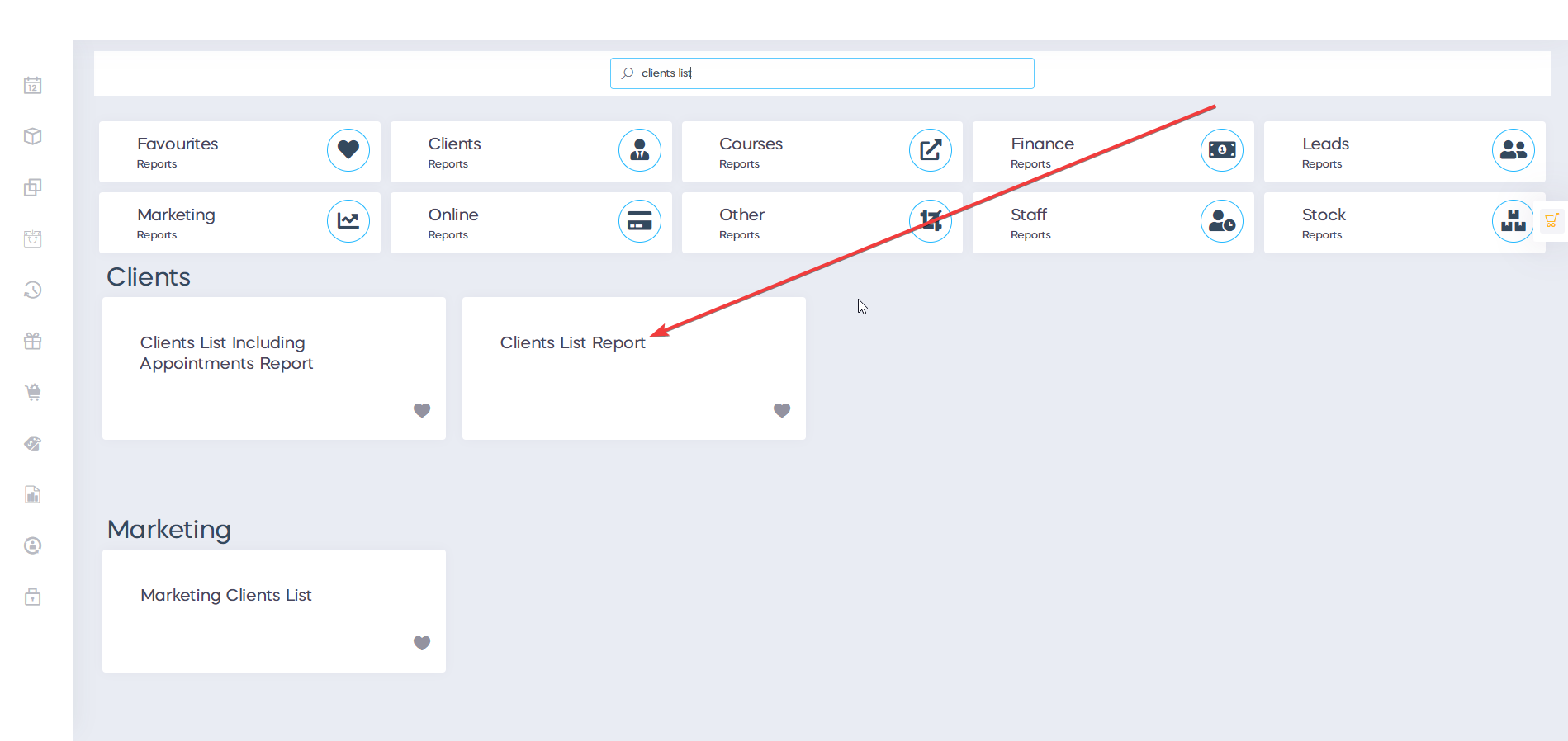
If you want a list with all the patients that have their birthday today, please check Admin->Reports->Clients List Report.
In there you can selected "Clients Born from" and "Clients Born To"
Also you can see an example in the pictures below:

Question 8
Where in audio function we can download the files at MP3 files?
Answer:
After you have played the audio, then you can download the audio.
As you can see in the pictures below.


Question 9
How to create a follow-up appointments very easily.
Answer:
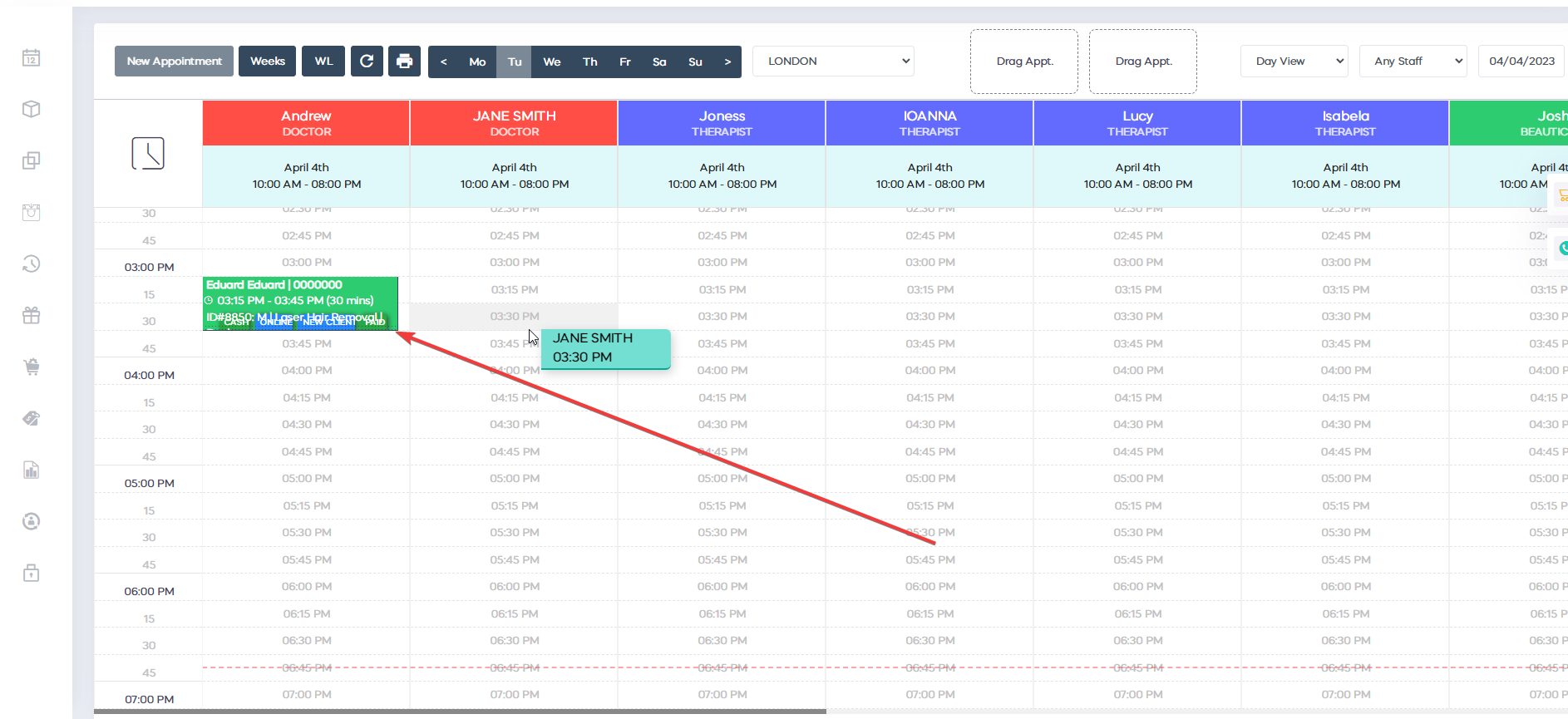
Please follow my instructions below.
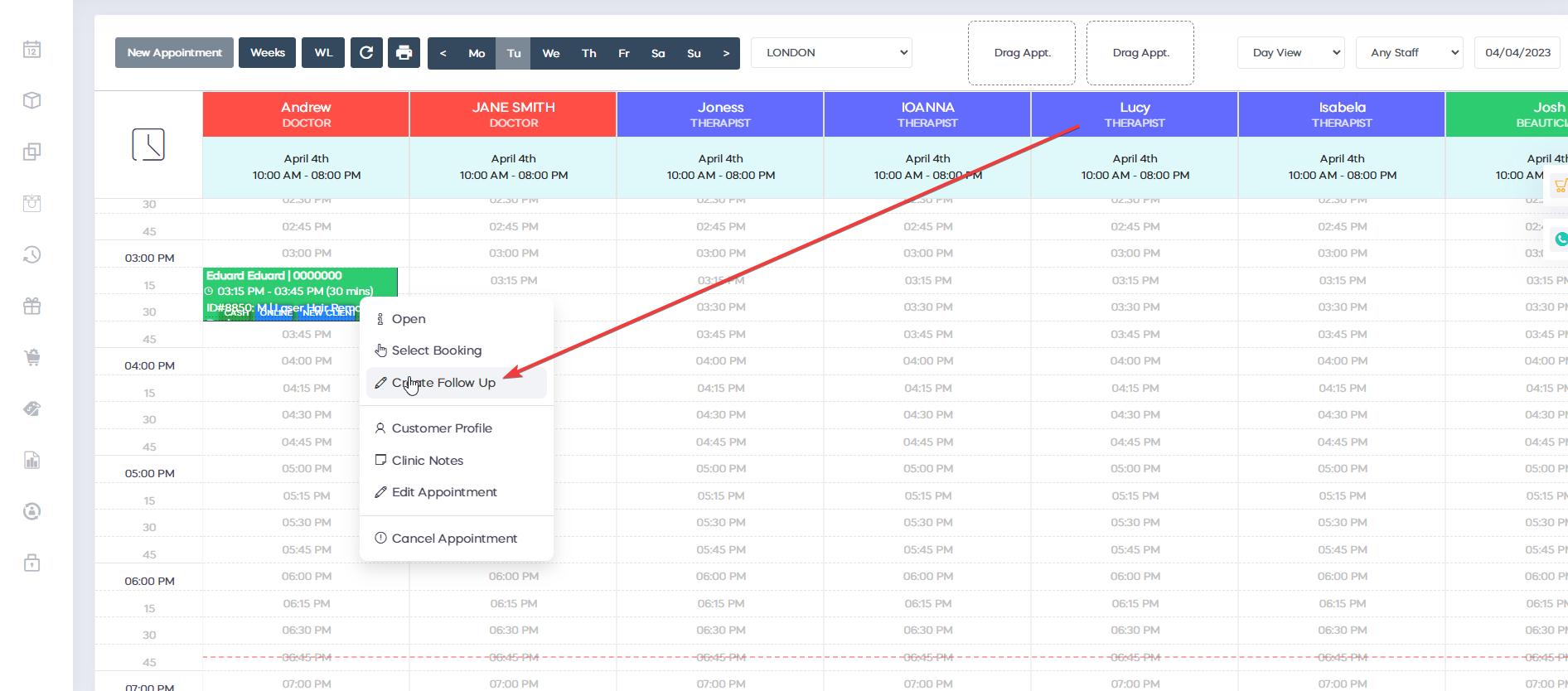
1. Right select the appointment
2. select the button "Follow-up appointment"
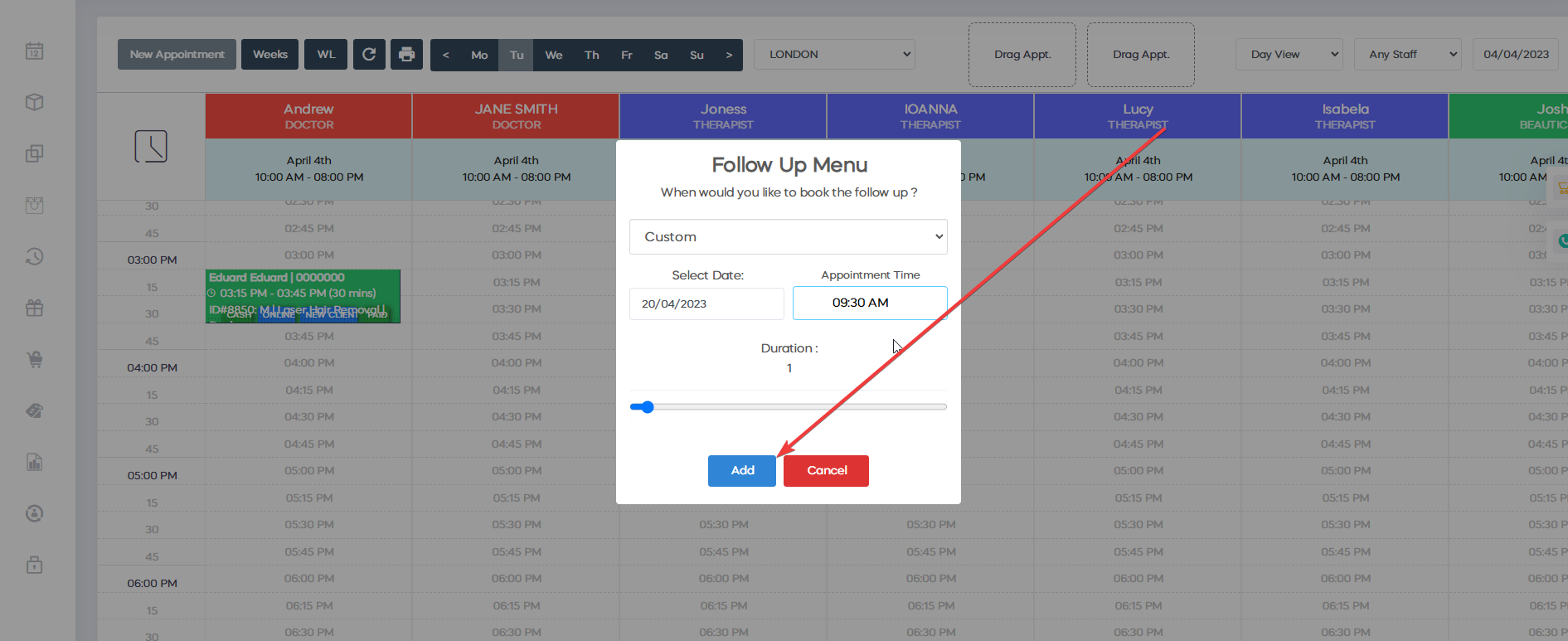
3. Select "Custom" as a recursive method
4. Select from when the new appointments to start, time of the appointments, and on how many weeks to make new appointments for.
5. select the button "Add" to create the follow-up appointments. Also you can seean example below in the picture

Question 10
How to collect a list of all of the clients subscribed to our newsletter on ClinicSoftware?
Answer:
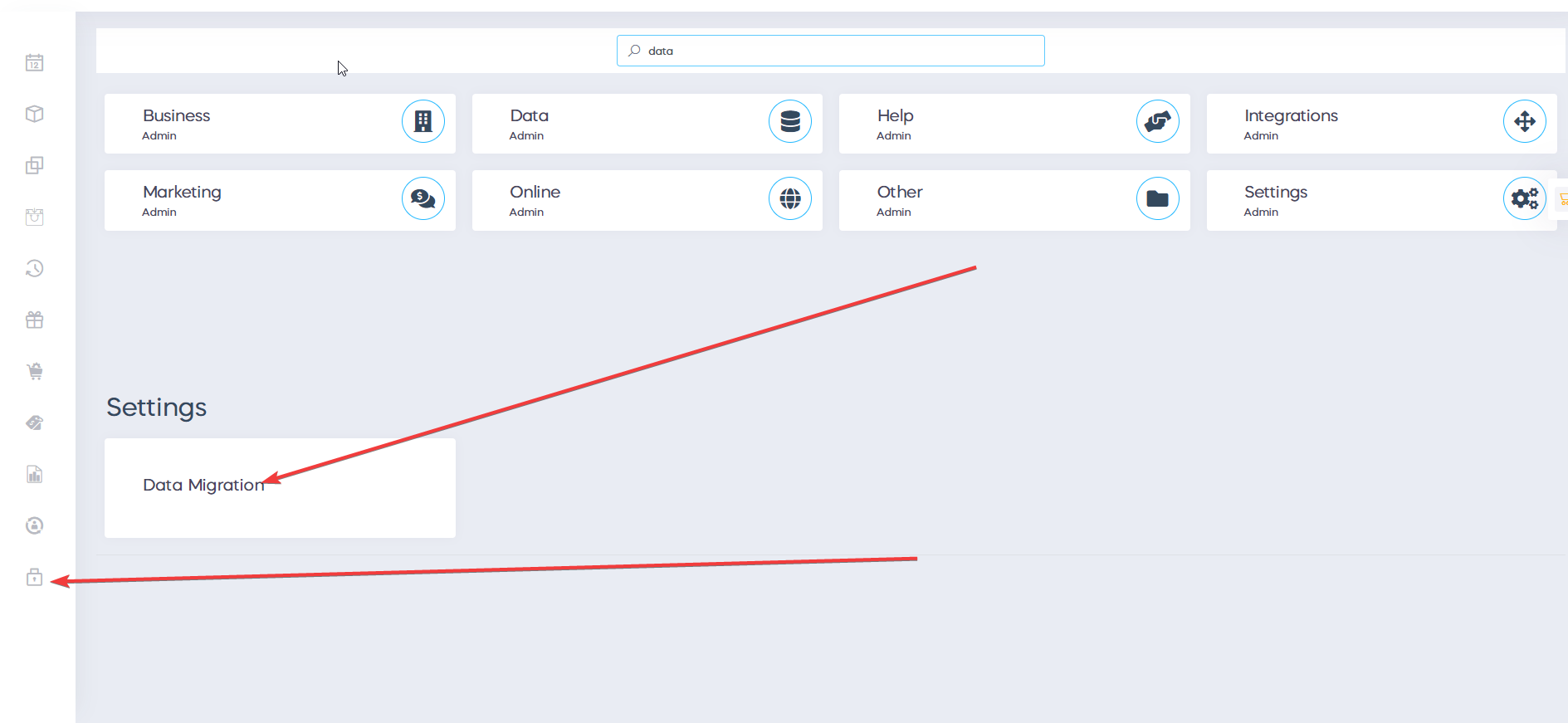
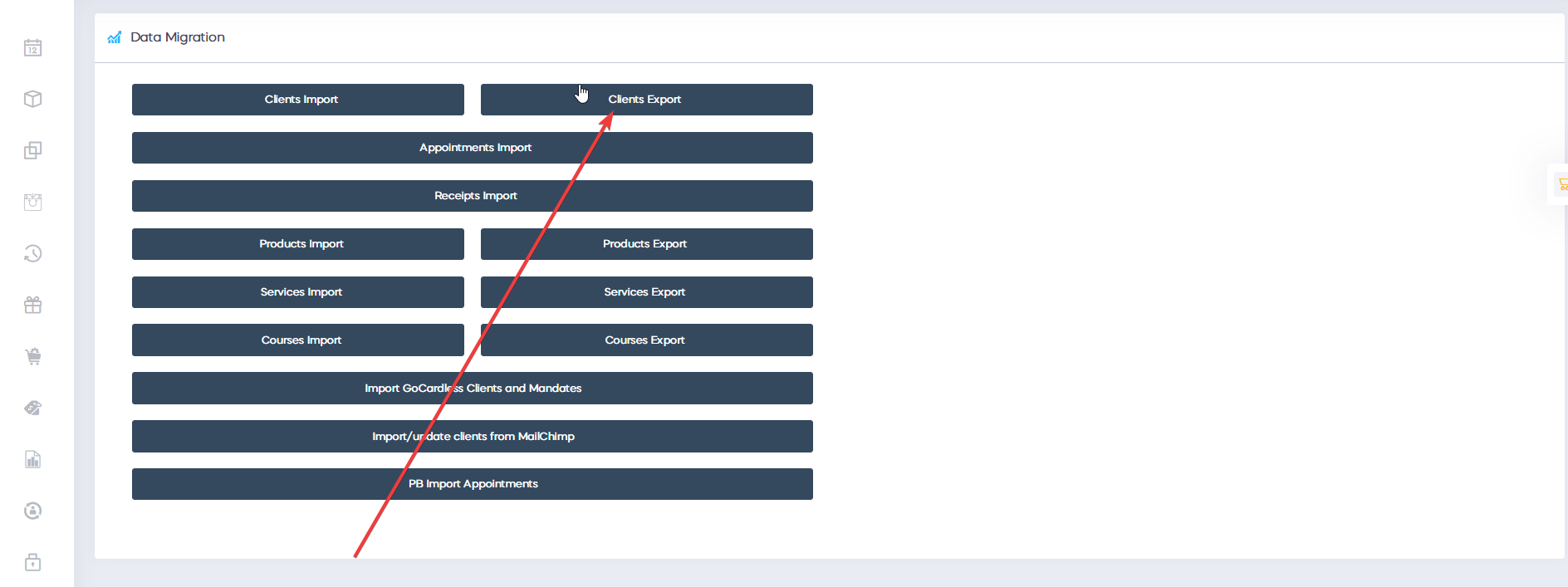
If you go in Admin->Data Migration->Clients Export.
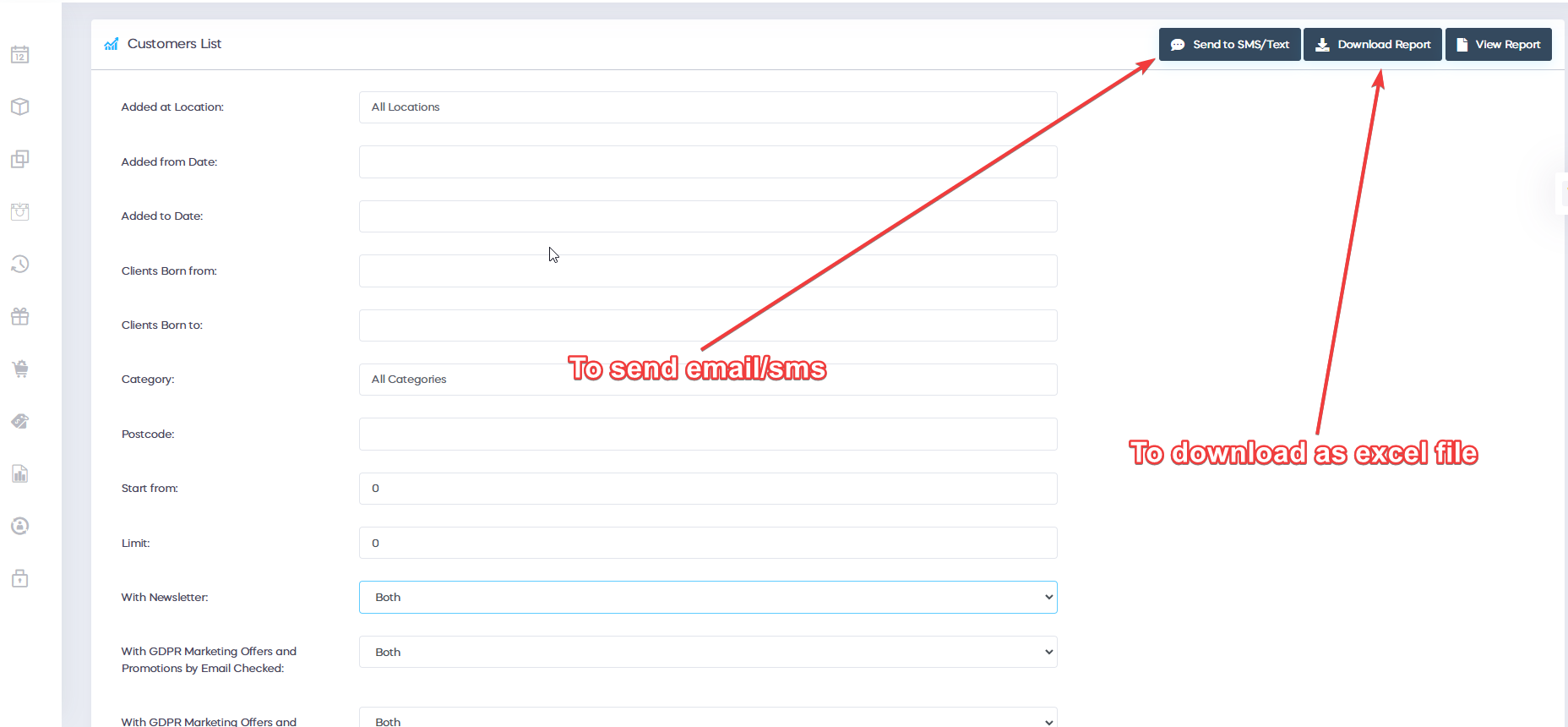
In there you can select all the clients that are subscribed to your newsletter and then you can select the button Download Report or Send to Sms/Text.
As you can see in the pictures below:

Benefits for your clinic
- Save time: Reduces set-up friction so new staff can learn Faq quickly and follow a consistent process from day one.
- Win clients and leads: A clear foundation helps your team capture enquiries correctly and avoid losing potential clients during onboarding.
- Generate revenue: Faster, more reliable day-to-day operation protects appointment capacity and reduces costly mistakes that delay billing.