
Team, rotas & tasks
Access control lists
In short
This guide explains Access control lists in the Team, rotas & tasks area of ClinicSoftware. It provides a clear operational explanation of how the capability works, then outlines the practical benefits for saving staff time, converting clients and leads, and protecting clinic revenue.
On this page
Overview
This guide explains Access control lists in the Team, rotas & tasks area of ClinicSoftware. It provides a clear operational explanation of how the capability works, then outlines the practical benefits for saving staff time, converting clients and leads, and protecting clinic revenue.
How it works
Each time when you add a new service or course, you must give the permission to at least one staff member to perform that treatment.
This setting is mandatory If you want to enable the services or courses for booking.
To do this access the "Access Control Lists" Page from the admin area, select the services button of the staff, tick the checkbox of the service to allow the service to be booked for the selected staff and then press save.
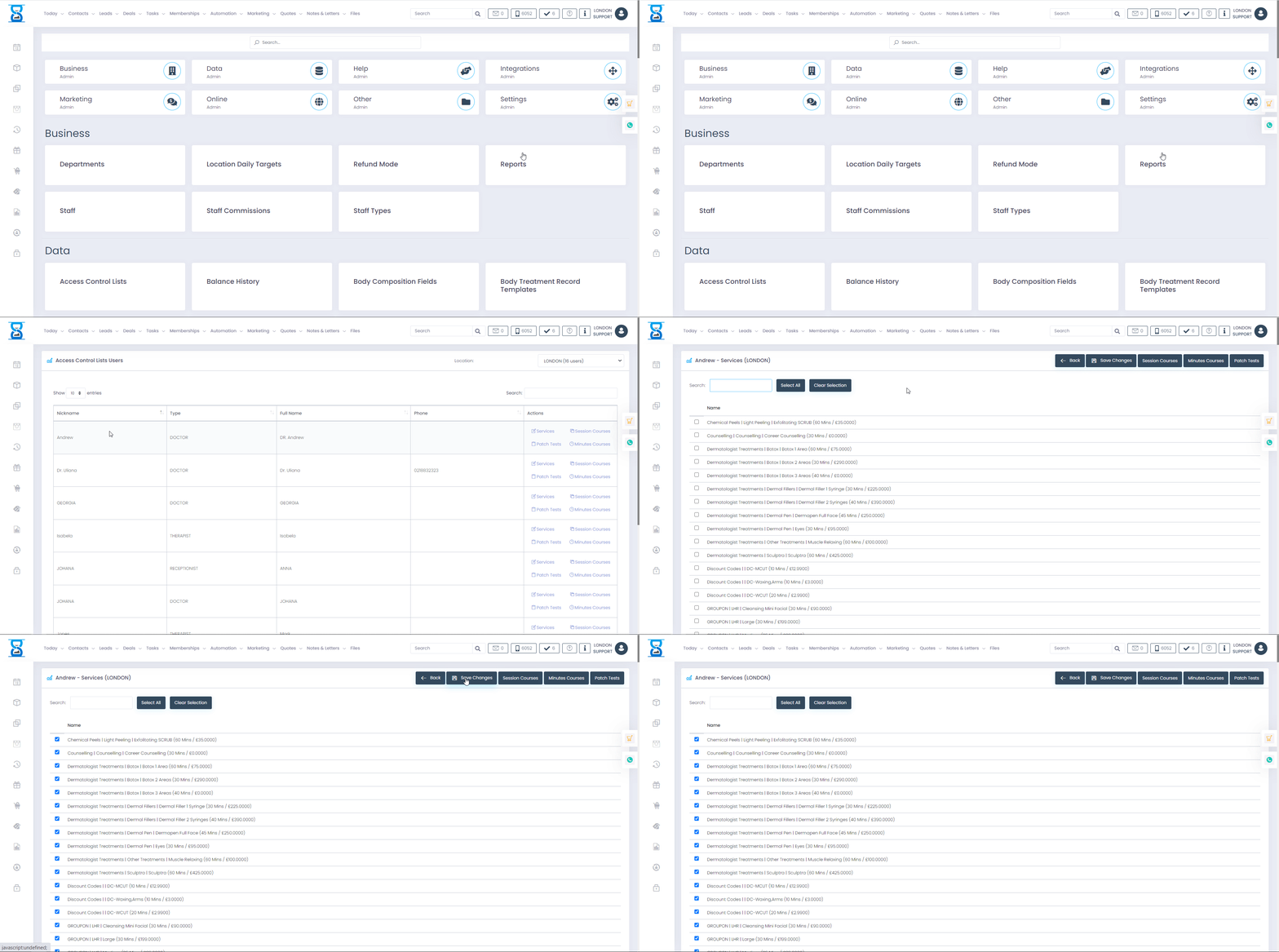
To view or change the session courses or the minutes courses a staff member can provide, use the “Session Courses” and “Minutes Courses” buttons respectively.
Each service or course you sell is recorded against the client record so you can see the history for every client and track which services are the most popular using your clinic management reports.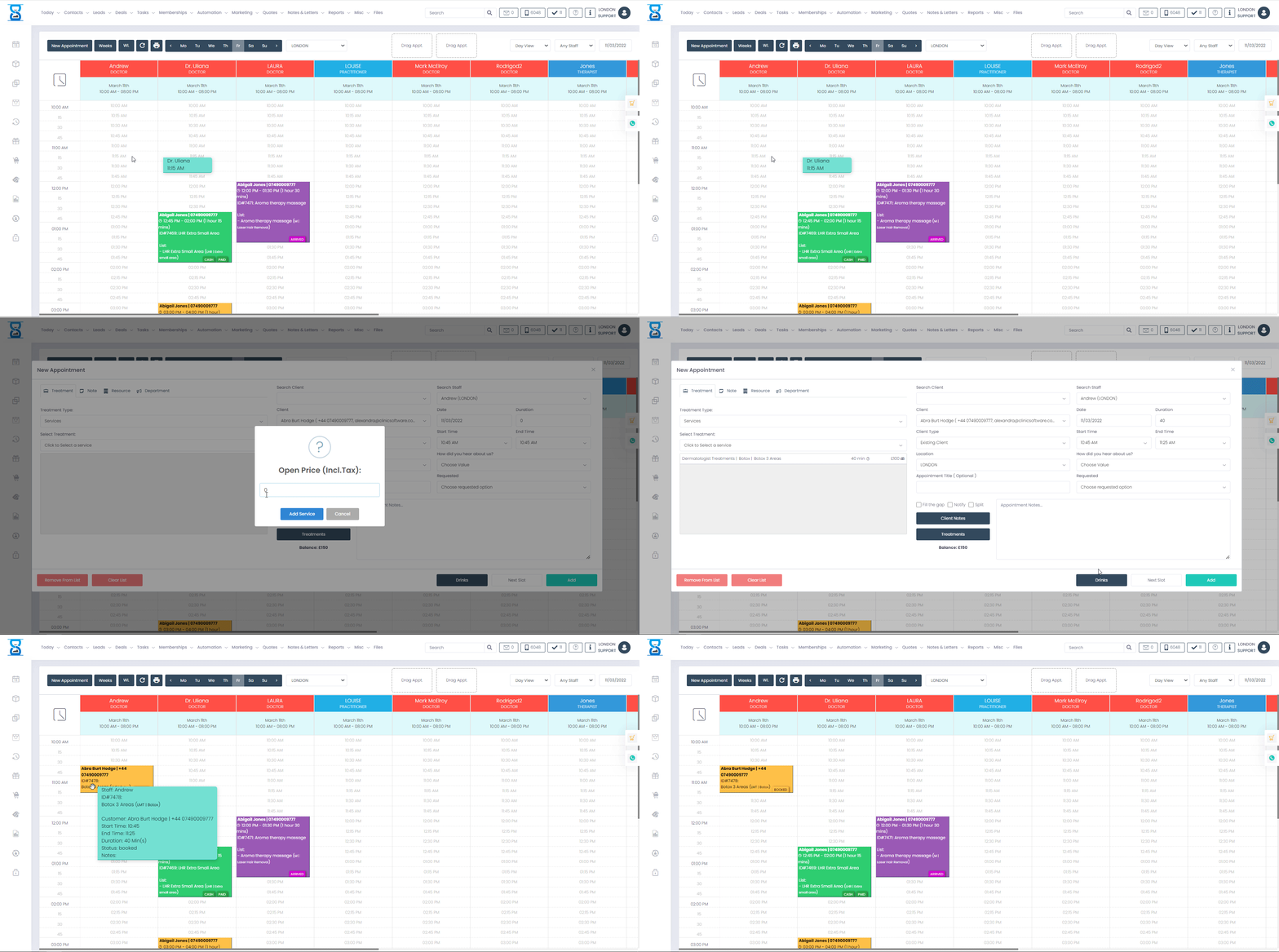
From this page you can specify what services and courses a staff member can perform.
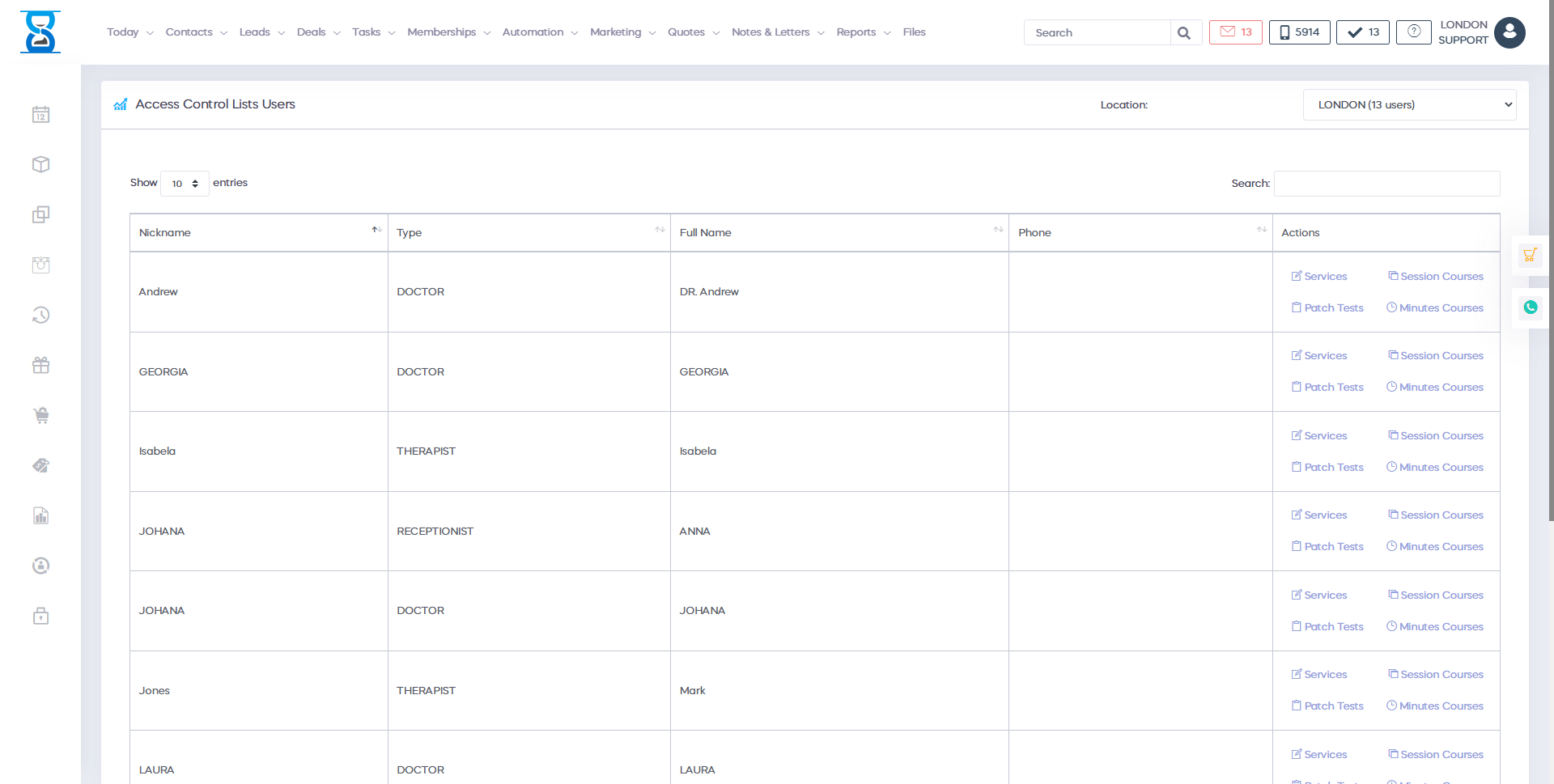
The page by default displays the staff list for the currently logged in location.
To change the location from which the staff will be displayed, select the “Location / Salon” drop box and select the location:

To view or change the services a staff member can provide, select the staff’s “Services” button.

To view or change the session courses or the minutes courses a staff member can provide, use the “Session Courses” and “Minutes Courses” buttons respectively.
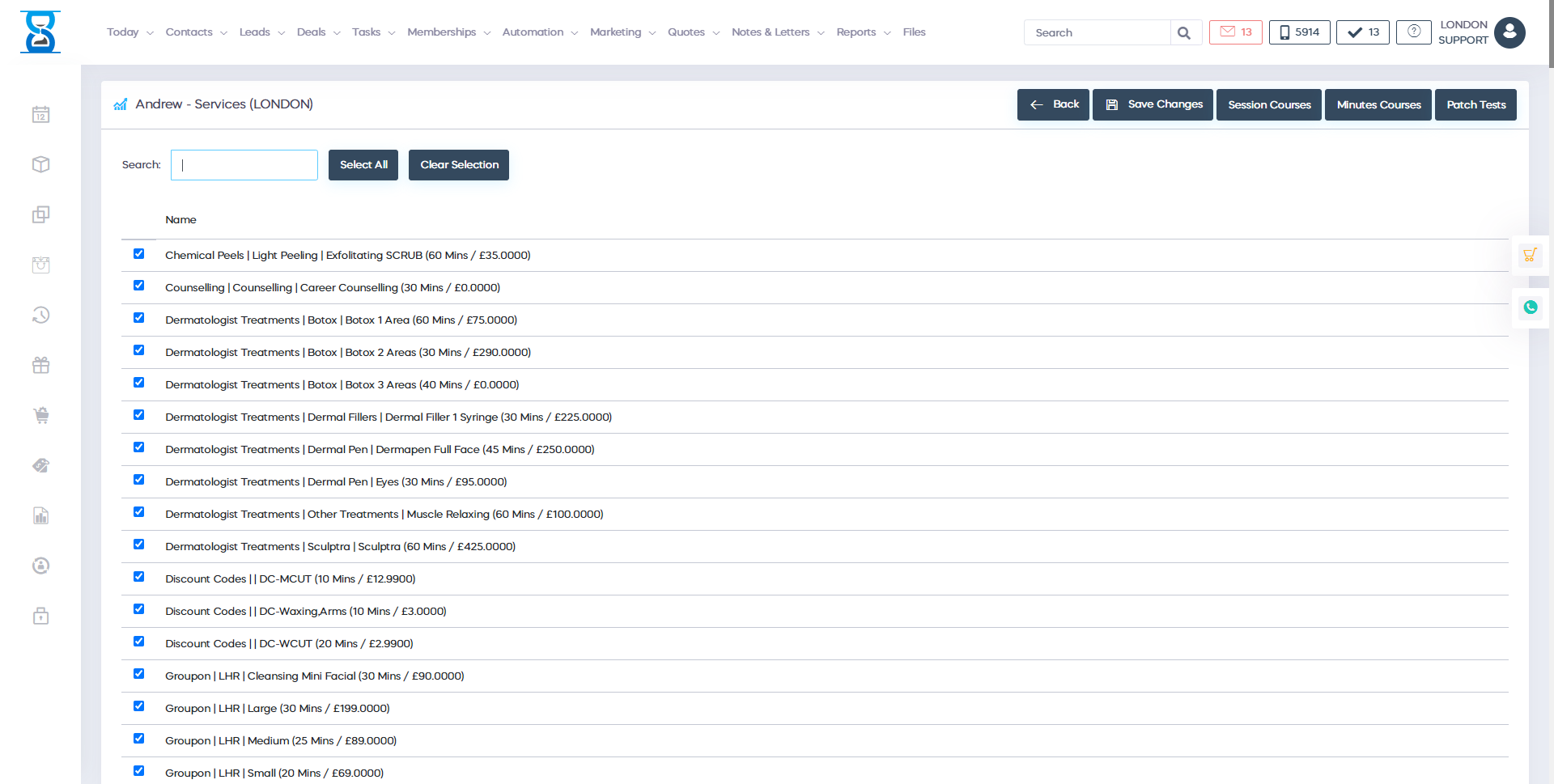
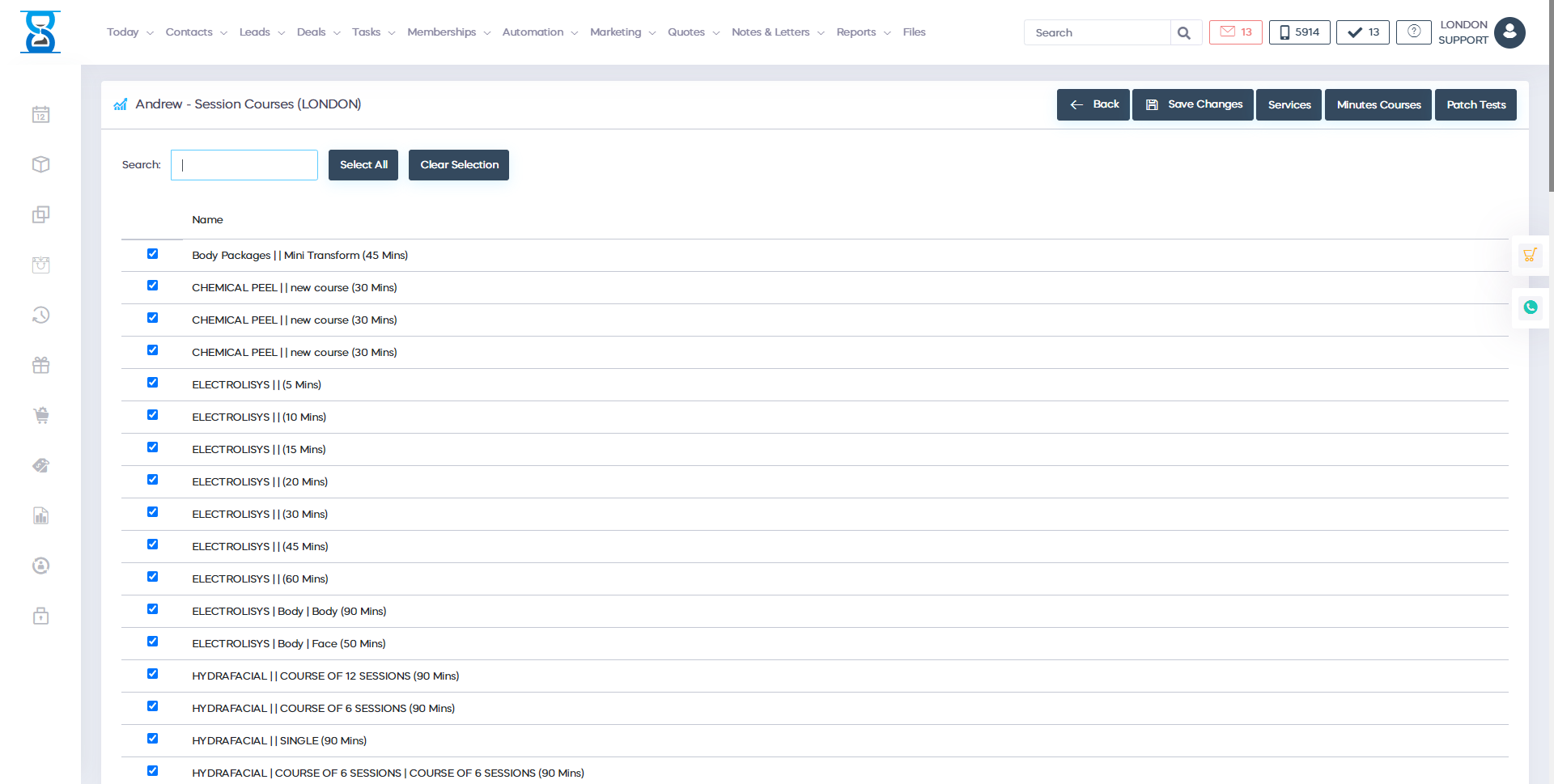
To allow the selected staff to perform a service from the list, tick the checkbox that corresponds to the service that you wish to enable:

Checked = enabled
Unchecked = disabled
To check/uncheck all services from the list, select the “Clear Selection” button:
To save the changes, select the “Save Changes” button from the bottom of the page.

To go back to the selected location’s staff list, select the “Back” button.

You can also access the allowed “Session Courses” and “Minutes Courses” from this page so that you don’t have to go back to the staff list and select the “Session Courses” button.

The functionality for “Session Courses” and “Minutes Courses” is the same as for the “Services” list.
Benefits for your clinic
- Save time: Standardises secure access for Access control lists, reducing time spent recovering accounts or resolving permission issues.
- Win clients and leads: Clients and staff trust a securely run clinic, which supports confidence during onboarding and ongoing care.
- Generate revenue: Stronger access control reduces operational risk and protects the business systems that generate and record clinic income.