
Team, rotas & tasks
Staff commissions
In short
This guide explains Staff commissions in the Team, rotas & tasks area of ClinicSoftware. It provides a clear operational explanation of how the capability works, then outlines the practical benefits for saving staff time, converting clients and leads, and protecting clinic revenue.
On this page
Overview
This guide explains Staff commissions in the Team, rotas & tasks area of ClinicSoftware. It provides a clear operational explanation of how the capability works, then outlines the practical benefits for saving staff time, converting clients and leads, and protecting clinic revenue.
How it works
From this page you can set up the commissions of services, courses, products and patch tests for each individual staff.
Open the "Commission Staff" Page from the admin area, then select the staff name from the left column.
In the right column we can set the commission percentage for each treatment or product.
Type the commission into each treatment/product’s commission input and then select the “Save changes” Button from the top right section.
You can also type the commission in the category input and all of its items will copy its value.
You can also select multiple items at once by holding the “Ctrl” Key and clicking on the items or by dragging a selection box with the mouse.
Select multiple items by holding down the “Ctrl” key.
Once you have selected the items, use the “Mass commission” field to apply the commission value to the selected items.
Save the commission settings by pressing the “Save changes” button.
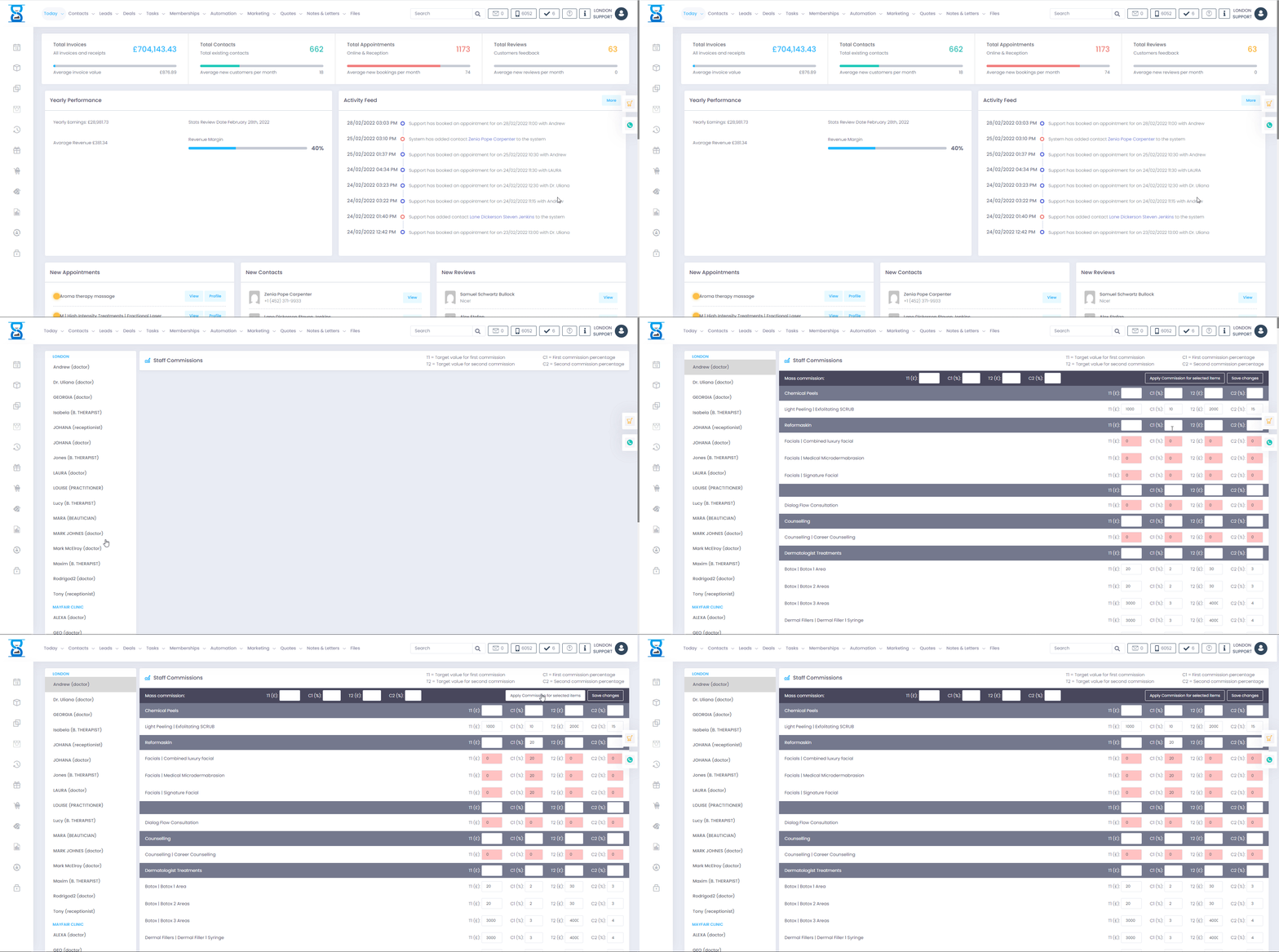
Save time – no longer will you need to spend lengthy hours working out what commission your staff have earned, let ClinicSoftware do the hard work for you!
The entries are used in the “Commissions Sheets” report When the “Commission Settings” parameter is set to “Staff Commissions”.
ClinicSoftware additionally makes it easy for your staff to view how well they are performing and can be used as a motivational tool also!
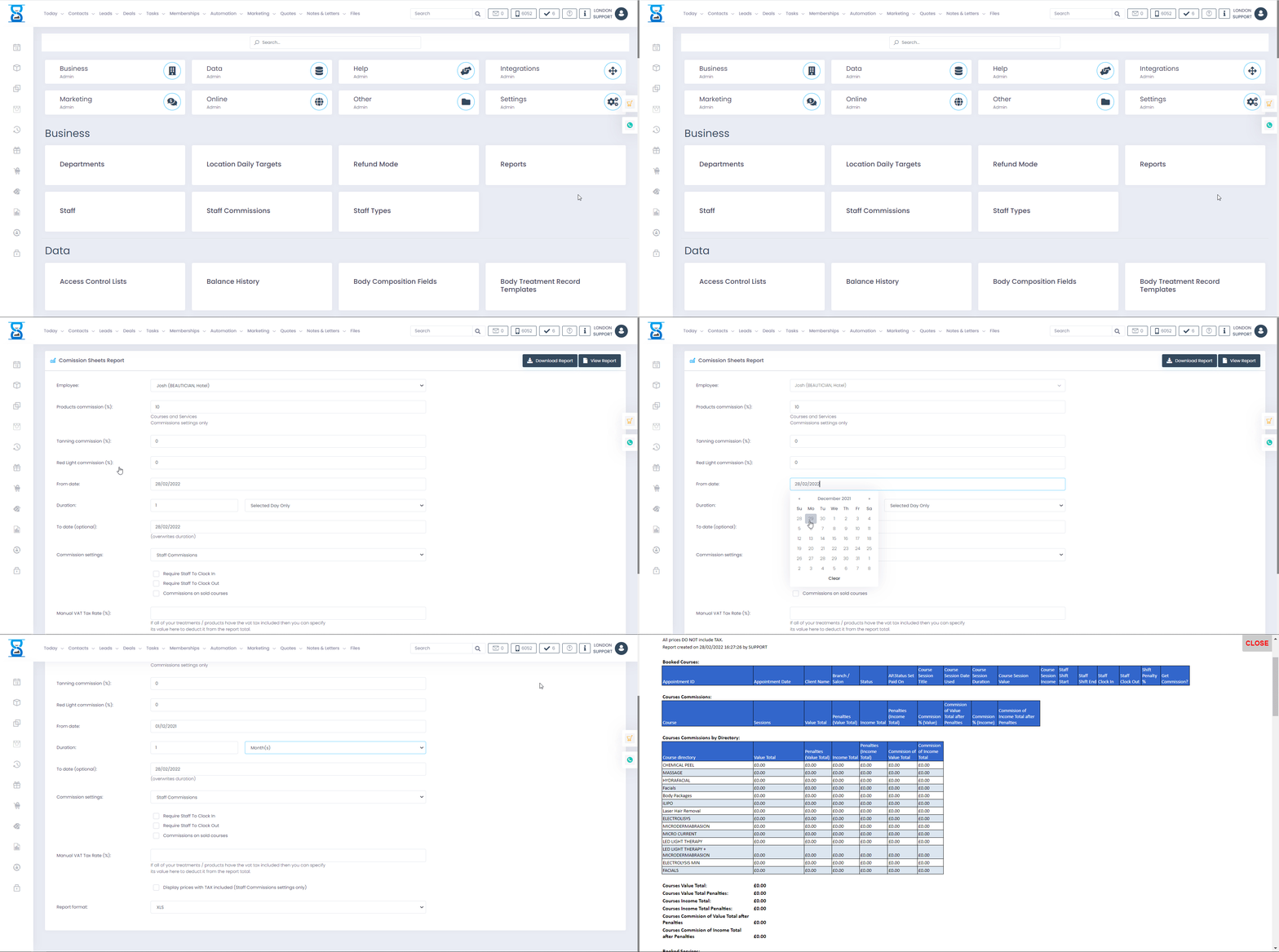
From this page you can set up the commissions of services, courses, products and patch tests for each individual staff.
The entries are used in the “Commissions Sheets” report when the “Commission Settings” parameter is set to “Staff Commissions”.
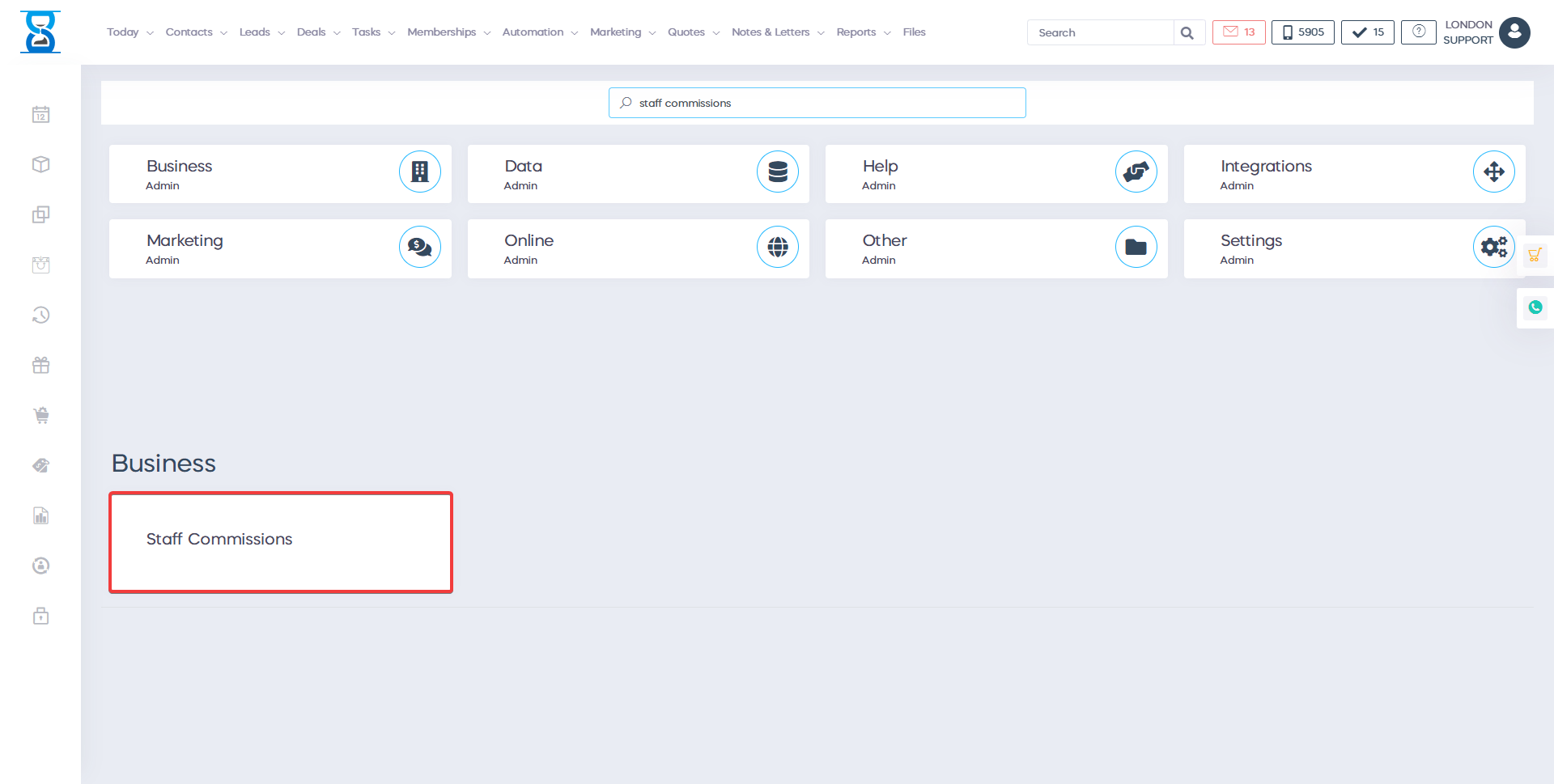
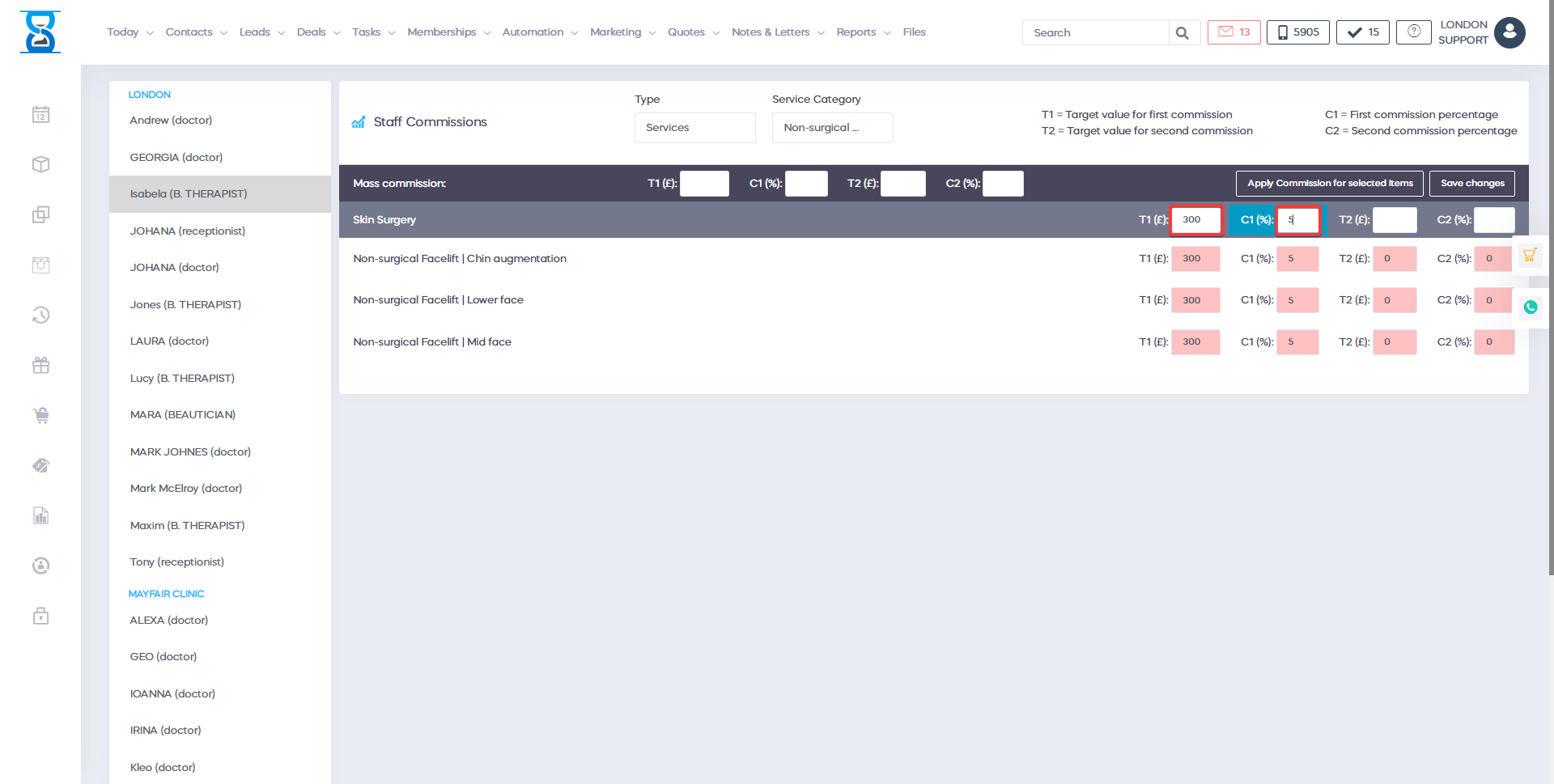
The commissions are set for each staff individually.
To select the staff, select the staff name from the left column.
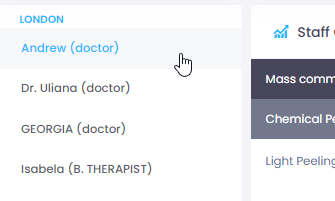
In the right column we can set the commission percentage for each treatment or product.
Type the commission into each treatment/product’s commission input (scroll down to see all the list) and then select the “Save changes” button from the top right section.

You can also type the commission in the category input and all of its items will copy its value.
You can also select multiple items at once by holding the “Ctrl” key and clicking on the items or by dragging a selection box with the mouse.
Select multiple items by holding down the “Ctrl” key.
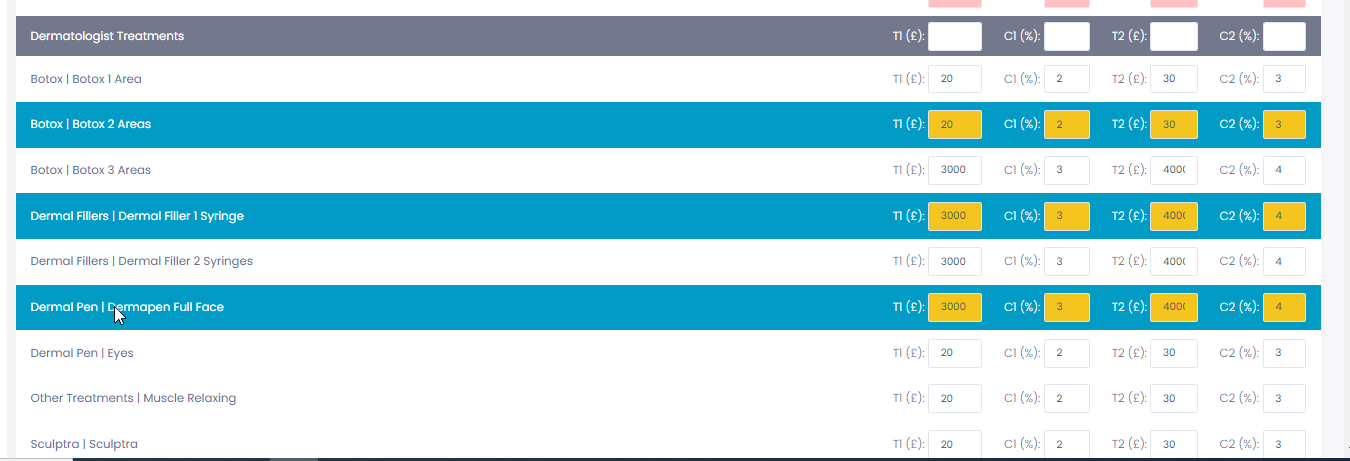
Select multiple items by dragging (hold left select and move cursor) a selection box with the mouse
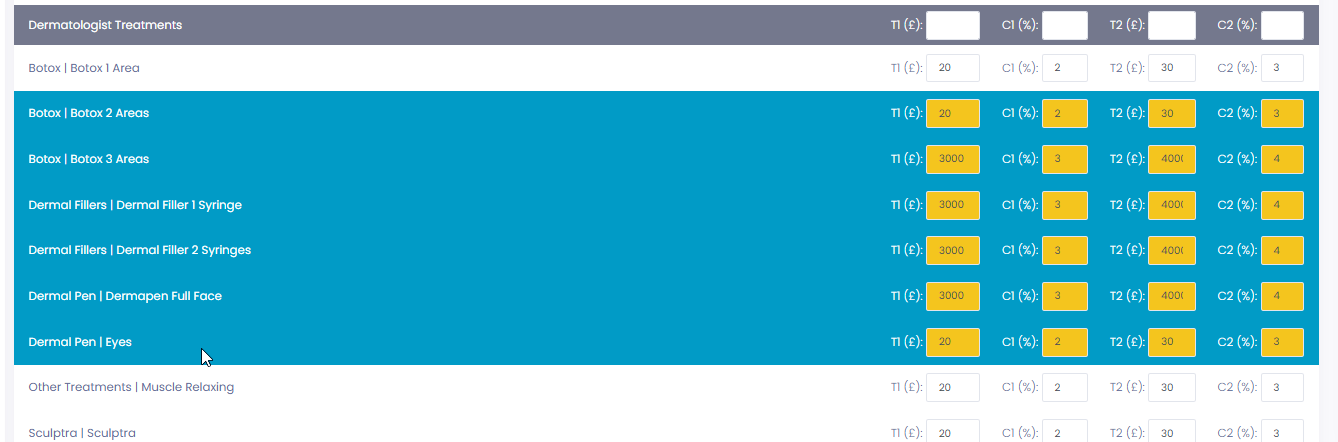
Once you have selected the items, use the “Mass commission” field to apply the commission value to the selected items.
Save the commission settings by pressing the “Save changes” button.

Benefits for your clinic
- Save time: Coordinates staff availability, permissions and internal tasks so managers spend less time chasing updates and resolving clashes.
- Win clients and leads: A well-organised team responds to client needs faster, which improves first impressions and conversion at the front desk.
- Generate revenue: Clear rotas and accountability protect service capacity and reduce cancelled or delayed appointments caused by staffing gaps.