
Team, rotas & tasks
Creating a task
In short
This guide explains creating a task in the Team, rotas & tasks area of ClinicSoftware. It provides a clear operational explanation of how the capability works, then outlines the practical benefits for saving staff time, converting clients and leads, and protecting clinic revenue.
On this page
Overview
This guide explains creating a task in the Team, rotas & tasks area of ClinicSoftware. It provides a clear operational explanation of how the capability works, then outlines the practical benefits for saving staff time, converting clients and leads, and protecting clinic revenue.
How it works
To create a new task, you will need to access the "Tasks" feature by clicking on this button:

Once you have pressed on the "Tasks" button this menu will open up:
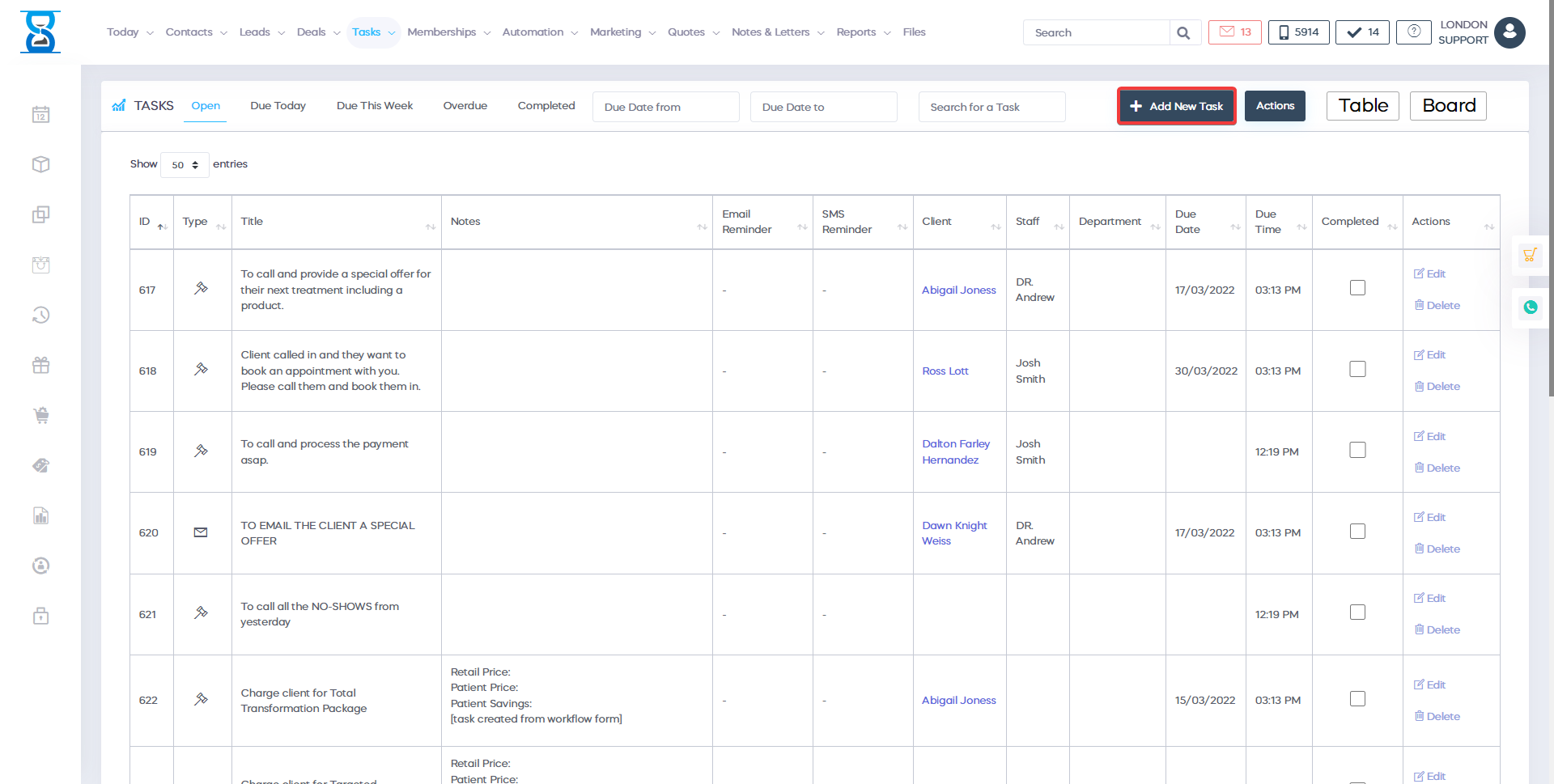
From there select the green button labelled "Add New Task" to add a new task:

Once you have pressed the "Add New Task" button you should be greeted by this menu:
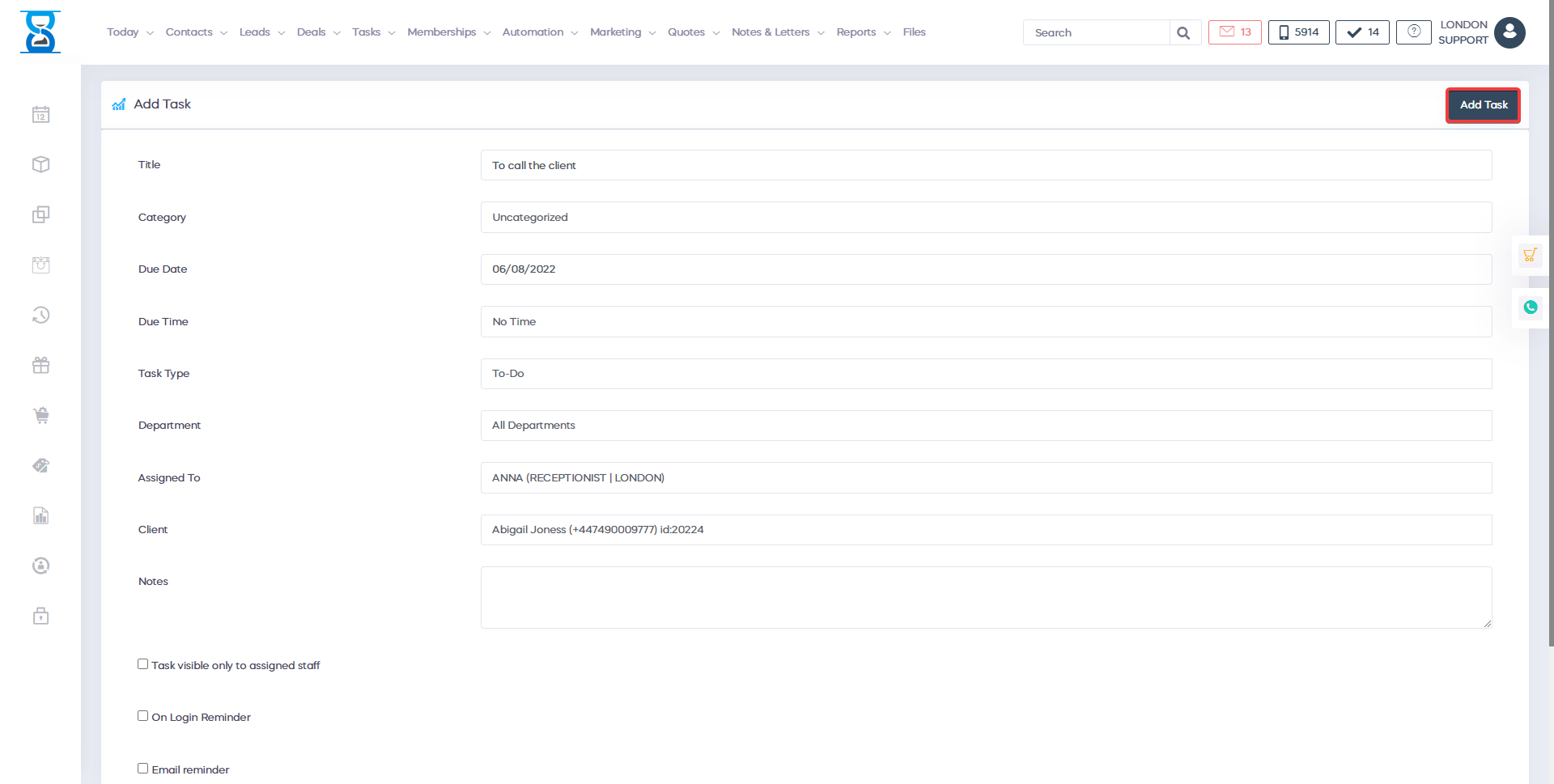
Fill in those fields accordingly:
- Title: Enter the name of the task.
- Due Date: Select the due date of the task.
- Due Time: Select the due time of the task.
- Task Type: Select the type of task from the drop-down menu.
- Assigned to: Tasks can be assigned to different members of staff or they can have no assignment. By default, tasks are no assigned to members of staff, however to assign a task to a member of staff, select the field and from there you have a drop-down menu as well as a search bar where you can search for the person that you want to assign the task to.
- Client: Tasks can be created for clients. Select the client for which the task needs to be completed by clicking on the field and searching for the client.
- Notes (Optional): In here you can add any additional notes that you have regarding the task.
Once you have completed the fields, at the bottom you have 3 different check-boxes. Ticking the first check box will make the task visible only to the member of staff that the task has been assigned to. You can tick the other 2 check boxes if you'd like for the member of staff to receive SMS/Email reminder about their task. Please note that if you tick either "Email reminder" or "SMS reminder", a new field will appear where you can set the time when you would like to receive the reminder.
Here is an example of a completed task: 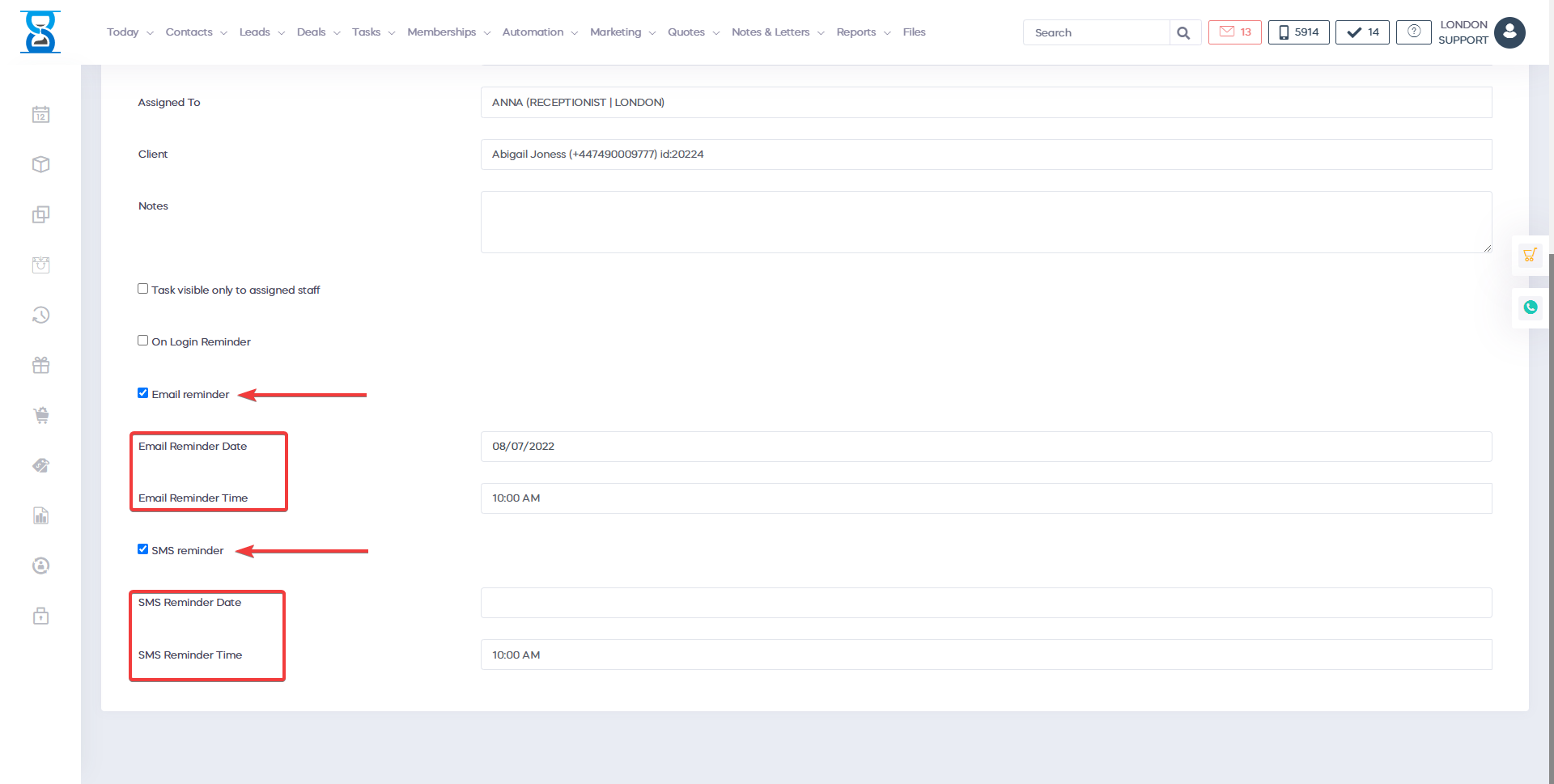
To add the task, simply select the button labelled "Add Task".

Benefits for your clinic
- Save time: Coordinates staff availability, permissions and internal tasks so managers spend less time chasing updates and resolving clashes.
- Win clients and leads: A well-organised team responds to client needs faster, which improves first impressions and conversion at the front desk.
- Generate revenue: Clear rotas and accountability protect service capacity and reduce cancelled or delayed appointments caused by staffing gaps.