Getting started & setup
Sending emails
In short
This guide explains sending emails in the Getting started & setup area of ClinicSoftware. It provides a clear operational explanation of how the capability works, then outlines the practical benefits for saving staff time, converting clients and leads, and protecting clinic revenue.
On this page
Overview
This guide explains sending emails in the Getting started & setup area of ClinicSoftware. It provides a clear operational explanation of how the capability works, then outlines the practical benefits for saving staff time, converting clients and leads, and protecting clinic revenue.
How it works
To send an email to your client you need to create a template first.
To create an email template search in admin area “Marketing emails”.
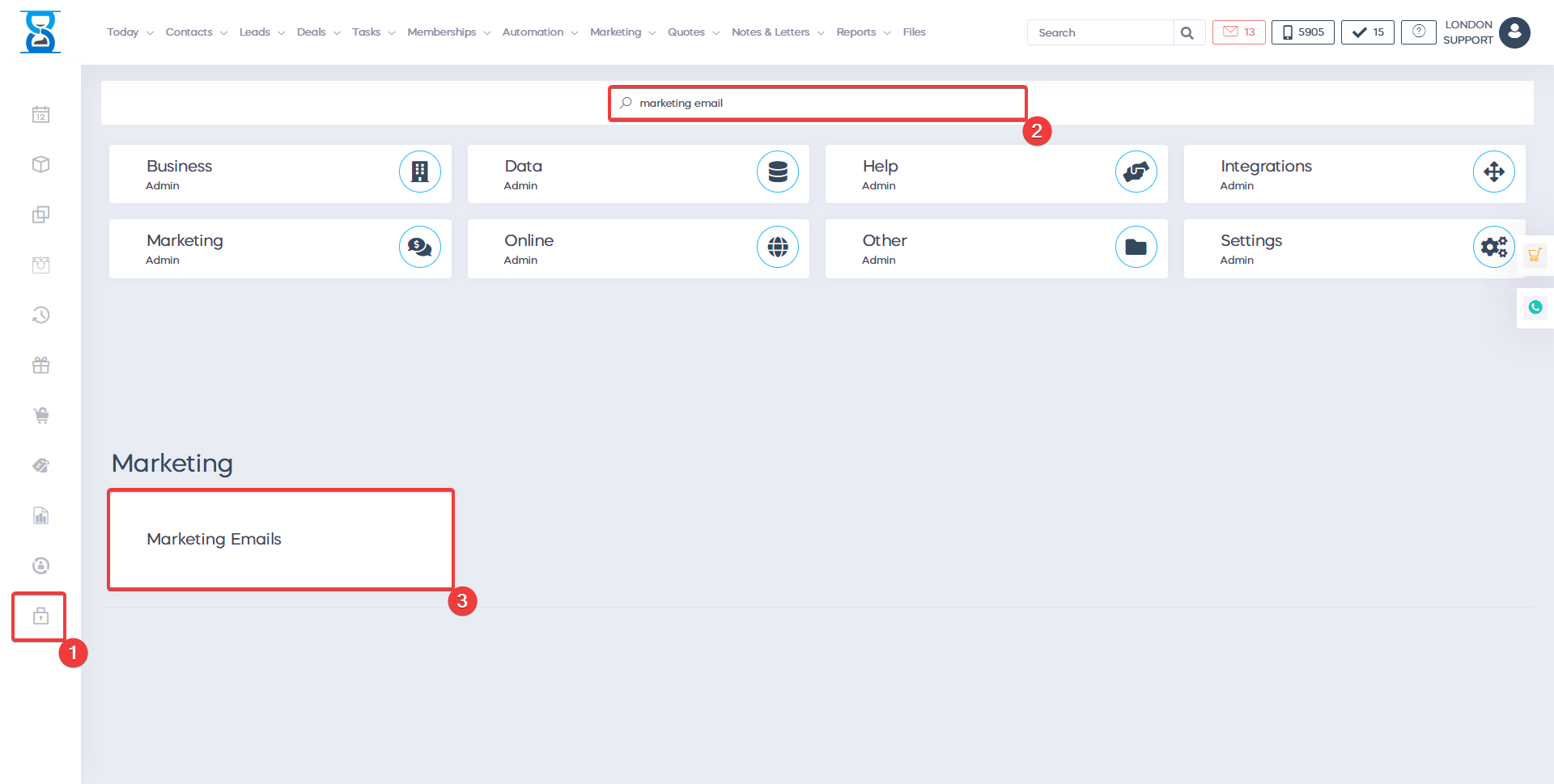
This will open the marketing emails template page.
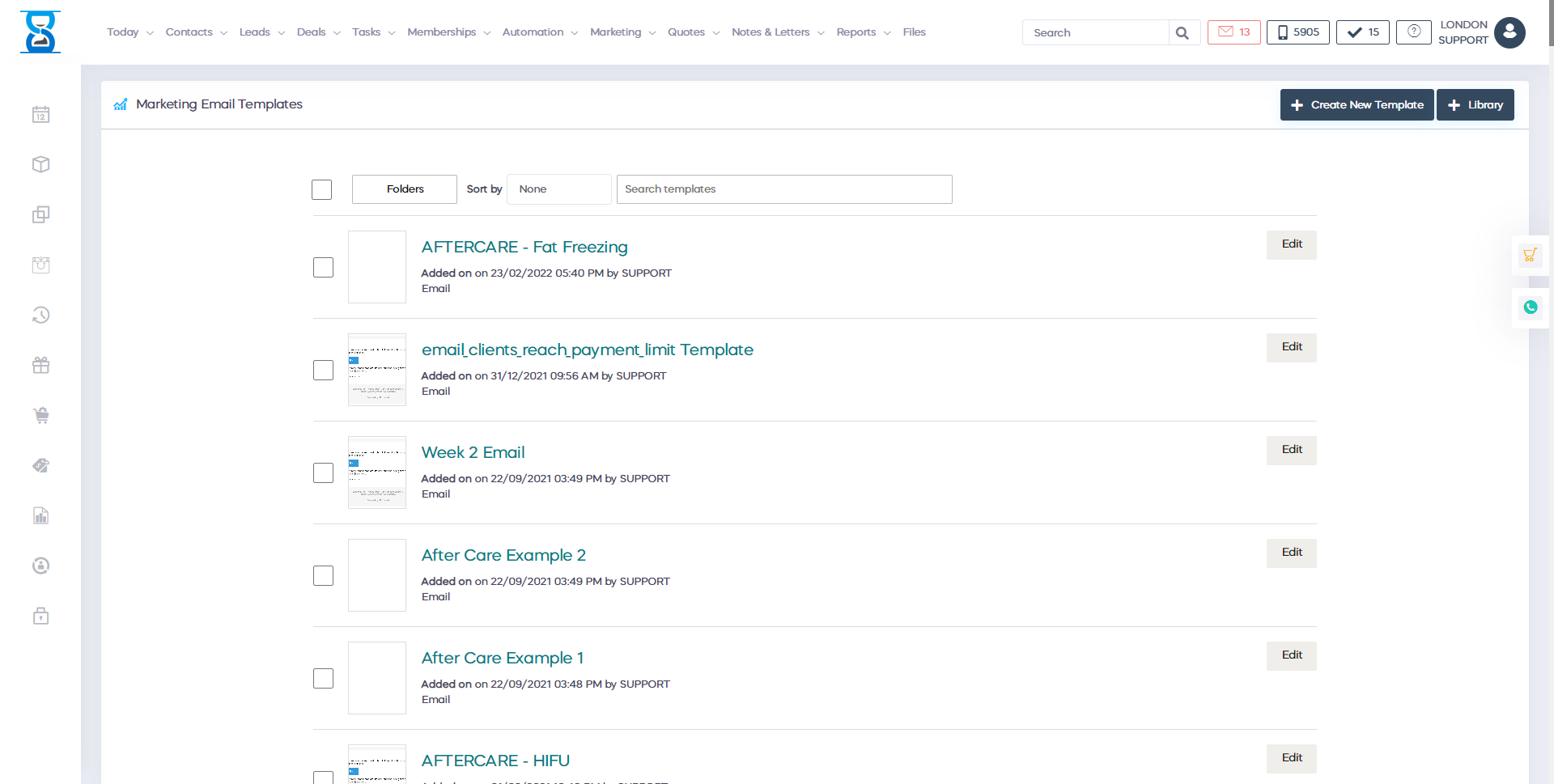
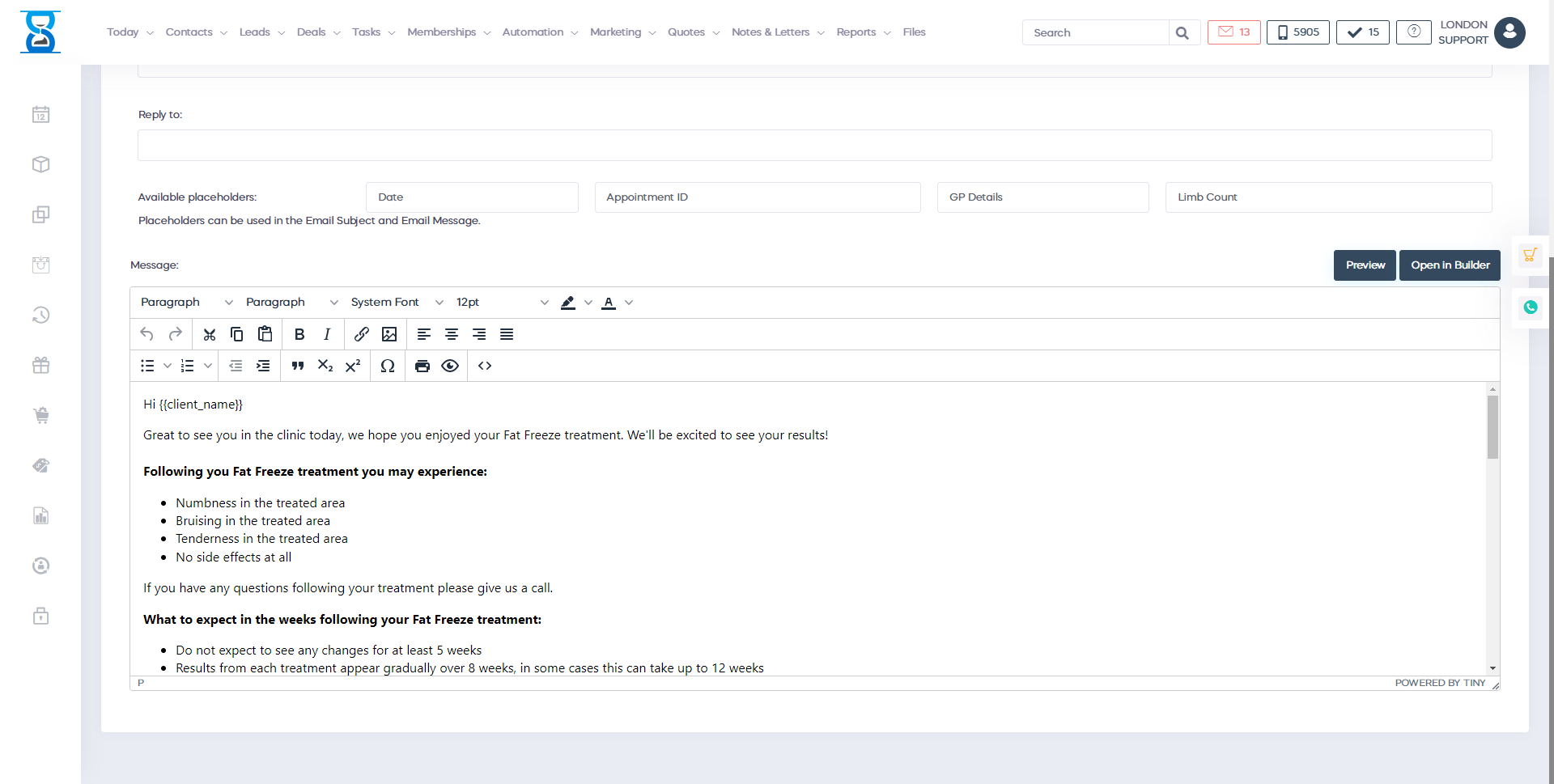
- Select the “Add new” button to add a new email template.
- Select the “Edit” button to edit an existing email template.
- Select the “Delete” button to delete an existing email template.
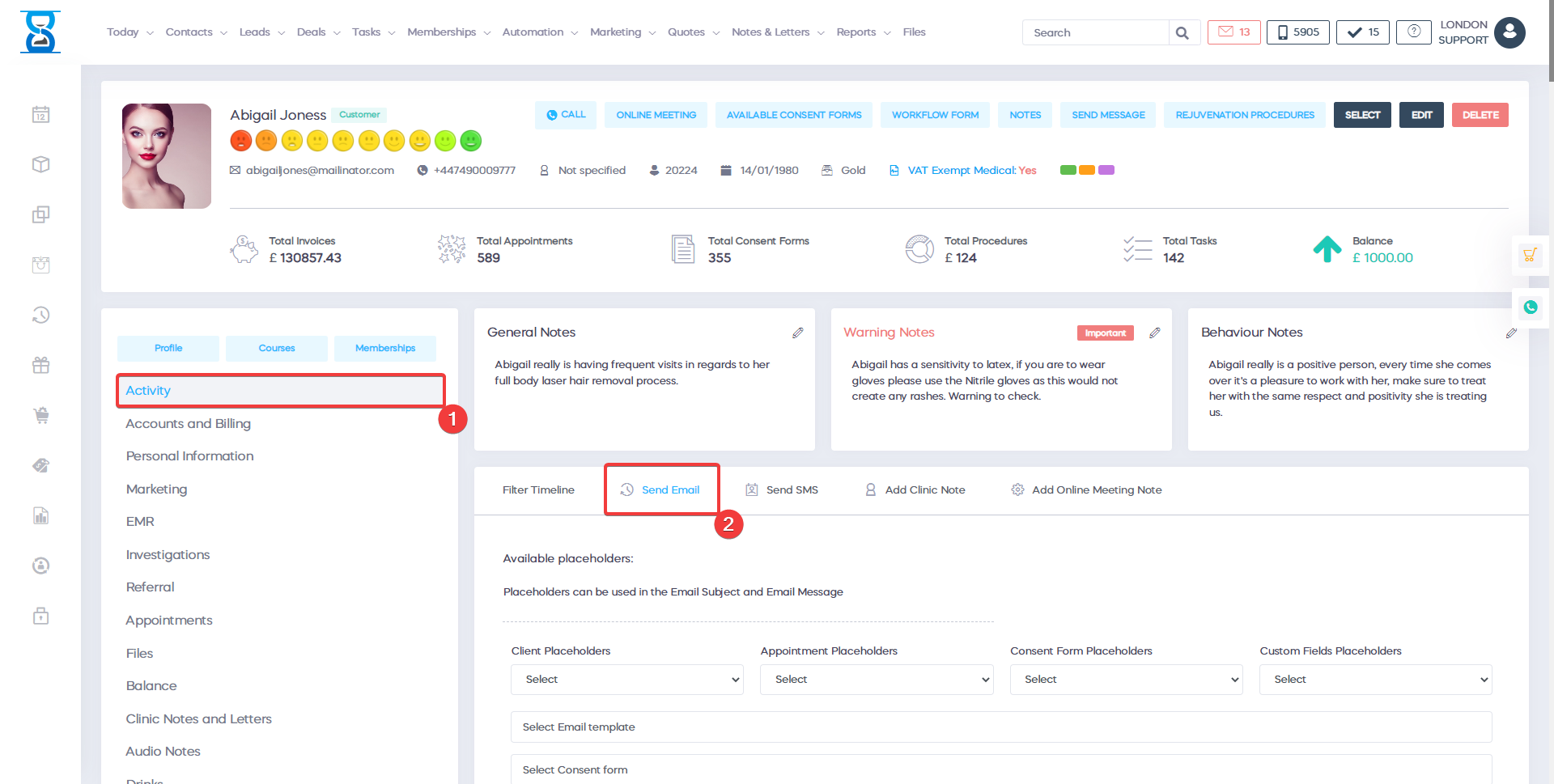
To send an email to your client go to the client profile and select the “Activity” button.
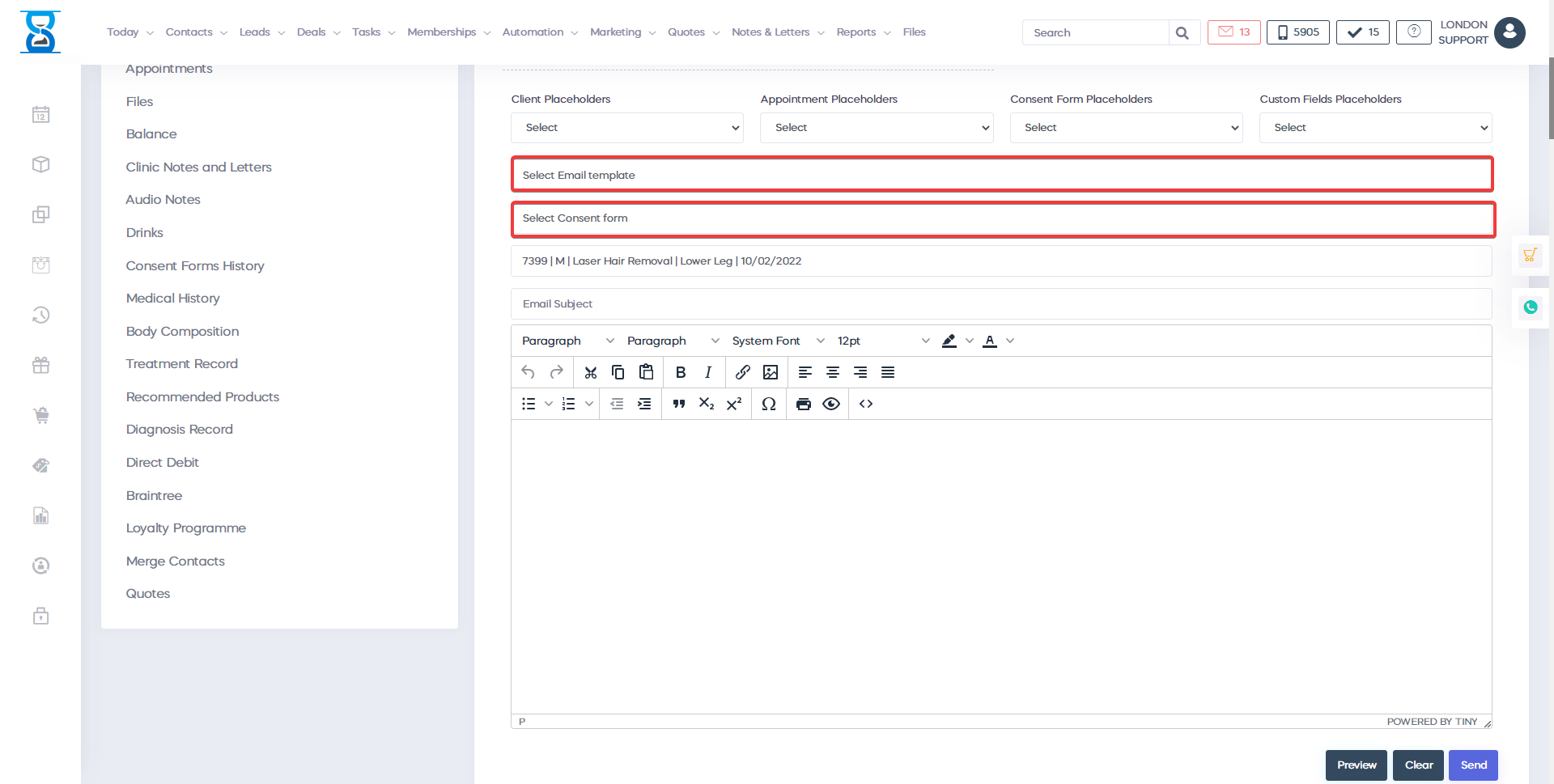
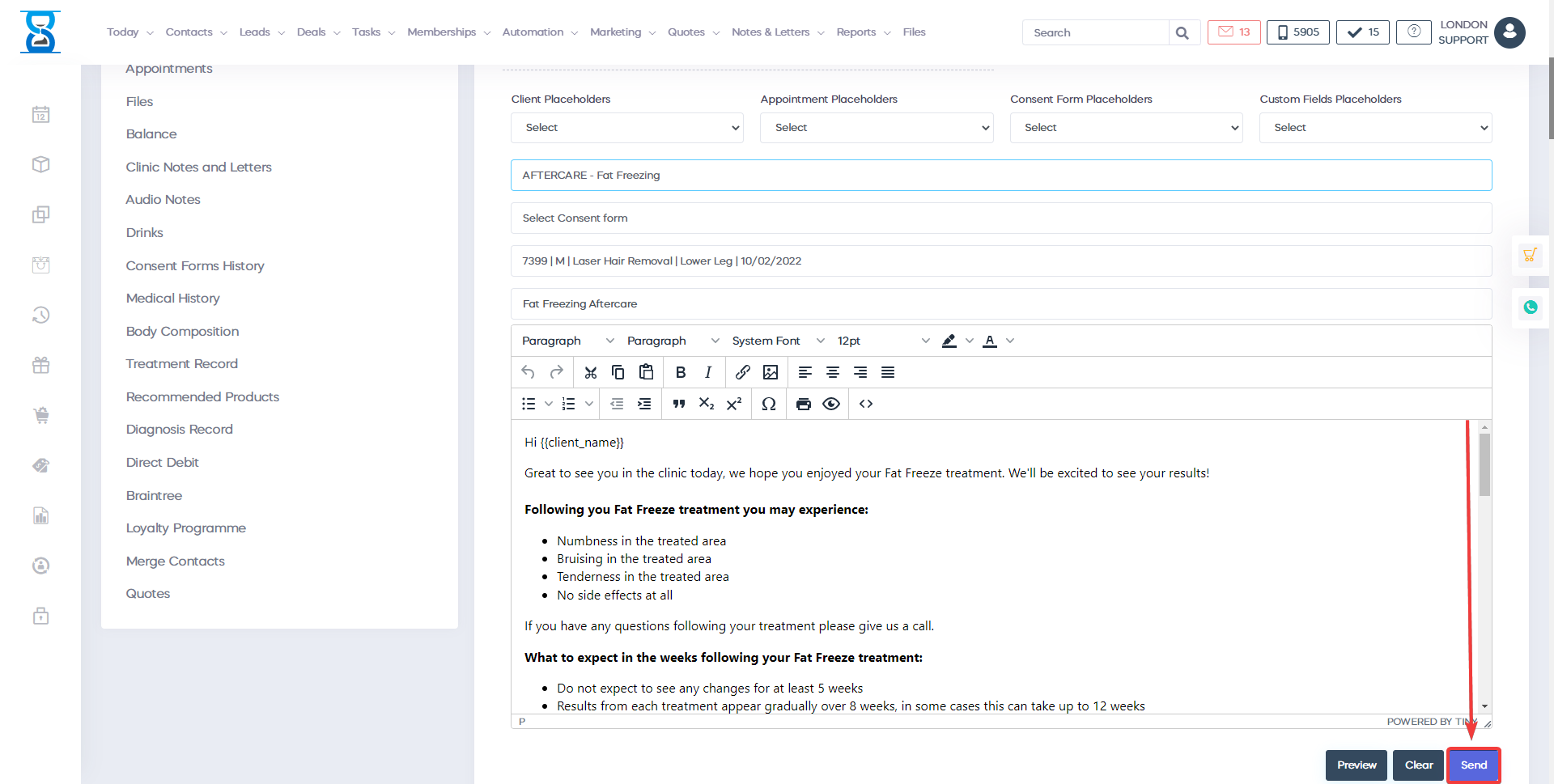
To send an email to your client select the “Send Email” button and select the email template.
After this select the green “Send Email” button to send the email.
Benefits for your clinic
- Save time: Automates repetitive communication around sending emails, so staff can focus on clients in clinic instead of manual follow-up.
- Win clients and leads: Keeps prospects and past clients engaged with timely messages, improving conversion from enquiry to booked appointment.
- Generate revenue: Consistent nurture, rebooking and promotional activity helps fill the diary and increase repeat and package sales.