
Getting started & setup
Custom fields
In short
This guide explains Custom fields in the Getting started & setup area of ClinicSoftware. It provides a clear operational explanation of how the capability works, then outlines the practical benefits for saving staff time, converting clients and leads, and protecting clinic revenue.
On this page
Overview
This guide explains Custom fields in the Getting started & setup area of ClinicSoftware. It provides a clear operational explanation of how the capability works, then outlines the practical benefits for saving staff time, converting clients and leads, and protecting clinic revenue.
How it works
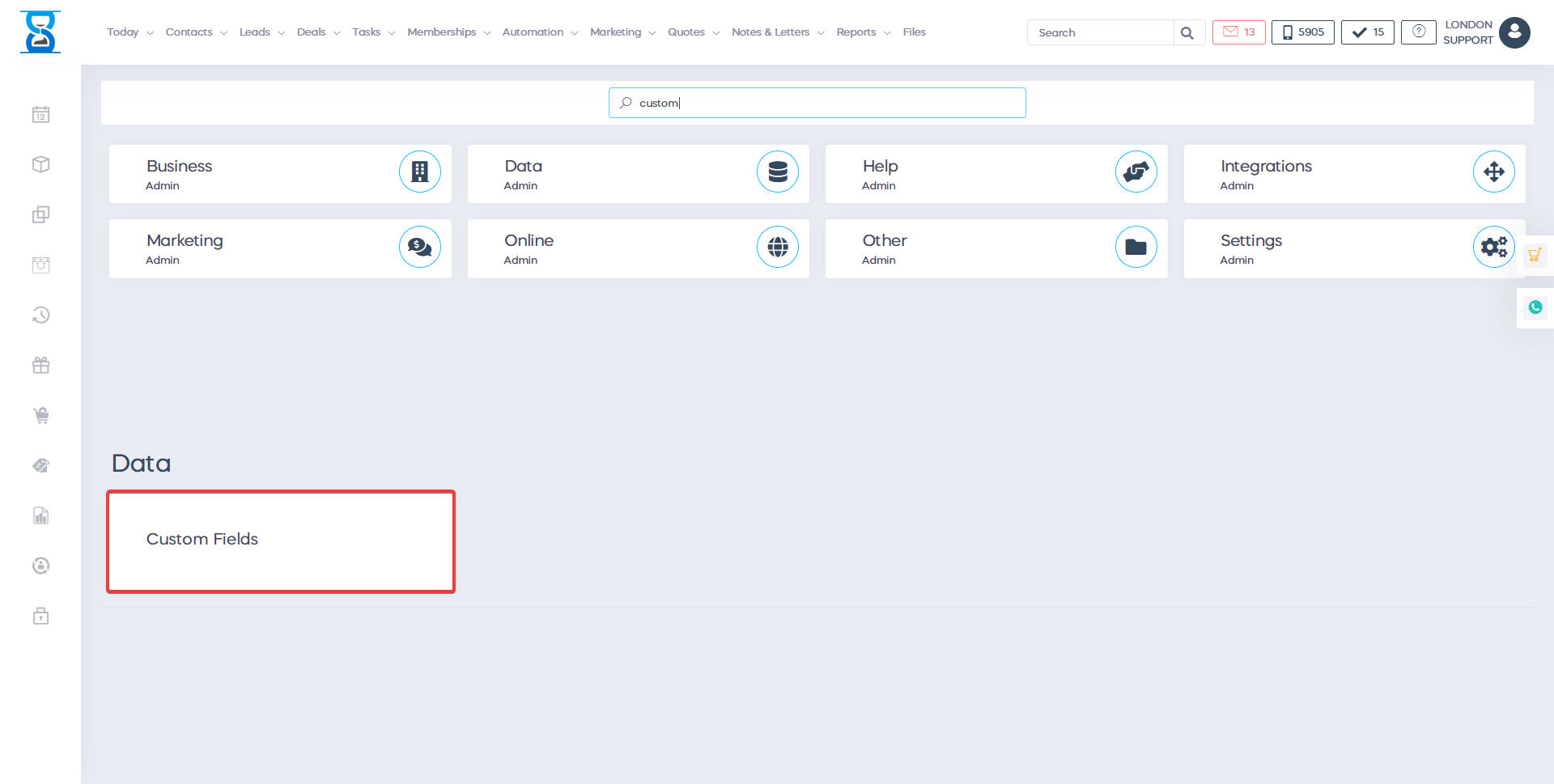
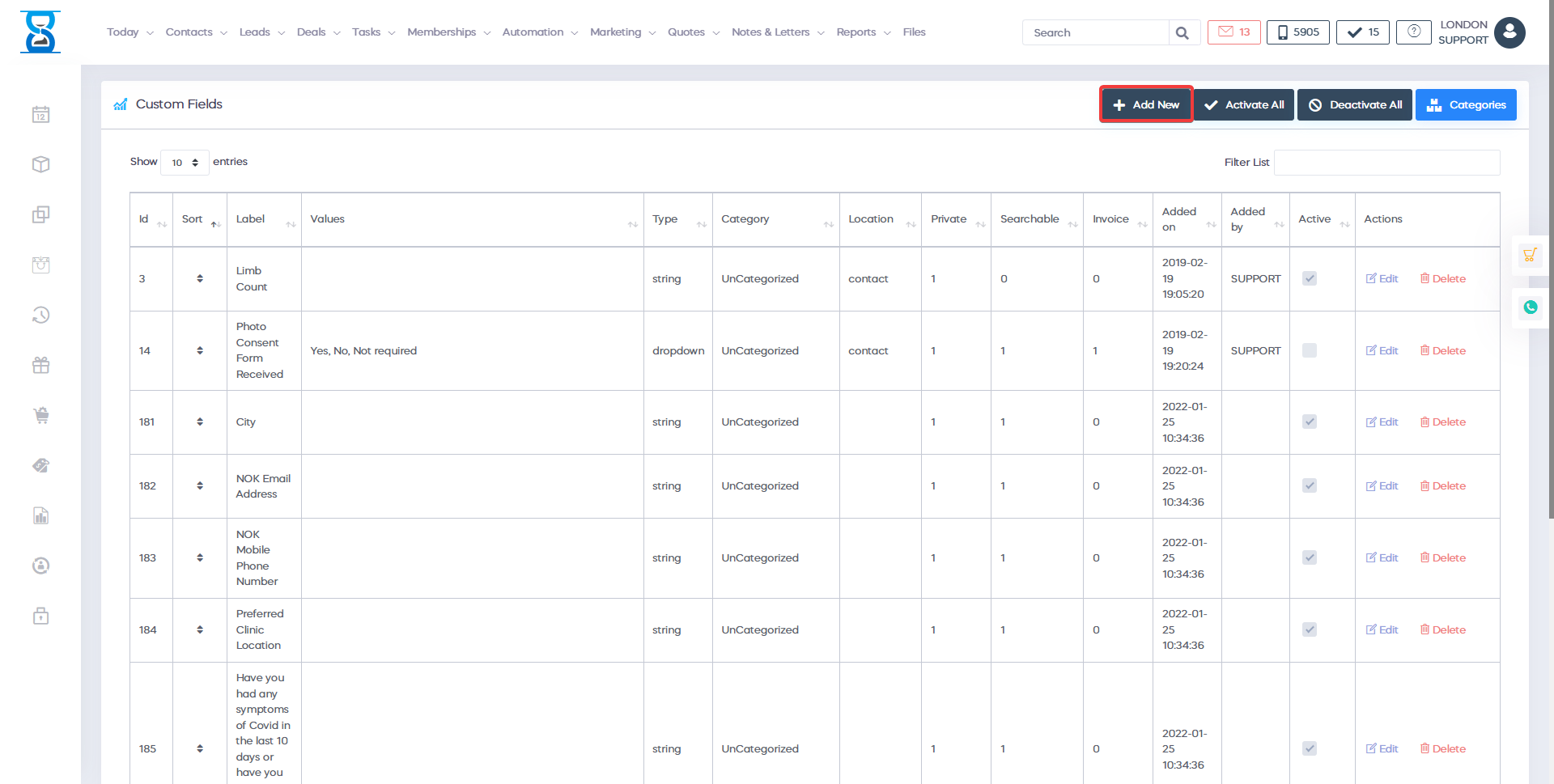
The custom fields can be changed from Admin > Custom Fields.
When adding a custom field you can specify if the field will be used for a contact, lead or both.
If lead or contact_lead is selected then the field will be displayed under the new lead window.
If a field is marked contact_lead, the value of the field will be transferred to the client side as well upon conversion of the lead.
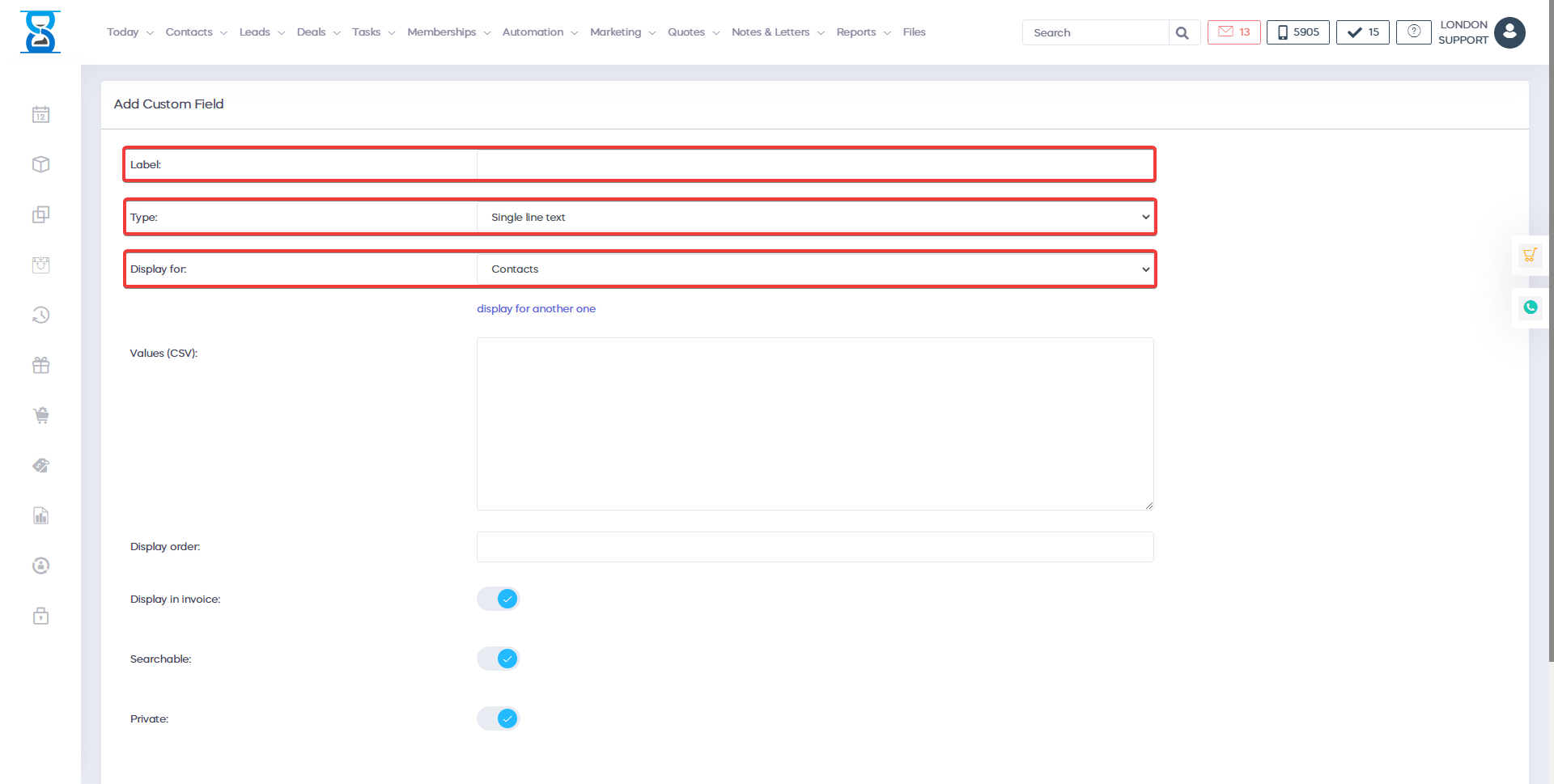
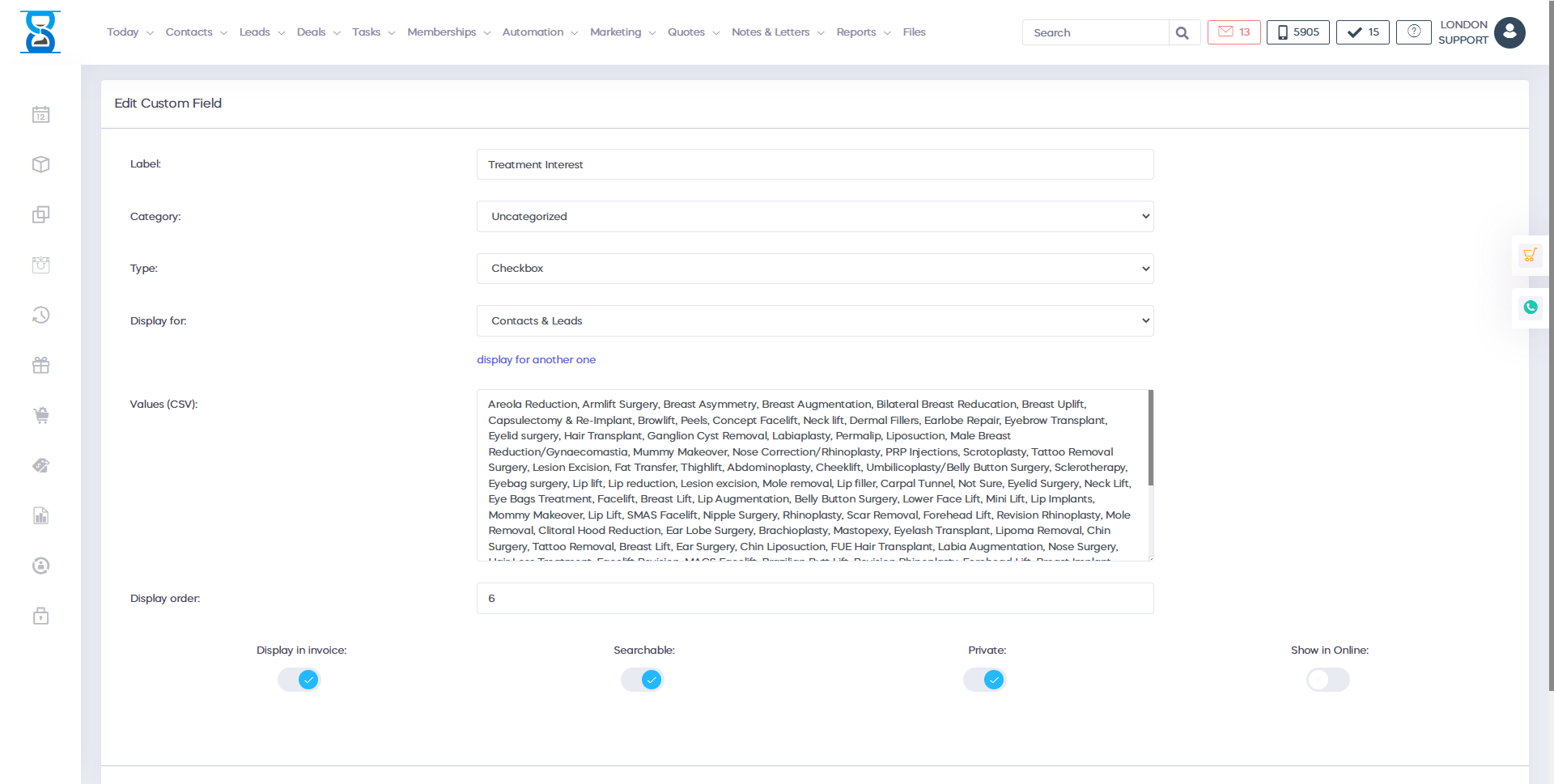
If a field is marked as private then it will only be displayed in the details window after you select the lead. If the private checkbox is unticked then the field will be displayed as part of the leads table.
Benefits for your clinic
- Save time: Reduces set-up friction so new staff can learn Custom fields quickly and follow a consistent process from day one.
- Win clients and leads: A clear foundation helps your team capture enquiries correctly and avoid losing potential clients during onboarding.
- Generate revenue: Faster, more reliable day-to-day operation protects appointment capacity and reduces costly mistakes that delay billing.