
Calendar & appointments
Appointment send message window
In short
This guide explains Appointment send message window in the Calendar & appointments area of ClinicSoftware. It provides a clear operational explanation of how the capability works, then outlines the practical benefits for saving staff time, converting clients and leads, and protecting clinic revenue.
On this page
Overview
This guide explains Appointment send message window in the Calendar & appointments area of ClinicSoftware. It provides a clear operational explanation of how the capability works, then outlines the practical benefits for saving staff time, converting clients and leads, and protecting clinic revenue.
How it works
From this window, you can send an email or SMS message to the client specified in the appointment.
The send message can include placeholders that will autocomplete with the client and appointment details.
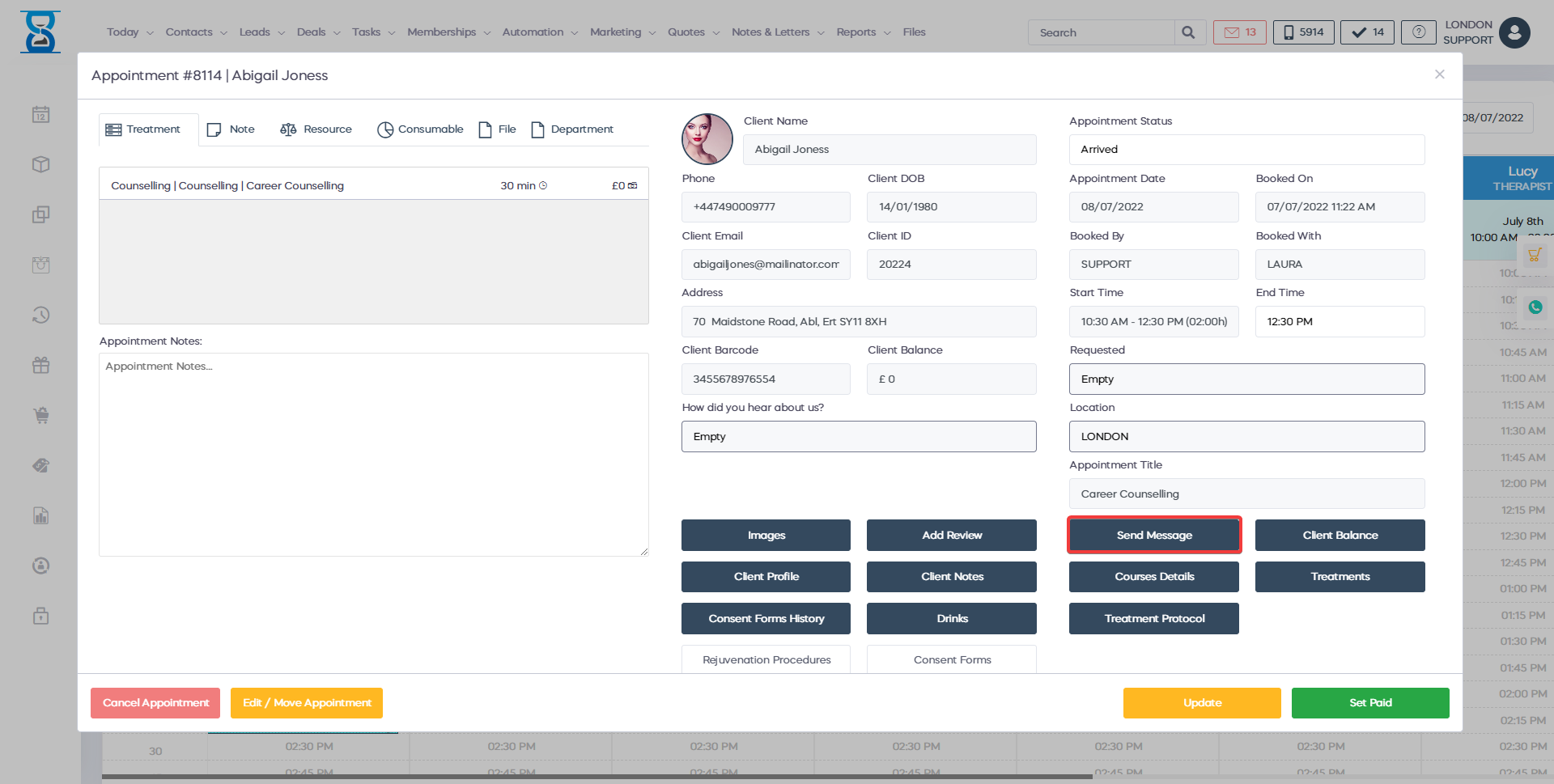
You can access the “Send Message” window from the “Appointment Details” window “Send Msg.” button.
The default message and subject is configurable.
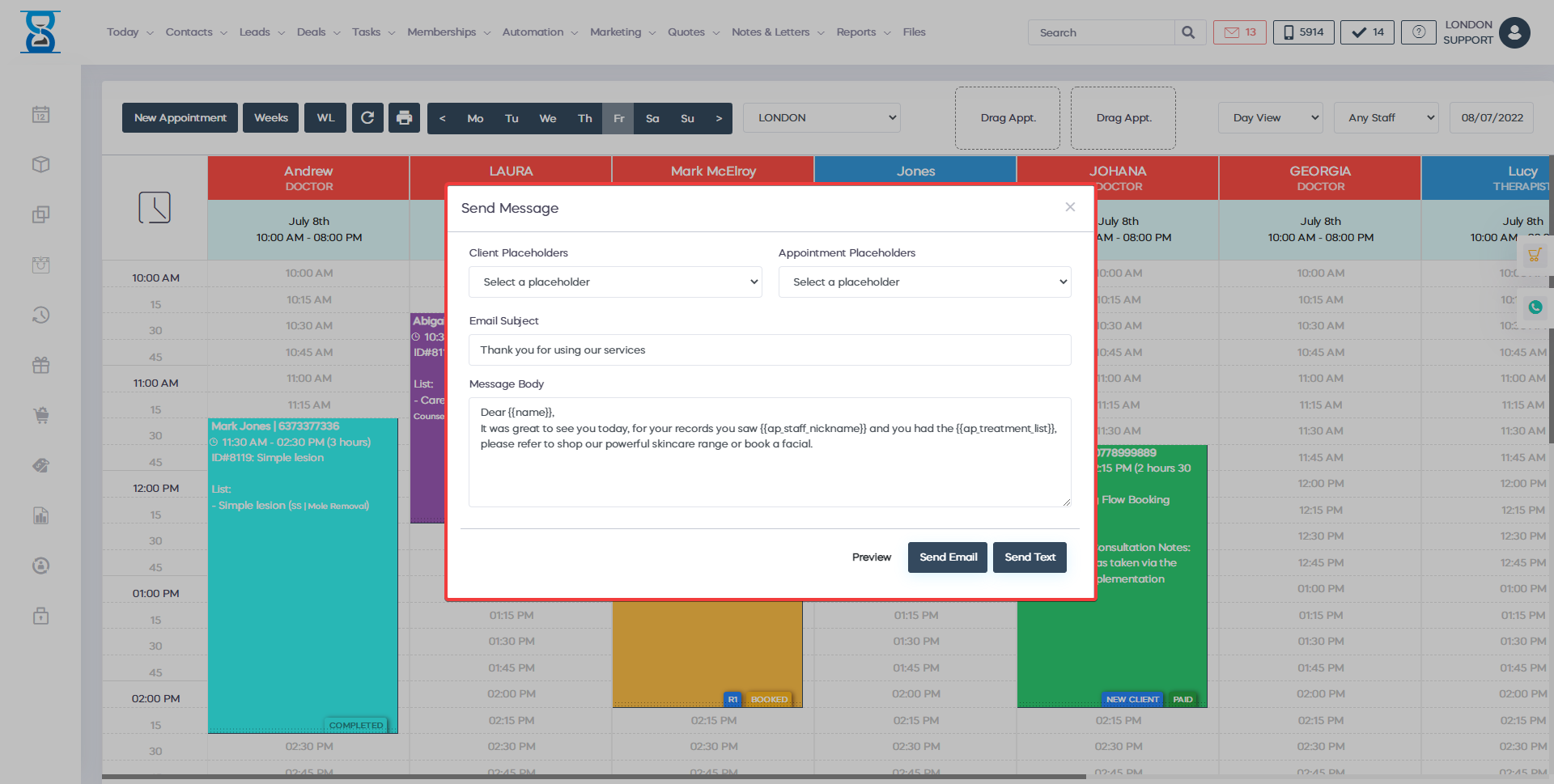
To use the placeholders, select in the text area to place the cursor where you want to insert the placeholder and then select the placeholder from the above list:
You can preview the message that will be sent with the placeholders replaced by pressing the “PREVIEW” button.
To send an email or SMS message use the “SEND EMAIL” and “SEND SMS” buttons.
Benefits for your clinic
- Save time: Makes Appointment send message window faster to manage, cutting the time spent arranging, moving or confirming appointments.
- Win clients and leads: Helps reception convert calls and online interest into confirmed diary slots before the opportunity is lost.
- Generate revenue: Higher booking accuracy and better diary utilisation increase the number of billable appointments completed each week.