
Sales, POS & payments
Quotes
In short
This guide explains Quotes in the Sales, POS & payments area of ClinicSoftware. It provides a clear operational explanation of how the capability works, then outlines the practical benefits for saving staff time, converting clients and leads, and protecting clinic revenue.
On this page
Overview
This guide explains Quotes in the Sales, POS & payments area of ClinicSoftware. It provides a clear operational explanation of how the capability works, then outlines the practical benefits for saving staff time, converting clients and leads, and protecting clinic revenue.
How it works
To create a quote, open the "Quotes" Page from the admin area. From this page, you can download and issue new quotes
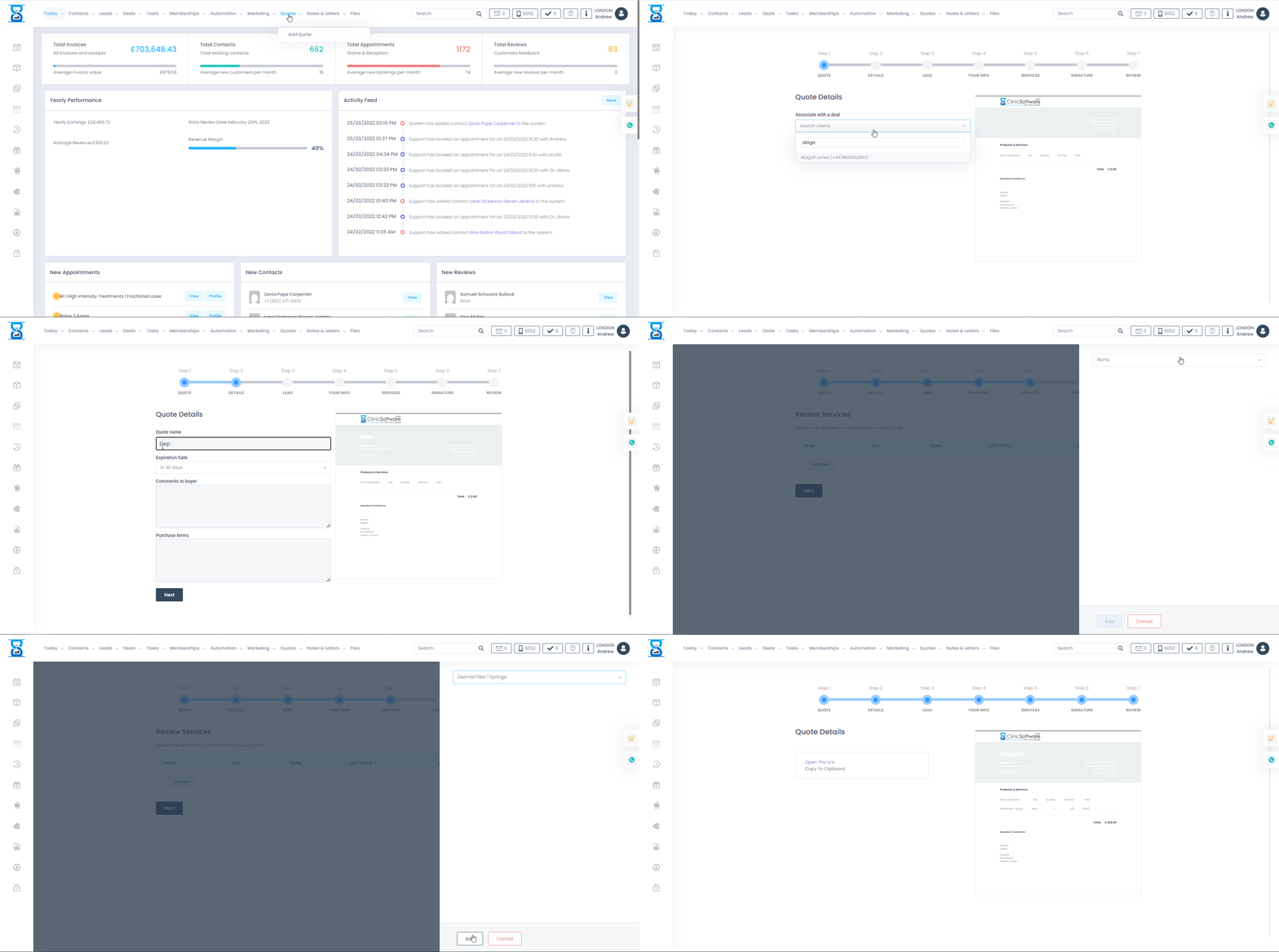
To add a new quote select the top-right “Add Quote” Button.
To select an existing customer from the database, use the “Search Customer” field. select the field and type the customer name or phone number select it from the resulting list.
To specify quotes notes, use the notes field located in the bottom section of the page.
To add a service/product present in the database to the quote items list, select the service from the “Add Service” drop box and then select the “Add service” button next to it.
Finalize the quote by pressing the “Save” button.
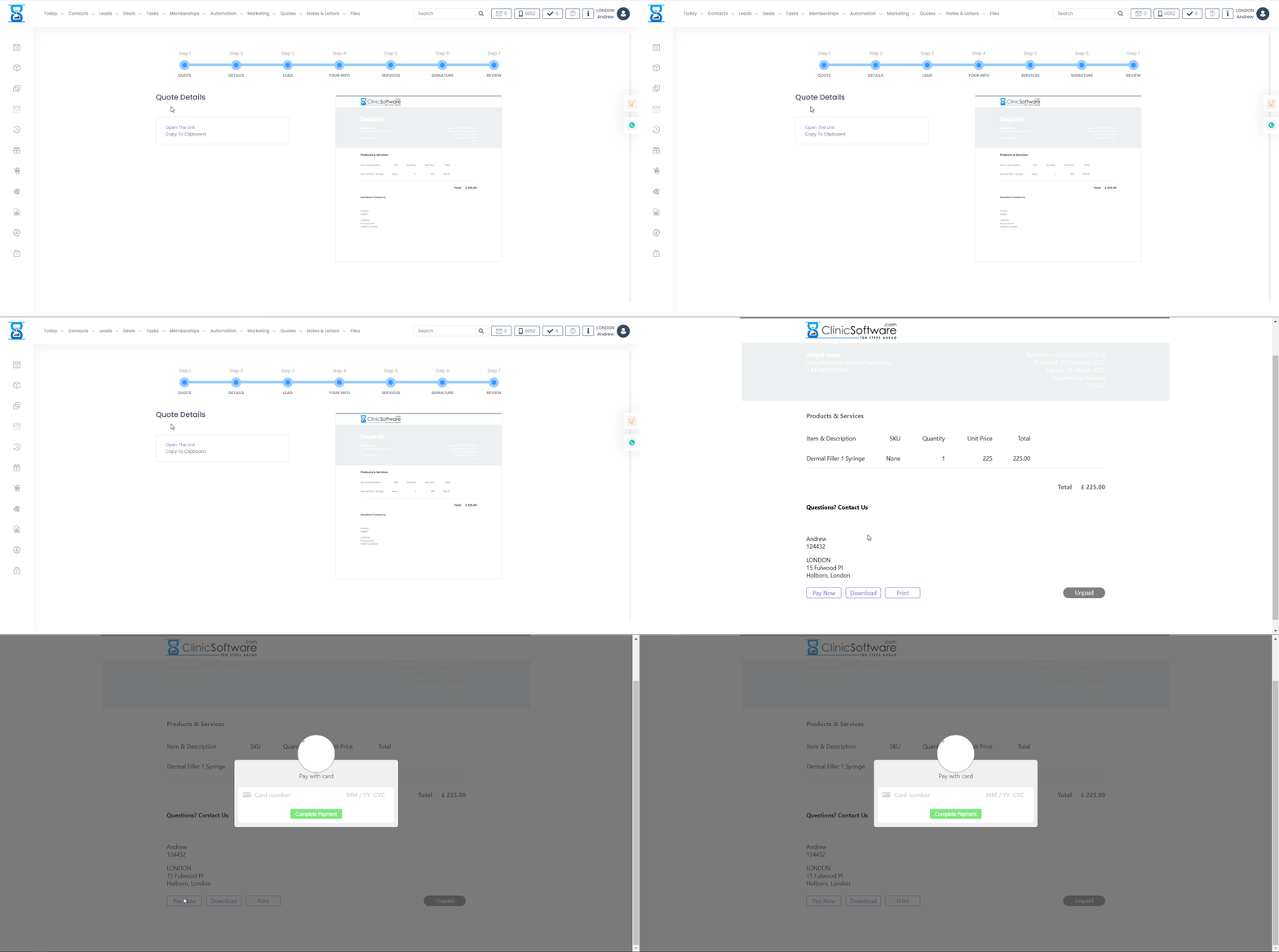
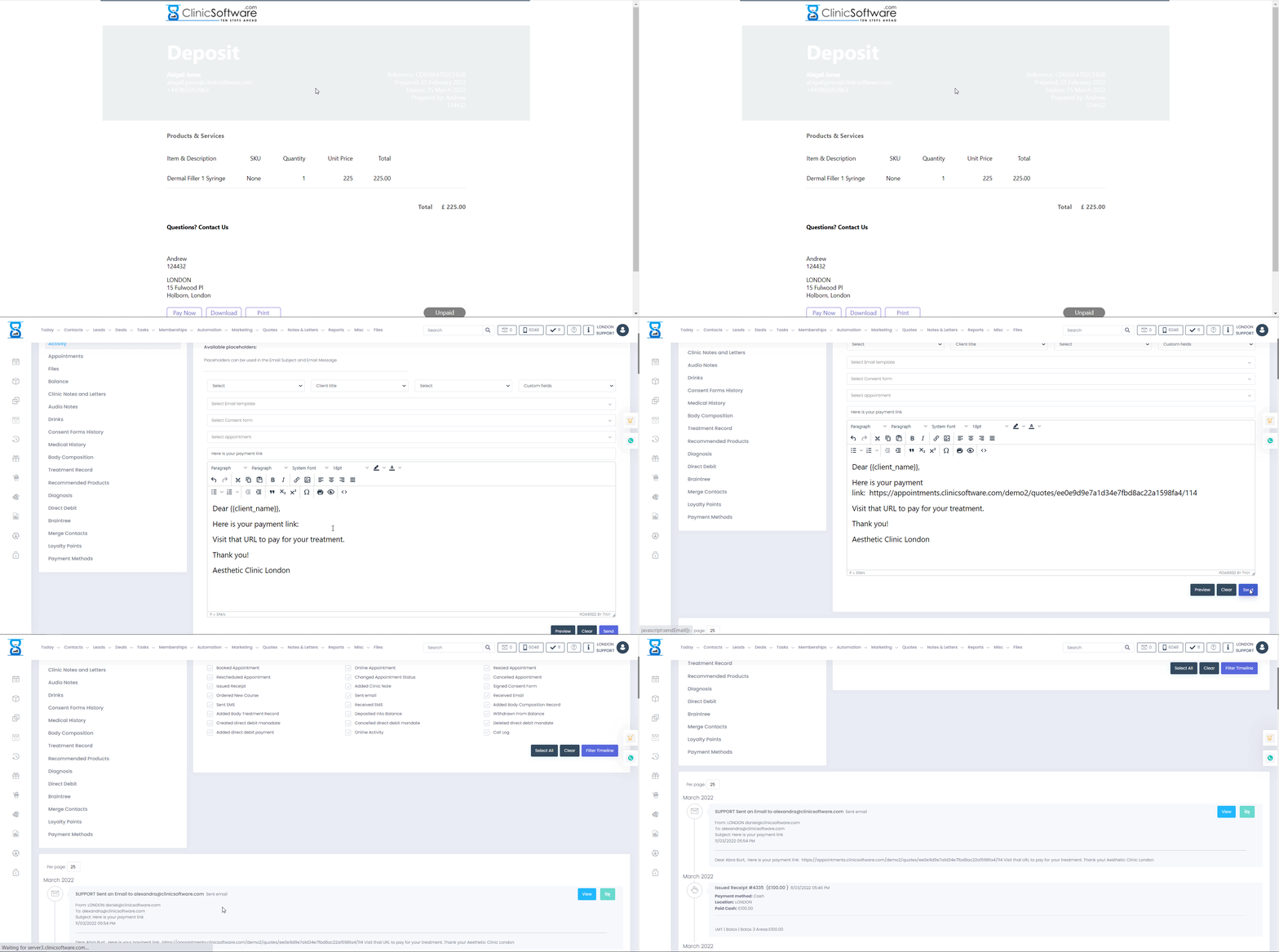
Once the Quote has been created, copy the link and email it to your client.

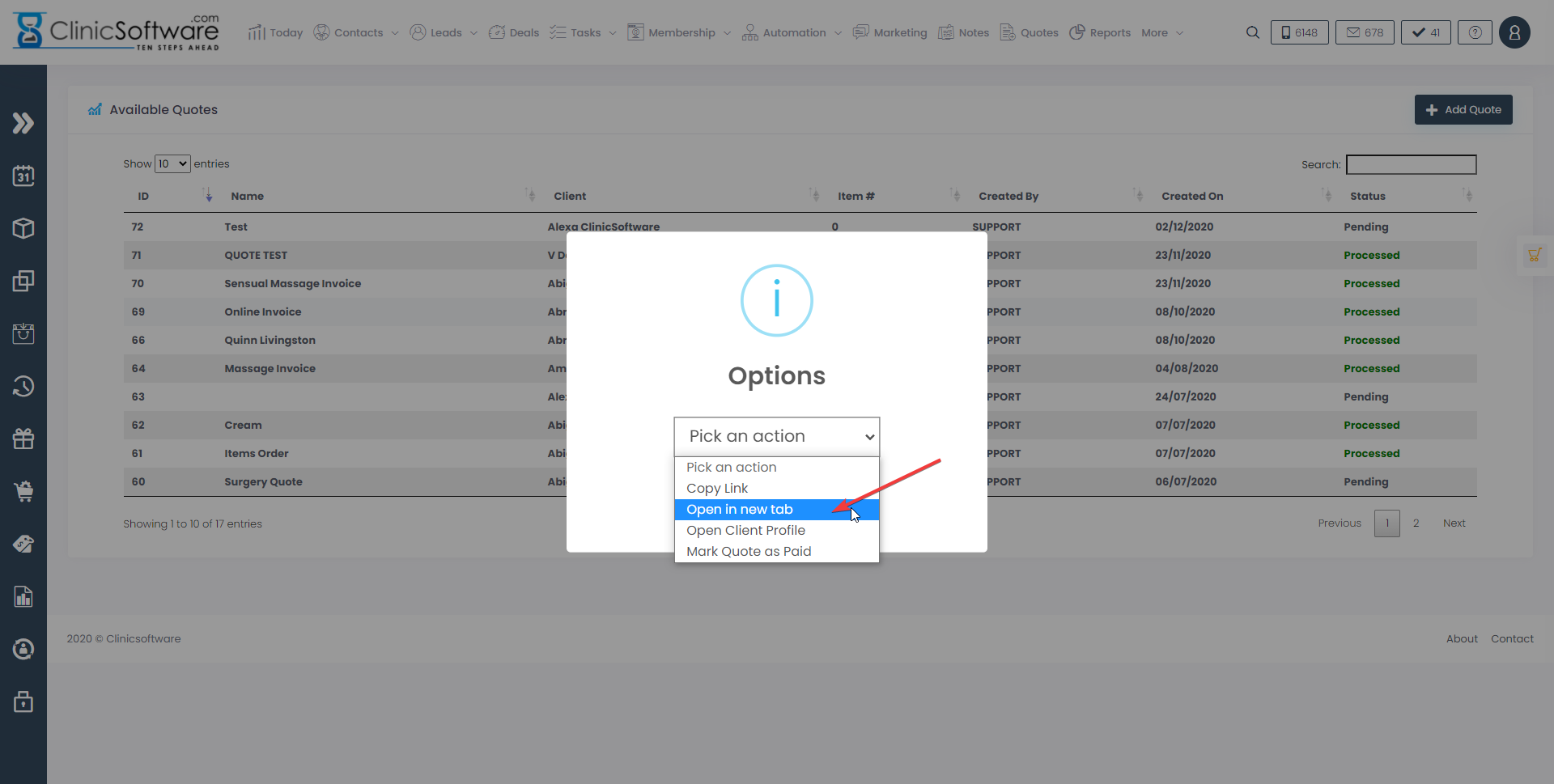
To access the quotes page, search in admin area "Quotes"
From this page, you can download and issue new quotes.

To filter quotes by number, date and client name use the list filter field located on the top-right section of the page
The quotes list displays 10 quotes per page, to change the page, select the page from the pagination drop box.
To print/download the quote, select the quote and from the "Pick an option" drop box menu, select "Open in a new tab" option and select "Ok".
To add a new quote select the top-right “Add Quote” button.
To select an existing customer from the database, use the “Search Customer” field.
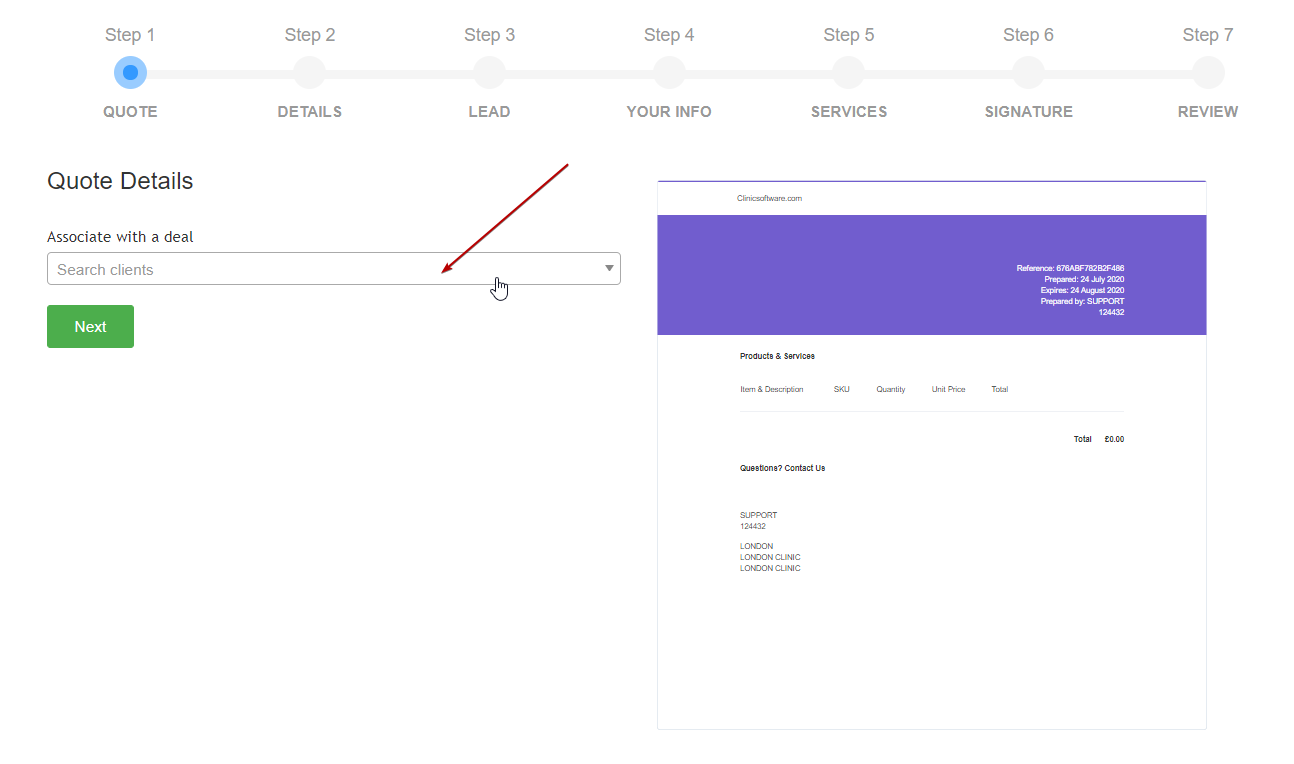
Select the field and type the customer name or phone number select it from the resulting list.
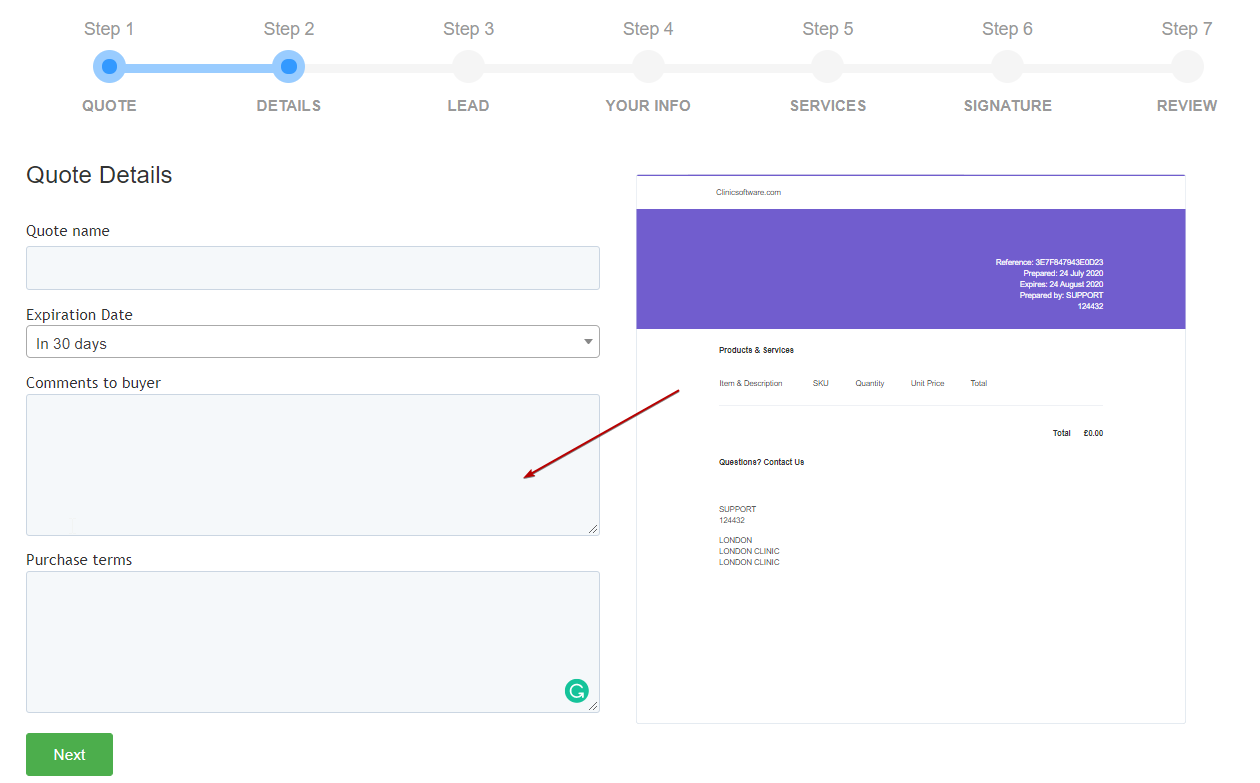
To specify quotes notes, use the notes field located in the bottom section of the page.
Notice that the customer details were automatically copied to the quote page.
To add a service/product present in the database to the quote items list, select the service from the “Add Service” drop box and then select the “Add service” button next to it.
To remove an item from the quote, select the "Remove" button.
Finalize the quote by pressing the “Save ” button at Step 7.
The Quotes function is necessary for any business, essentially because this feature can give your customers an idea of what to expect from your business. Providing quotes to your customers is part of the enterprise website and business opportunities. Quote can be used as a trigger for new customers that expect to be treated like V.I.P., a treatment they cannot get anywhere else. Companies want their products and services to get to the highest quality and lowest possible price. The Quotes feature is necessary for marketing. It provides information about your business and services: a given quote can be used as a trigger for customers.
First step: with the quote data, you have opportunity to connect with the deal and looking up a customer in the database. You can search by first and last name, phone number, email, date of birth, etc. Then just select the Next button. For example, you can enter the laser hair removal quote name. You can add comments from the buyer and specify the expiration date of the quote. This way you can view the buyer`s information - of course you can update it if that`s the case. The phone number or address can be automatically retrieved from the software settings and you can review services or add the treatment you want to provide in the Quotes section.
If you want, you can drop the price for the current treatment session, so what remains to be paid goes to next course. In case you want to add a signature in the quote or include a signature space, the system will automatically send the customer the payment link, to pay in advance for the quote and have the possibility to sign an agreement. This is very important - the quote will take place for a period of maybe as long as six months. You can save the quote which is the review - you have the option to copy it to the clipboard, so it can be easier to send it by email or via Whatsapp. Or you can open the link, see your clinic logo and as well as the offer you provide, the customer data, the business details - all data is there.
To pay an invoice, we will extract the user, the location, the name of the company - you have the option to download the invoice in pdf format, you have the option to print it and the option to pay. If you select the Pay Now button, the system will open - fill in the card details and you will receive a confirmation in real time, by email. The receipt will be automatically created and it will be marked as paid and will be seen including on the appointment in the Calendar and on the UH invoice created. It`s very important to to provide quotes to your customers, to meet their expectations of being treated as a V.I.P. for the best possible price. Also, as a business owner, you wish to have as many happy clients as possible.
Benefits for your clinic
- Save time: Speeds up checkout by connecting services, products and payments in one workflow, reducing till delays and manual reconciliation.
- Win clients and leads: Smooth payment journeys improve the client experience after treatment, which supports positive reviews and repeat bookings.
- Generate revenue: Faster, more accurate billing reduces missed charges, supports upselling at the till and improves same-day cash collection.