
Sales, POS & payments
Invoice settings
In short
This guide explains Invoice settings in the Sales, POS & payments area of ClinicSoftware. It provides a clear operational explanation of how the capability works, then outlines the practical benefits for saving staff time, converting clients and leads, and protecting clinic revenue.
On this page
Overview
This guide explains Invoice settings in the Sales, POS & payments area of ClinicSoftware. It provides a clear operational explanation of how the capability works, then outlines the practical benefits for saving staff time, converting clients and leads, and protecting clinic revenue.
How it works
From this page, you can set up the company details that appear in the top right section of the invoices generated through the Admin Area / Invoices page.
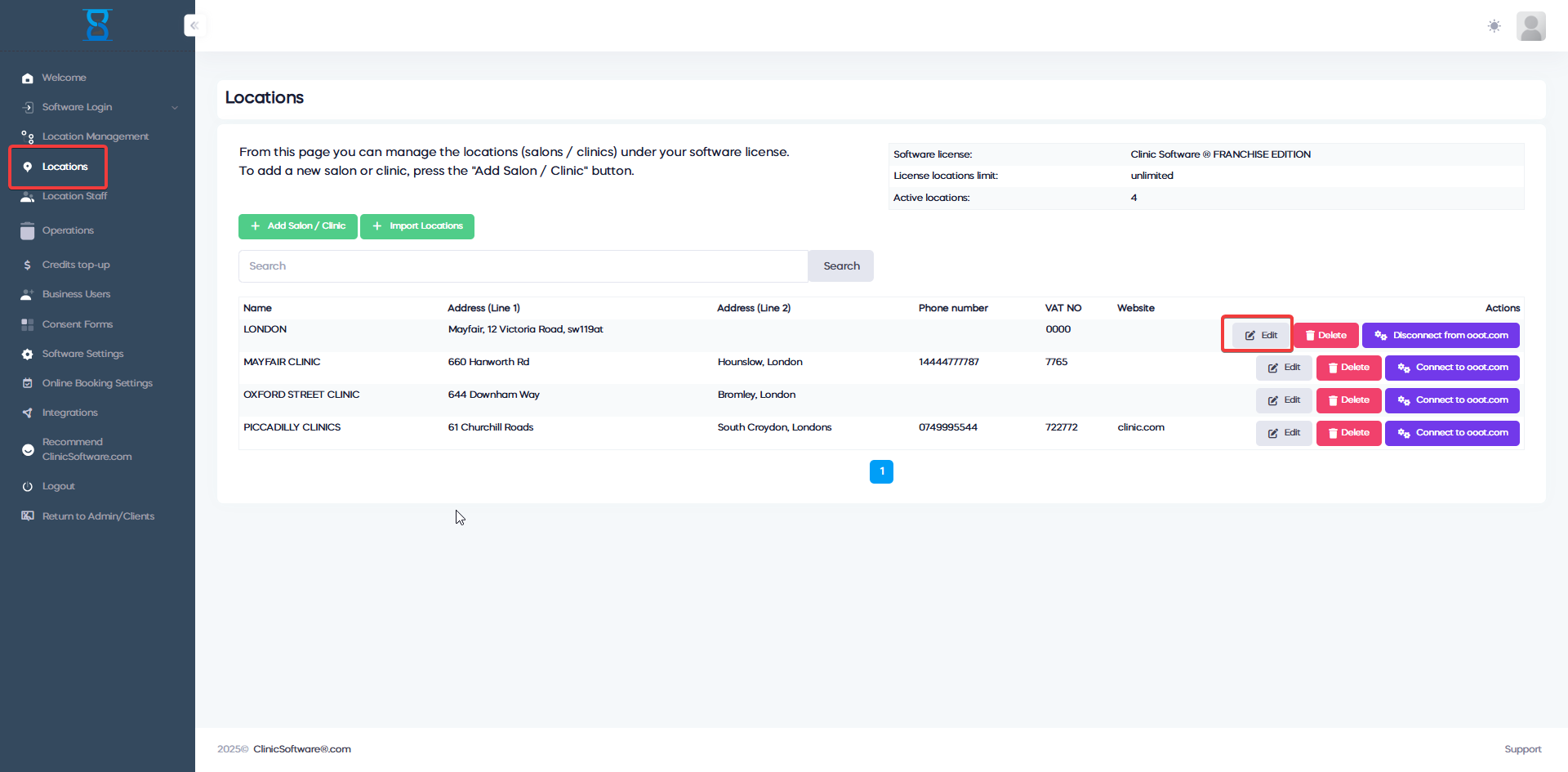
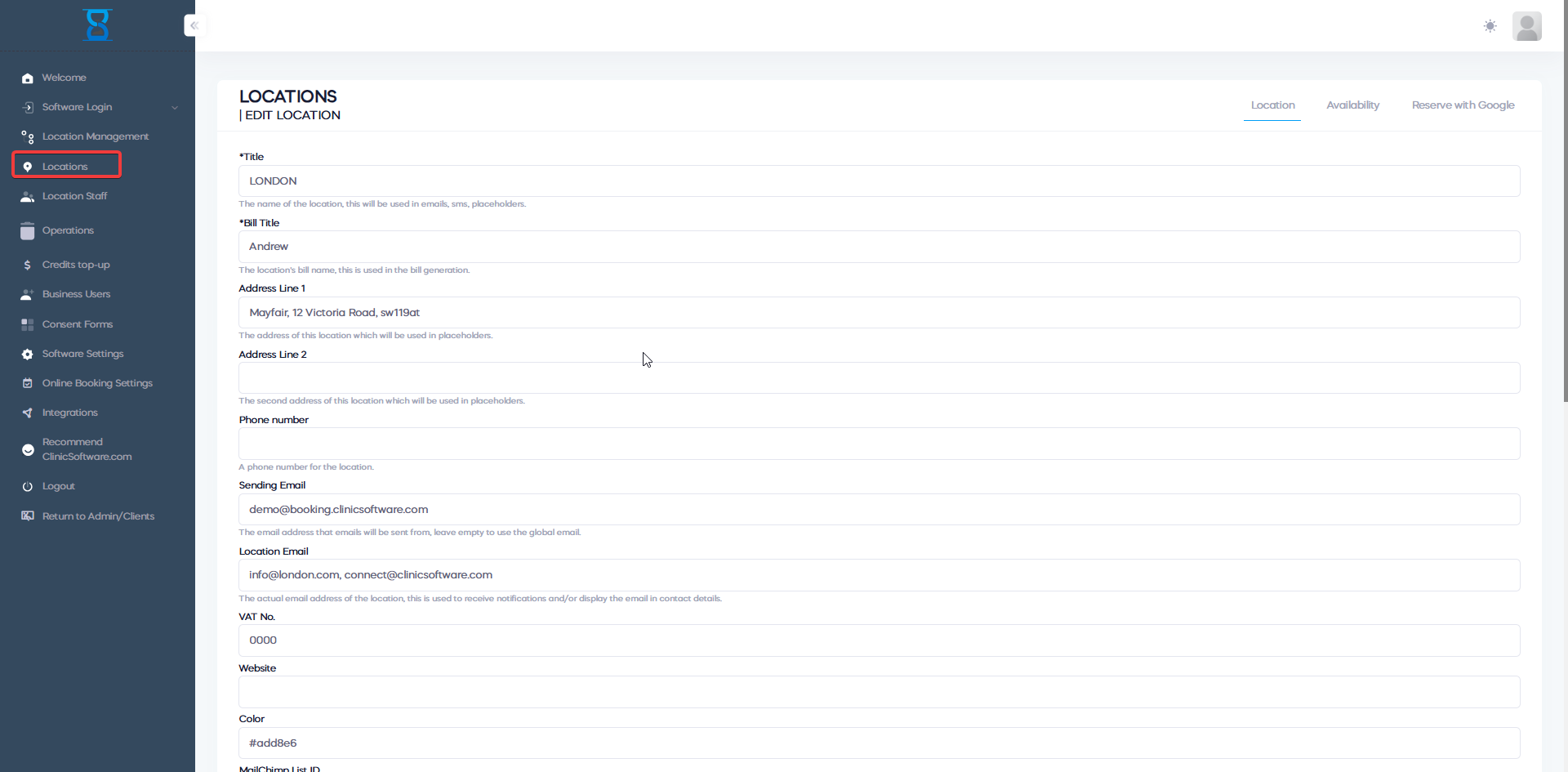
Fill in the company name, description/address fields, upload the company logo (use the “Choose File” button) and then select the “Save changes” button.
Benefits for your clinic
- Save time: Simplifies payment collection and reconciliation for Invoice settings, reducing front-desk delays and after-hours admin.
- Win clients and leads: A professional, frictionless payment experience improves trust and encourages clients to complete their booking or purchase.
- Generate revenue: Accurate charging, fewer abandoned checkouts and clearer payment records protect clinic income and improve cash flow.