
Payment Links, Invoices & Quotes Page
Easily manage your clinic’s billing and client communication through the Payment Links, Invoices & Quotes page. From this central hub, you can generate and send professional invoices, create custom quotes for aesthetic treatments or services, and issue secure payment links directly to your clients.
To access this page:
-
Go to the Admin Area.
-
Use the search bar at the top or navigate through the Billing or Finance section.
-
Select Payment Links, Invoices & Quotes from the menu.
 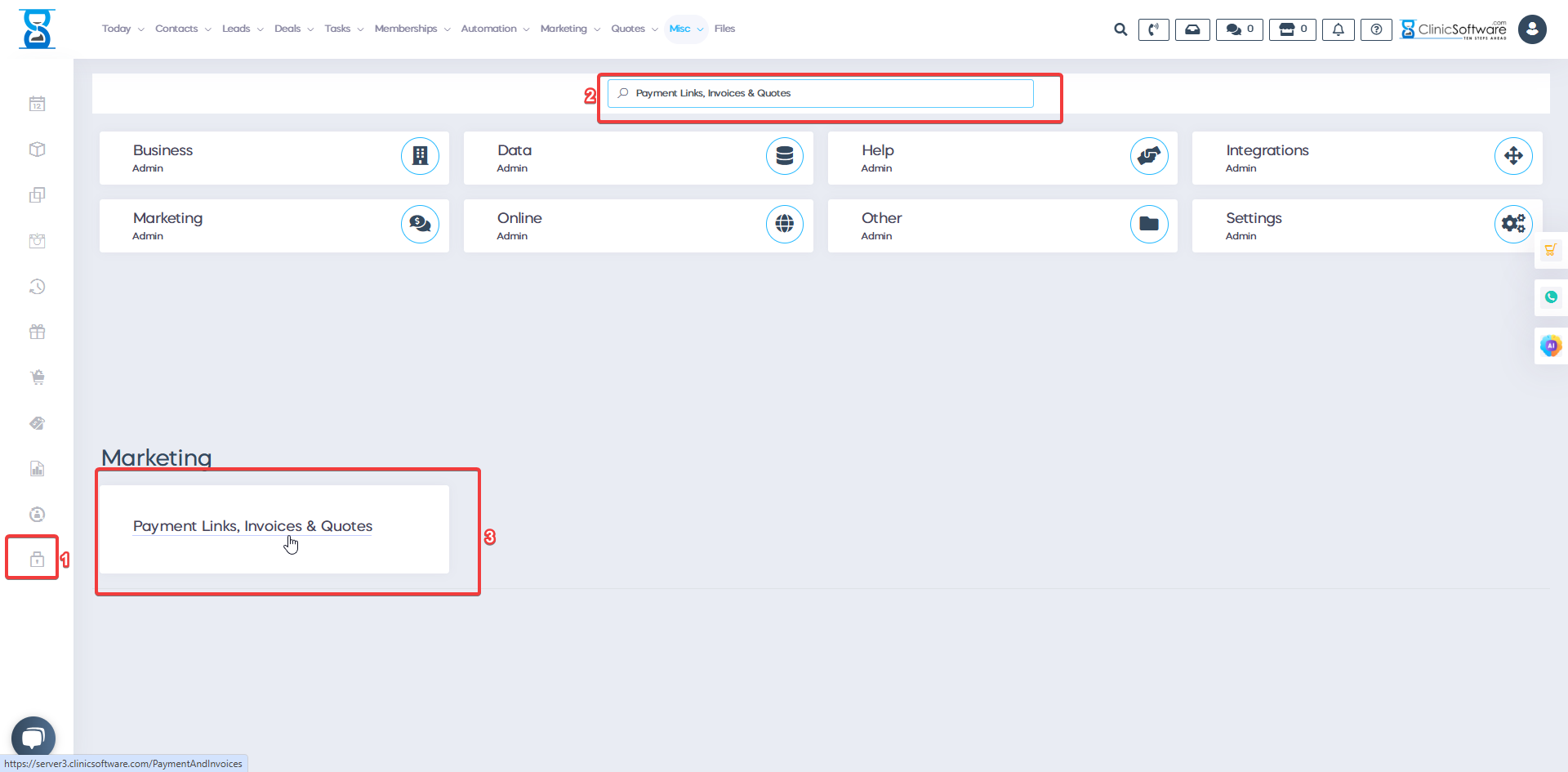
This page allows you to create and track invoices, quotes, and payment links.
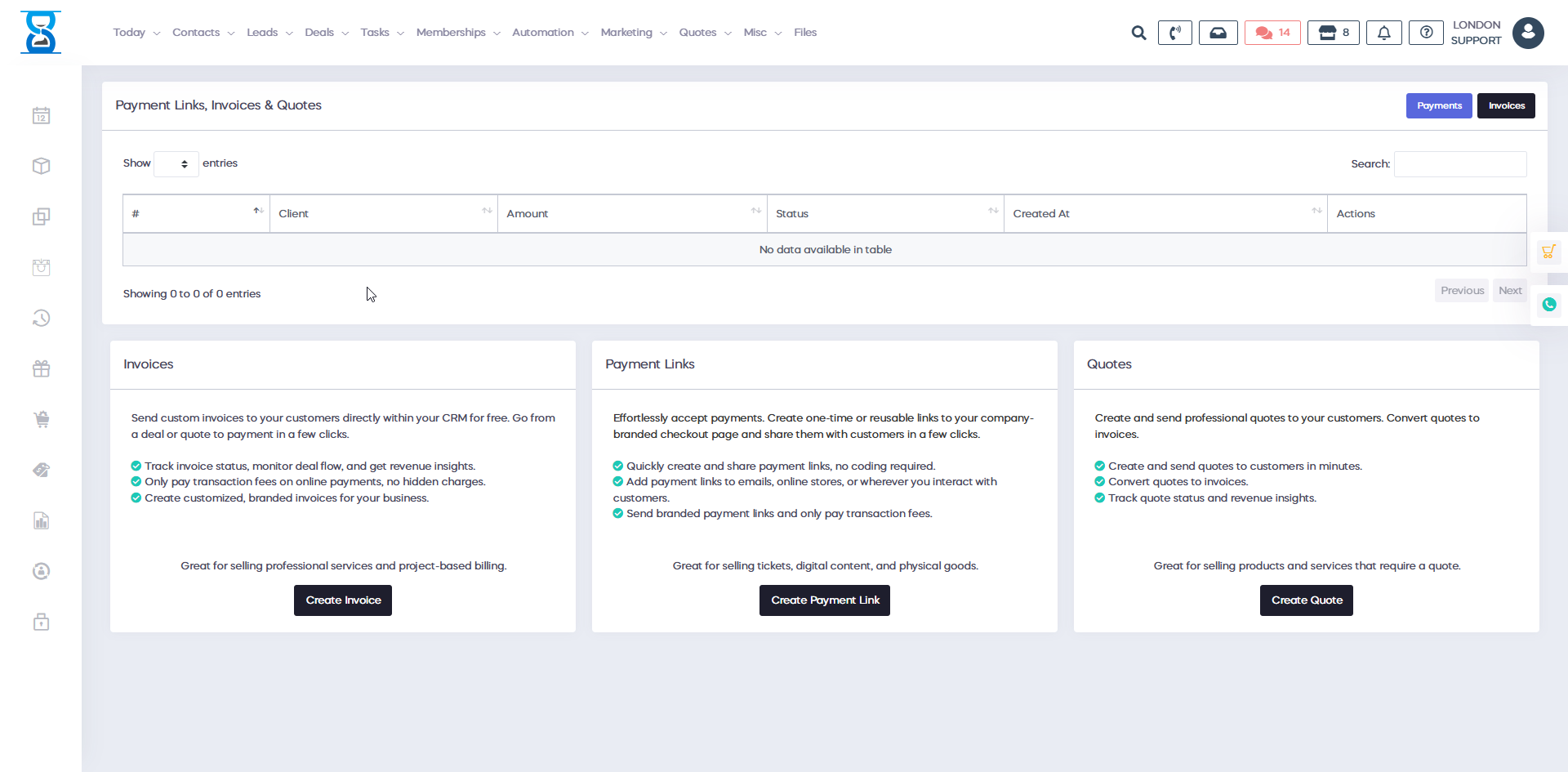
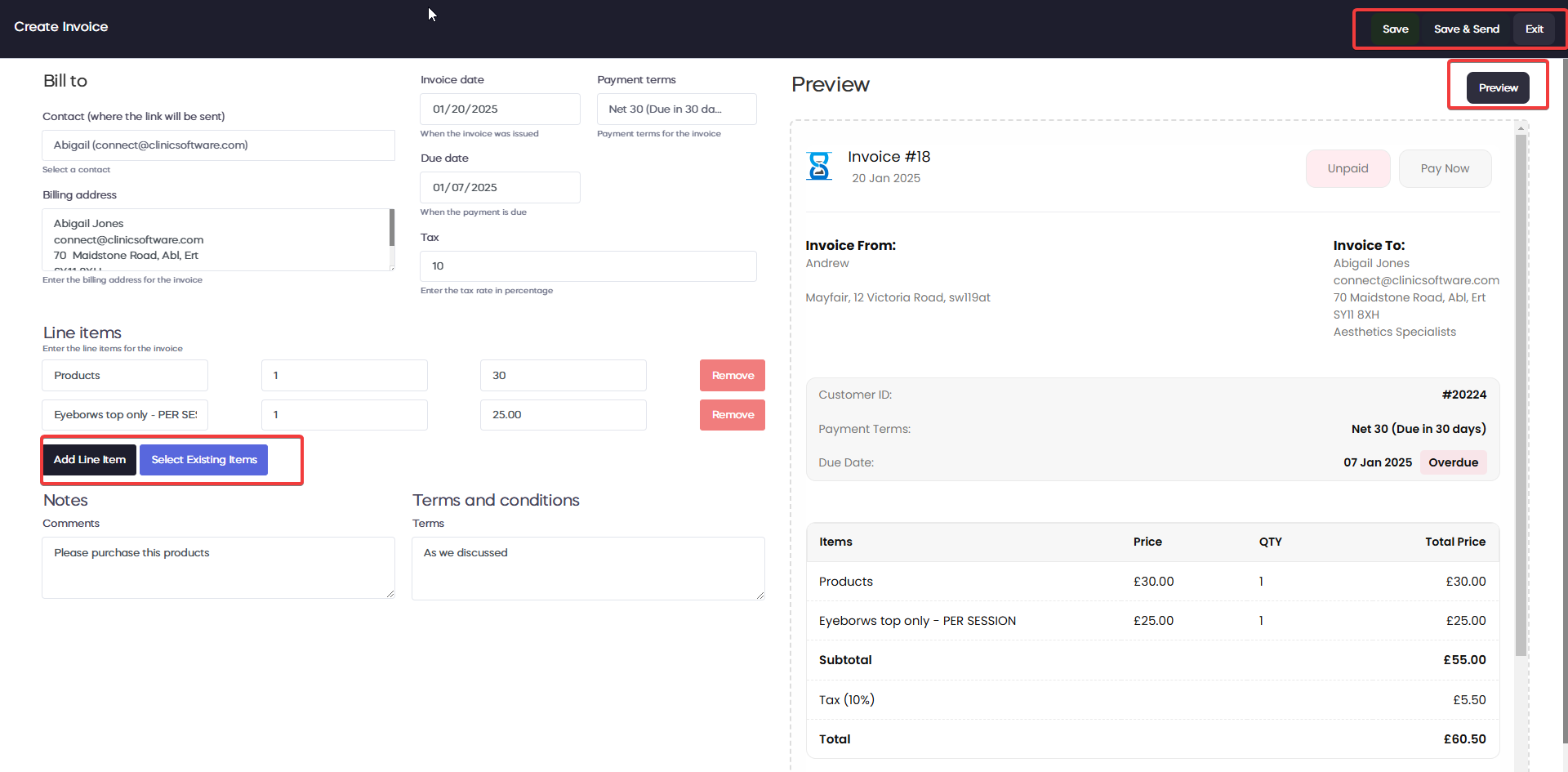
1) Invoice
By clicking the Create Invoice button, a page will pop up where you can generate a new invoice. Here, you can search for and select the contact to receive the invoice, set the due date, and apply the appropriate tax.
You can add products not already in the system or choose from existing ones. Additionally, you can include notes and terms and conditions.
Once the invoice is complete, you can review it, then save and send it directly to the client via email.
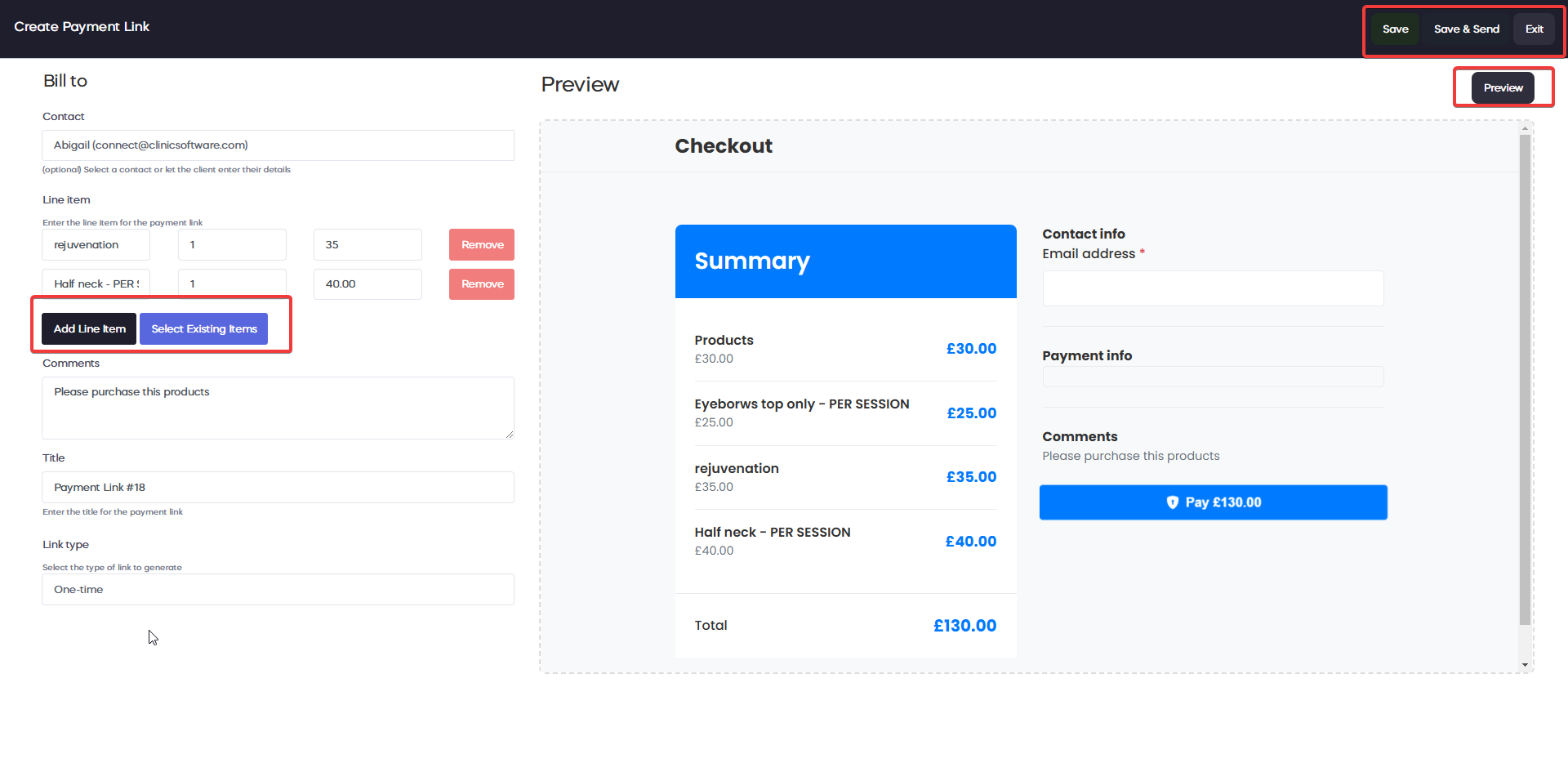
2)Payment Link
By clicking the Create Payment Link button, a page will pop up where you can generate a new link. Here, you can search for and select the contact to receive the link.
You can add products not already in the system or choose from existing ones. Additionally, you can include comments and select what type of link is one-time or reusable.
Once the payment link is complete, you can review it, then save and send it directly to the client via email.
Â
3)Quotes
By clicking Create Quote, you will be directed to the Quote page where you can generate a new quote.
For detailed instructions on how to create a quote, please refer to this link: Quotes.
