Courses, sessions & memberships
Courses / sessions
In short
This guide explains Courses / sessions in the Courses, sessions & memberships area of ClinicSoftware. It provides a clear operational explanation of how the capability works, then outlines the practical benefits for saving staff time, converting clients and leads, and protecting clinic revenue.
On this page
Overview
This guide explains Courses / sessions in the Courses, sessions & memberships area of ClinicSoftware. It provides a clear operational explanation of how the capability works, then outlines the practical benefits for saving staff time, converting clients and leads, and protecting clinic revenue.
How it works
From this page, you can order and manage client courses.
How to add courses in the system will be covered in the Admin Area section of this user guide.
How to book courses will be covered in the Day Book section of this user guide.
We will focus on the client courses management from this page.
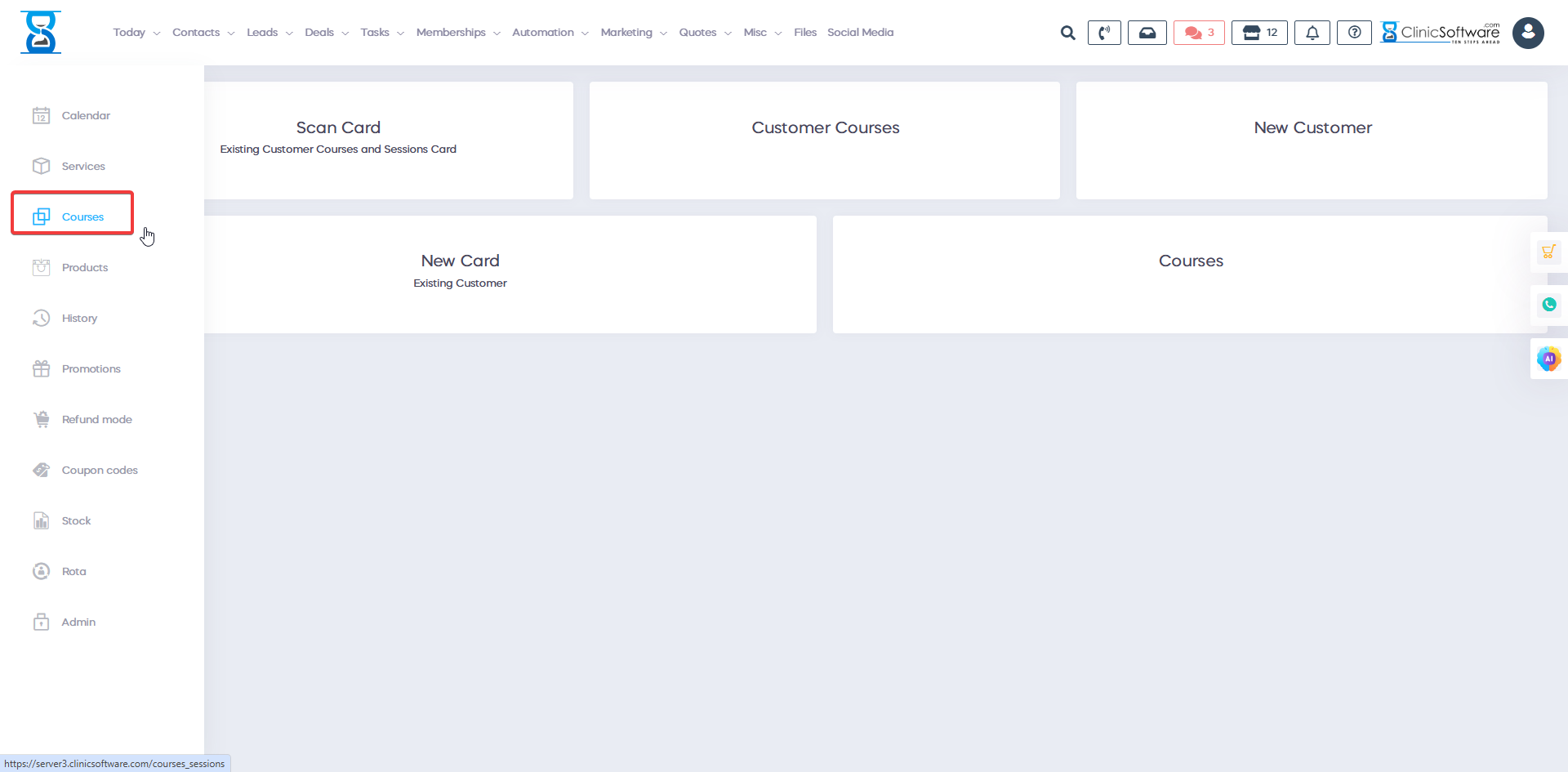
The “Scan Card” button will open a window from which you can scan the barcode from the client’s courses card and select the client automatically.
The “Customer Courses” Button will open the customer courses page if the client is already selected in the system or redirect you to the clients list page from which you can select a client.
After selection of the client you will be redirected automatically to the client’s courses page.
The “New Customer” Button will open the client profile creation page with the condition of the courses barcode being mandatory when creating the account.
After the client has been added to the system you will be redirected to the client’s courses page.
The “New Card Existing Customer” Button will open a variant of the clients list page that feature an “Add Courses” button.
When the “Add Courses” button is pressed from the clients list page, the system will open the client profile edit page from which you can add the courses card barcode to the client profile or modify an existing one.
After you have saved the changes in the client profile the system will redirect you to the client’s courses page.
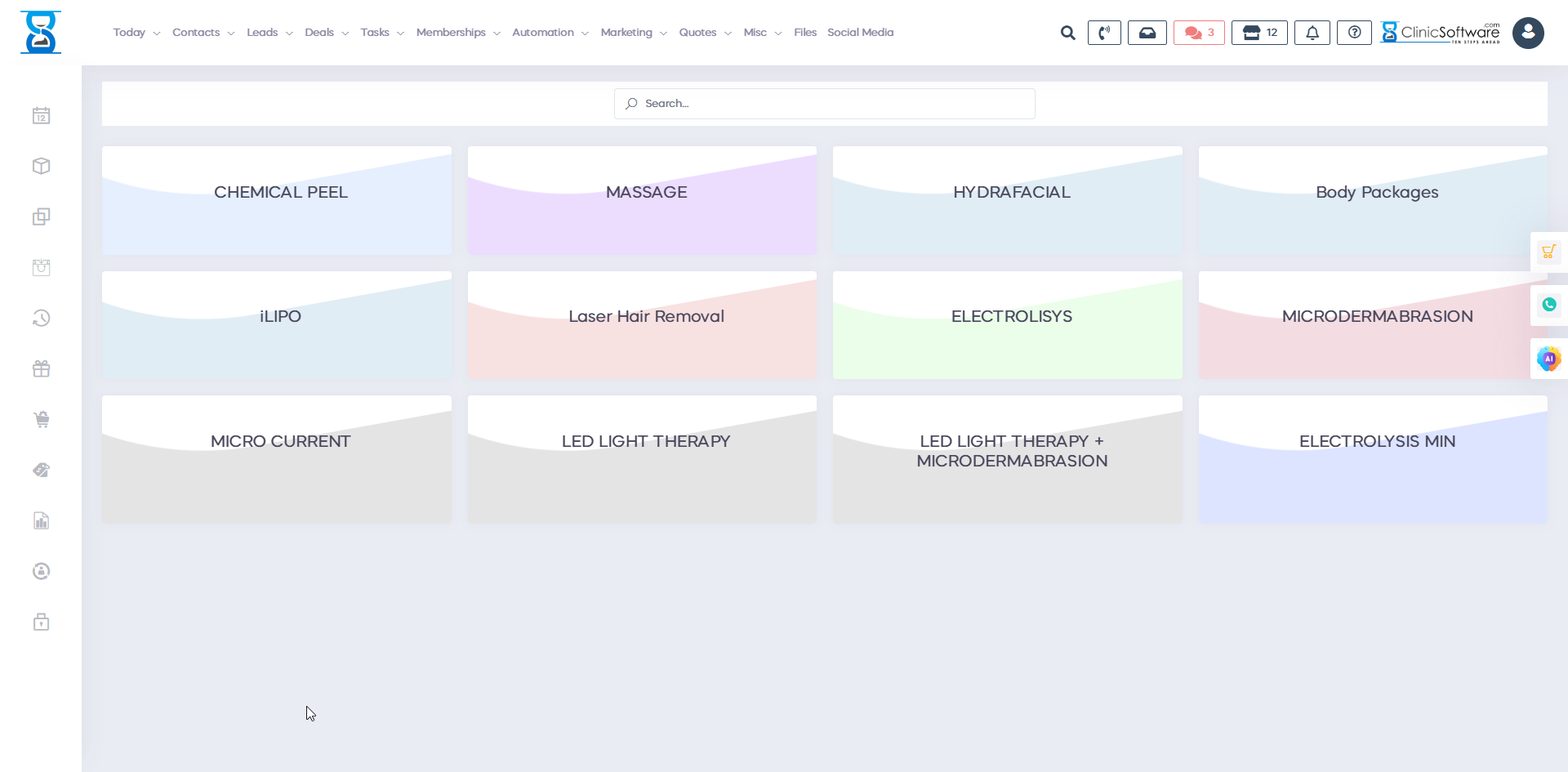
The “Courses” Button will open the courses list page from which you can order new courses for the selected client or redirect you to the clients list page from which you can select a client.
After selection of the client you will be redirected automatically to the client’s courses page.
Benefits for your clinic
- Save time: Automates course balances, sessions and membership tracking so staff spend less time calculating remaining treatments manually.
- Win clients and leads: Clear course and membership options make packages easier to explain, helping prospects commit with confidence.
- Generate revenue: Packages and memberships encourage advance purchase, improve cash flow and increase the average value of each client relationship.