
Â
In order to create an email campaign, please follow the instructions below: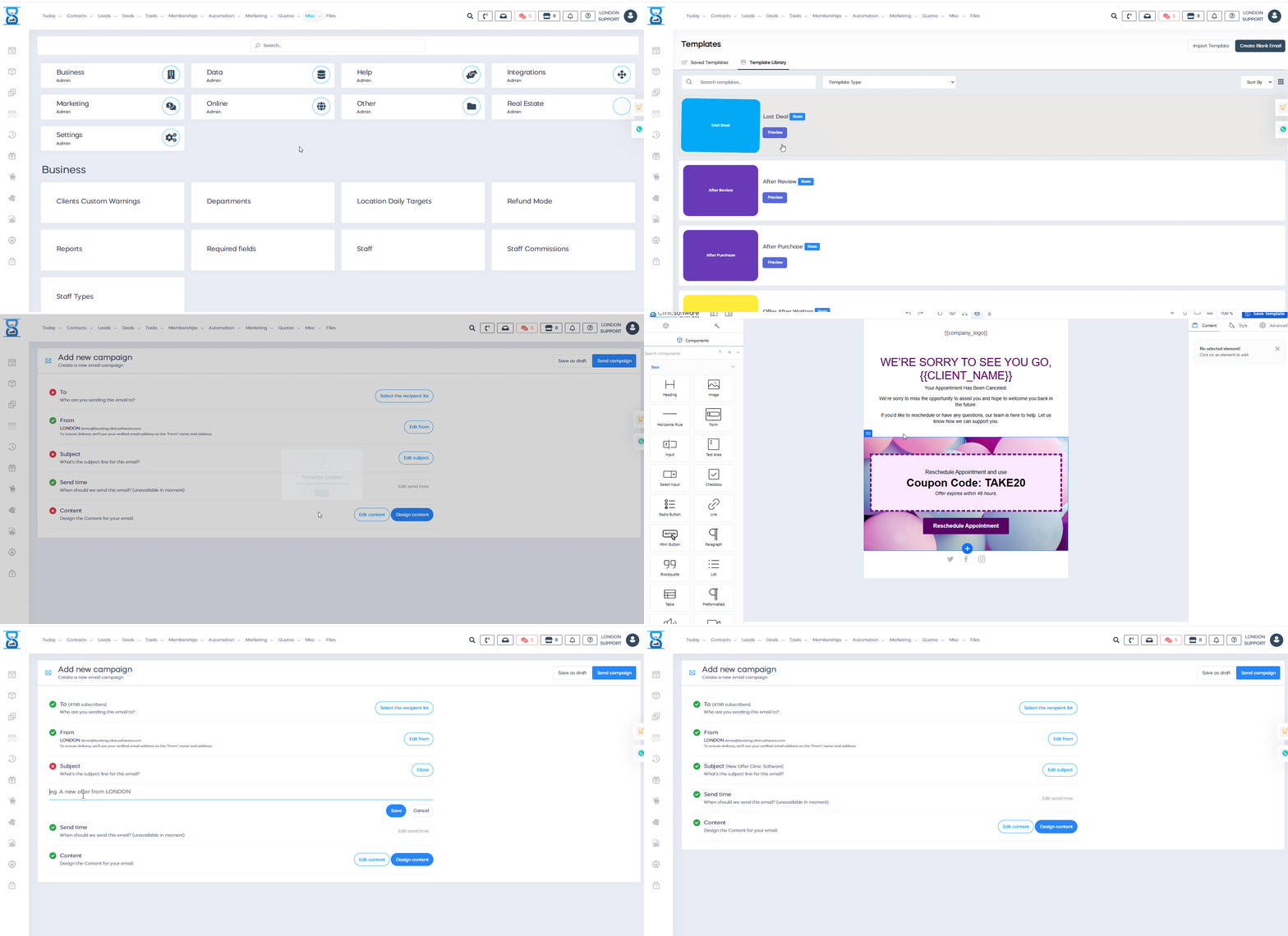
1) Go to the Admin Area => Marketing Email
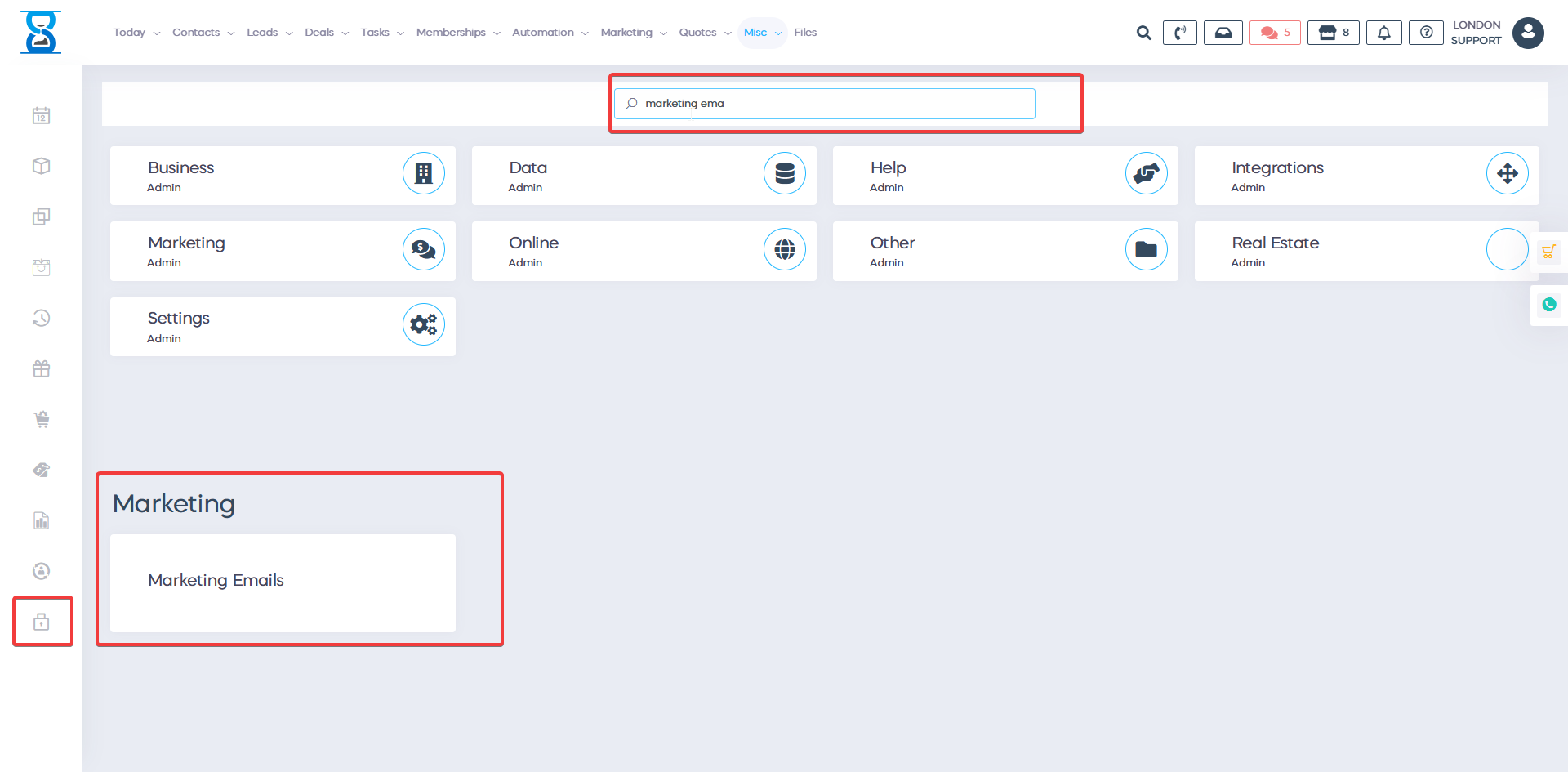
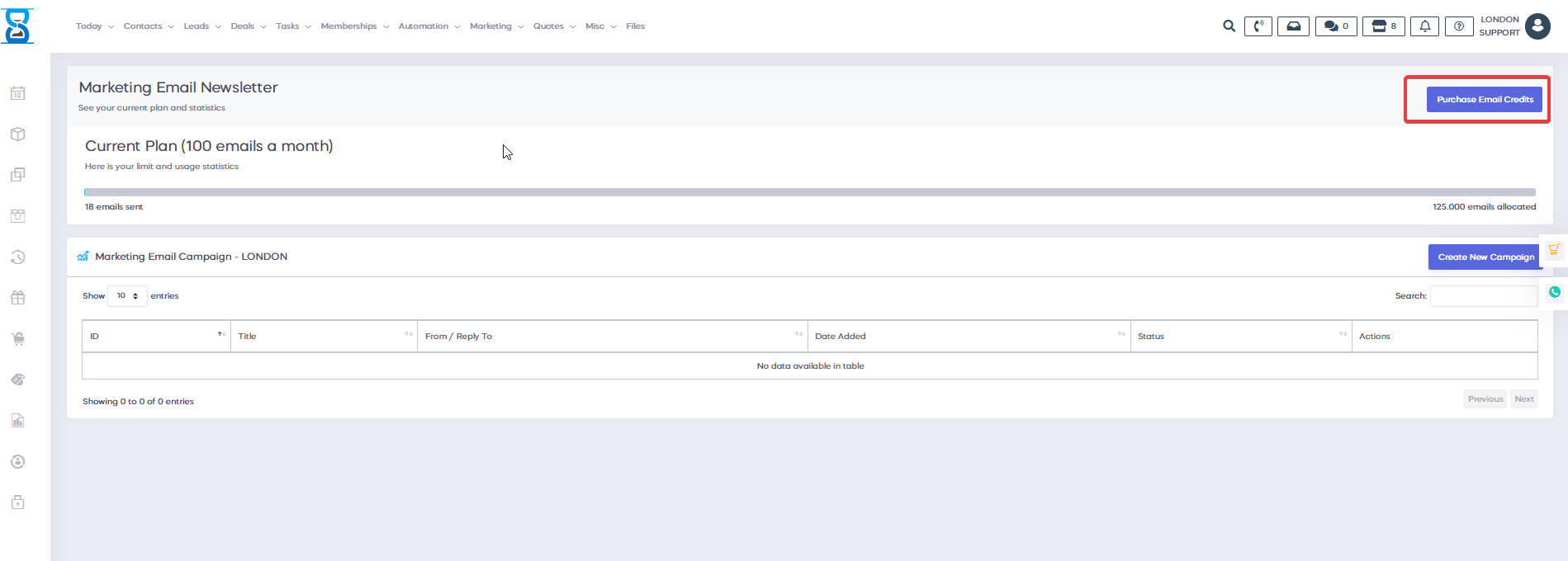
2) The first step is to check if you have enough credits, if not, you need to make a top-up.
Press Purchase Email Credit and buy as much credit as you need.
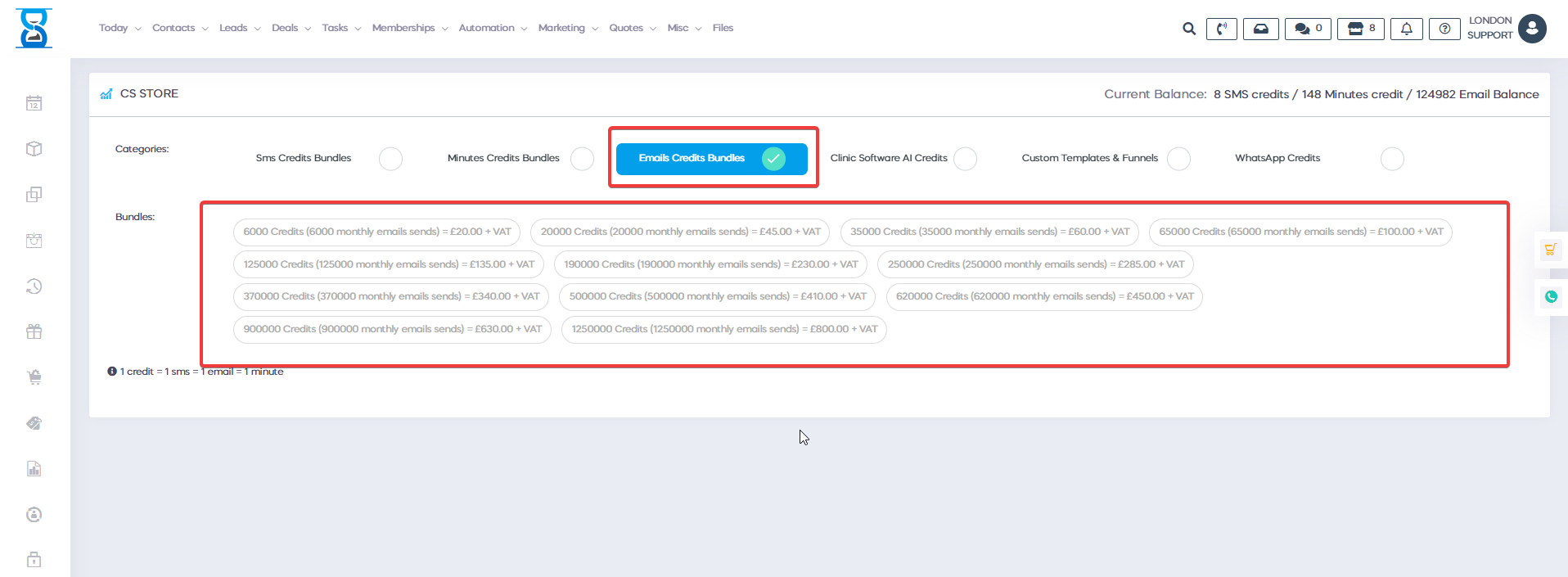
Â
To send a marketing email newsletter, you need to create marketing lists with segments of clients based on the treatment they had.
Please follow the below steps.
1. Go into ADMIN AREA -> REPORTS
 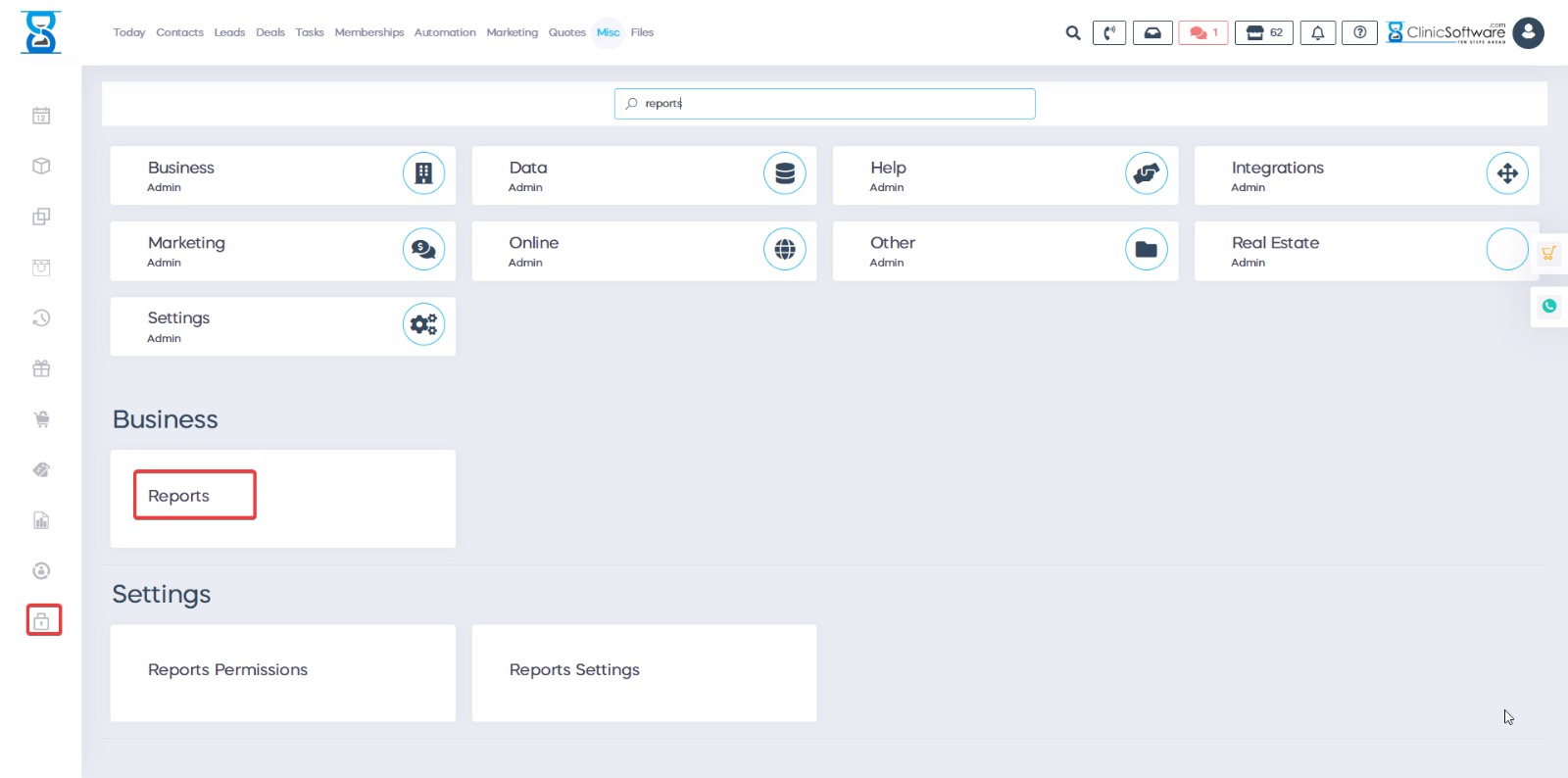
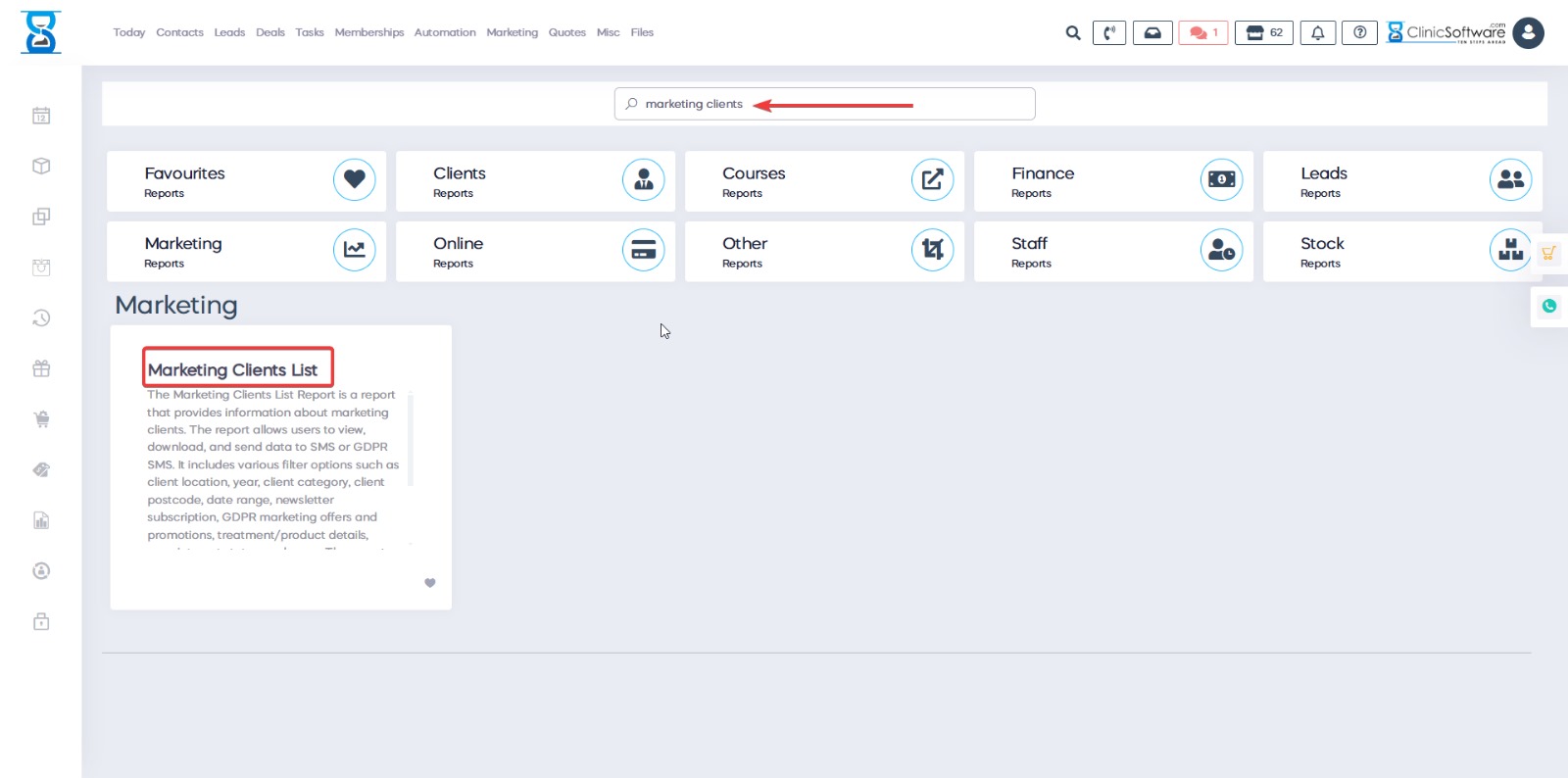
2. Open Marketing Clients List report.
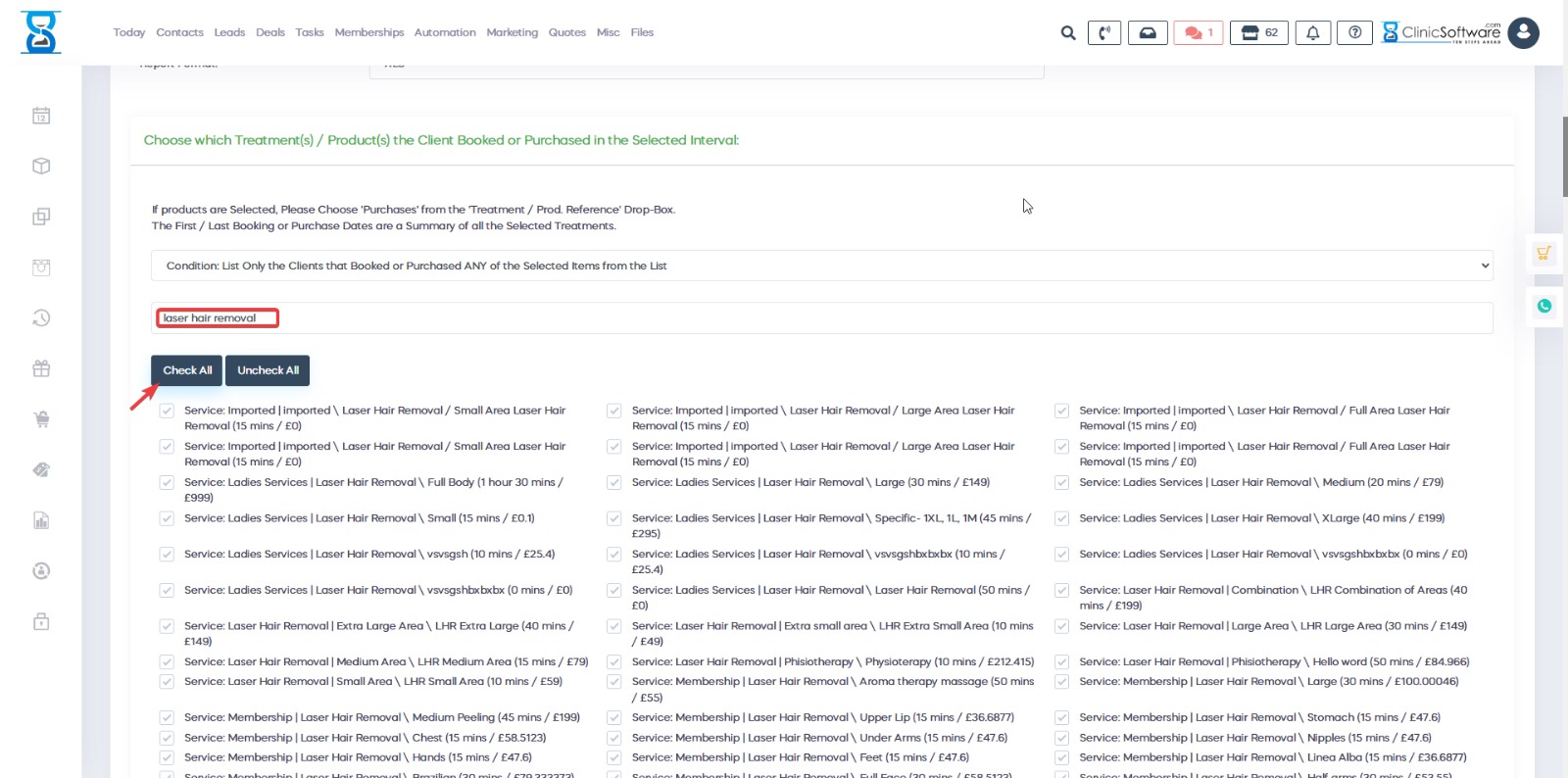
3. Filter by the treatment you want to target. Example "Laser hair removal". Type the keyword. Click Check All after typing the keyword.
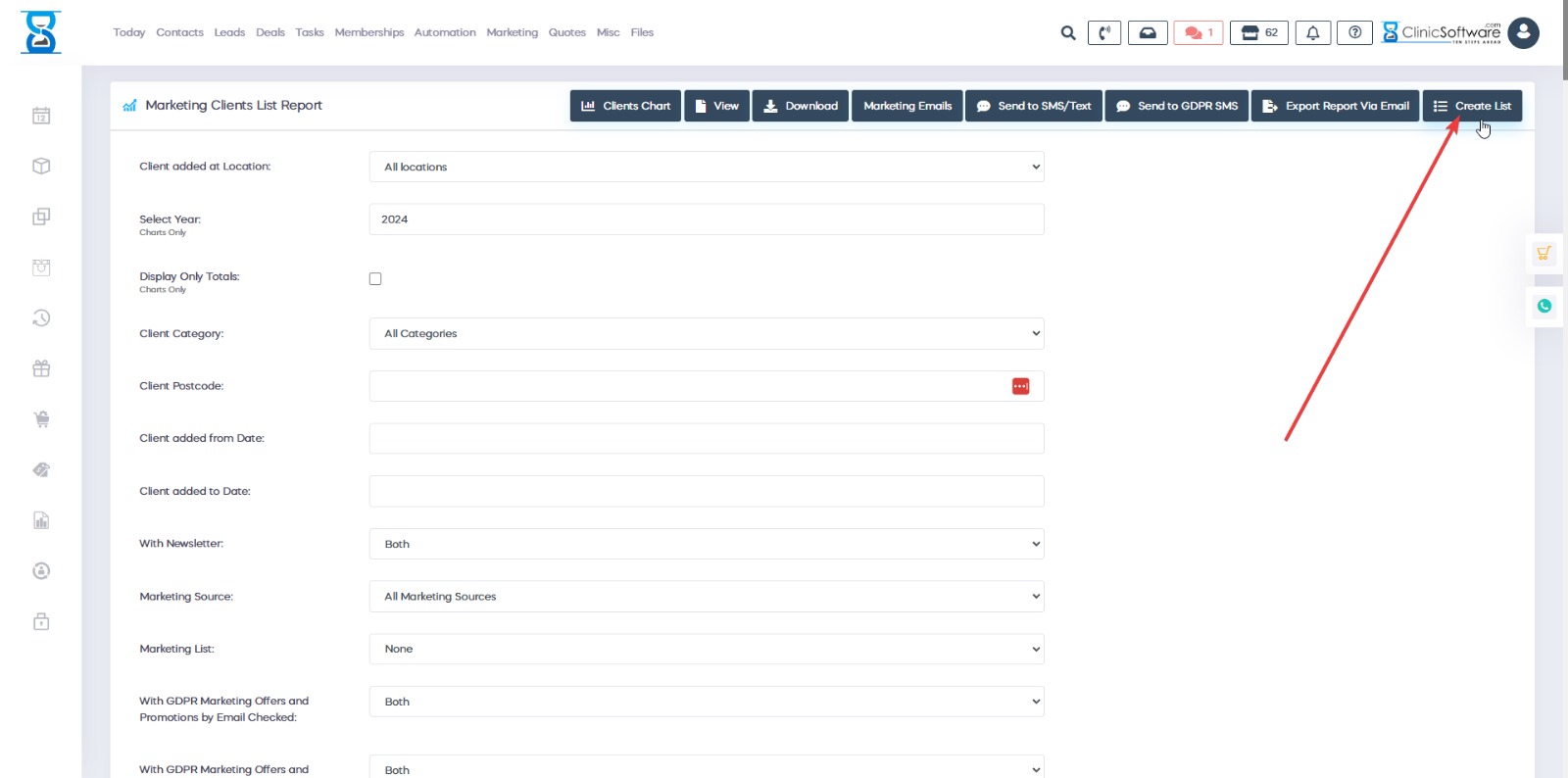
4. Click "Create List" and save the list.
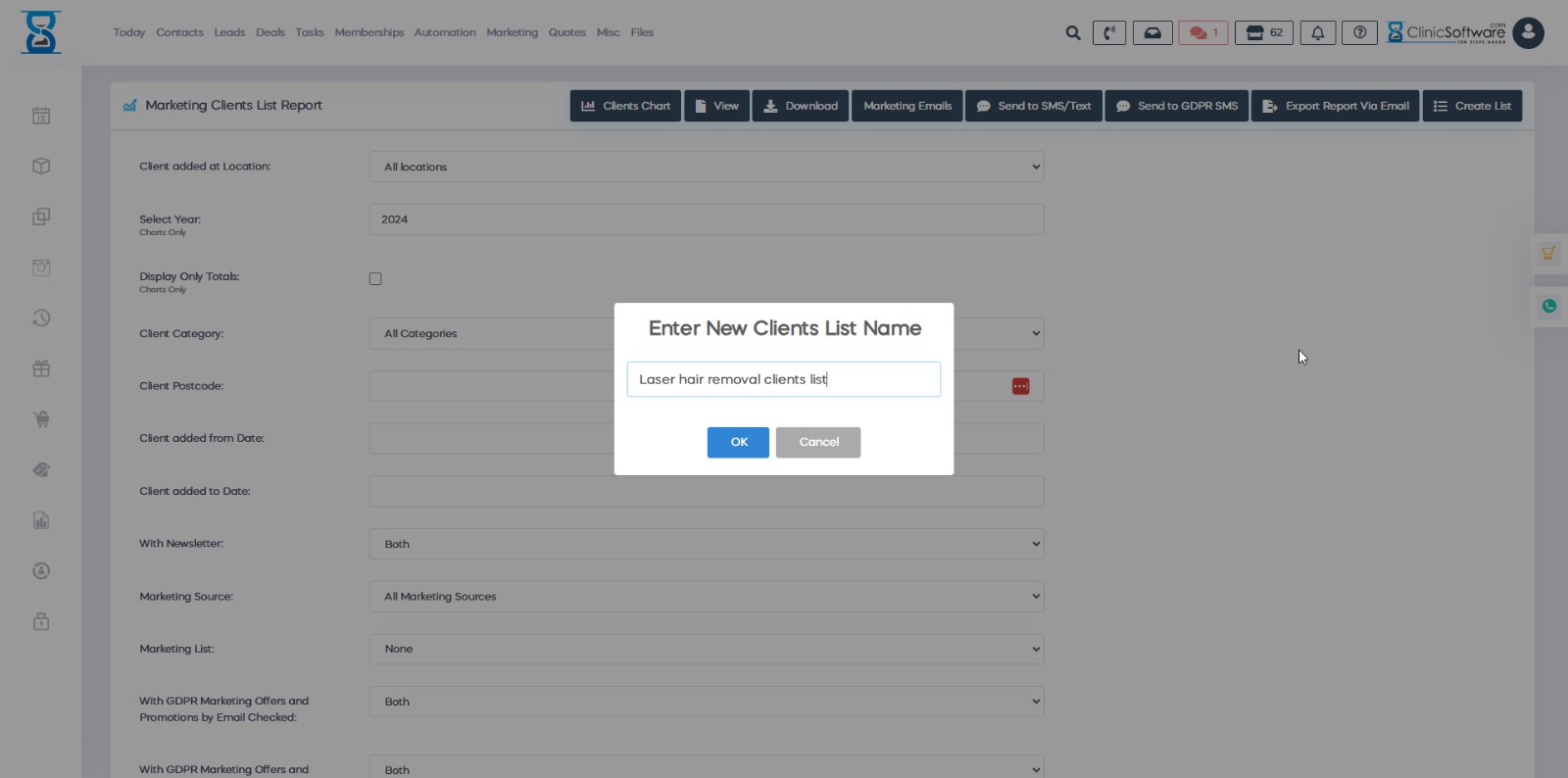
To access the newsletter module after you have created the list from the report you will go at the top under the Marketing Emails in Admin Area
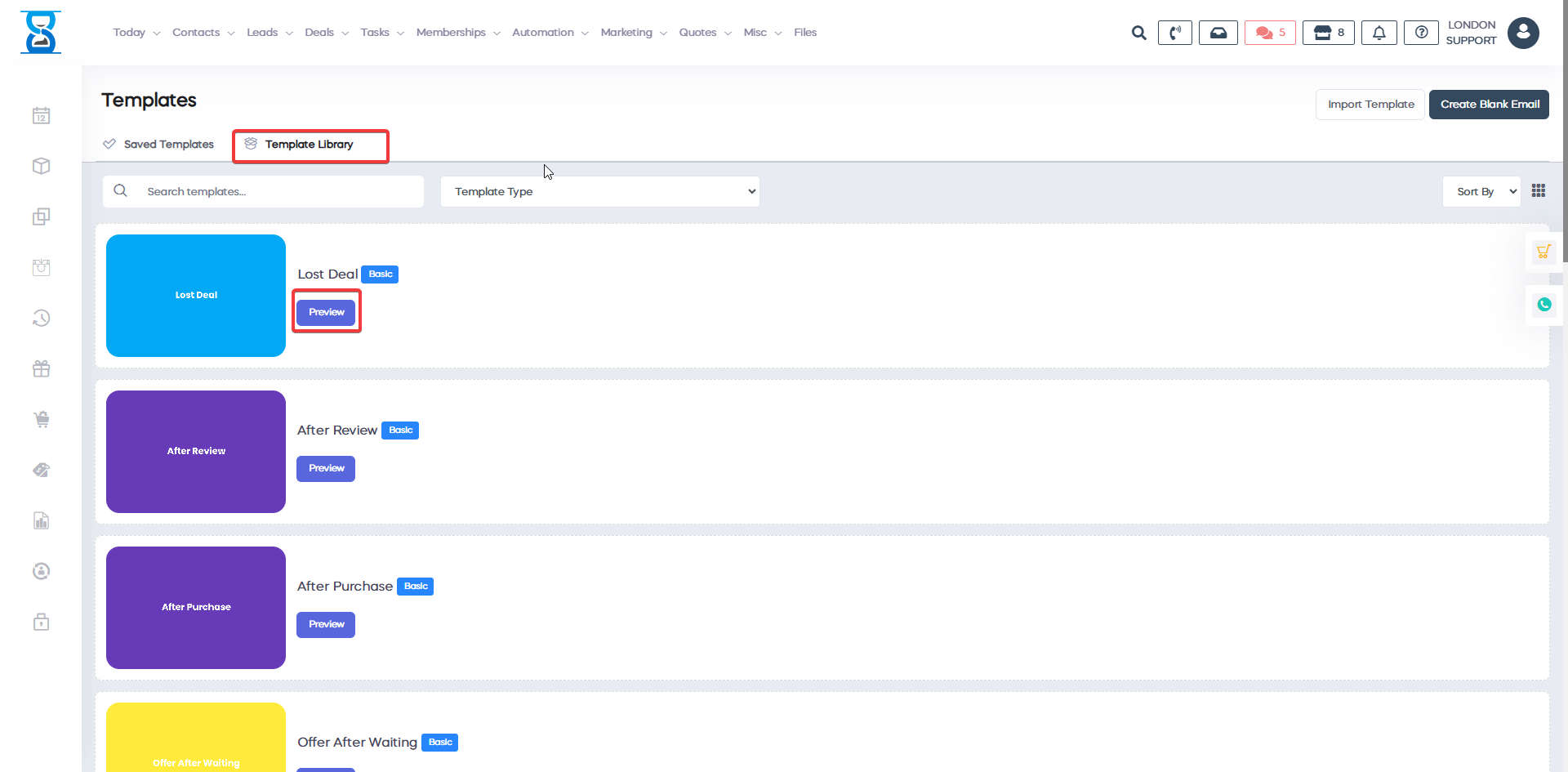
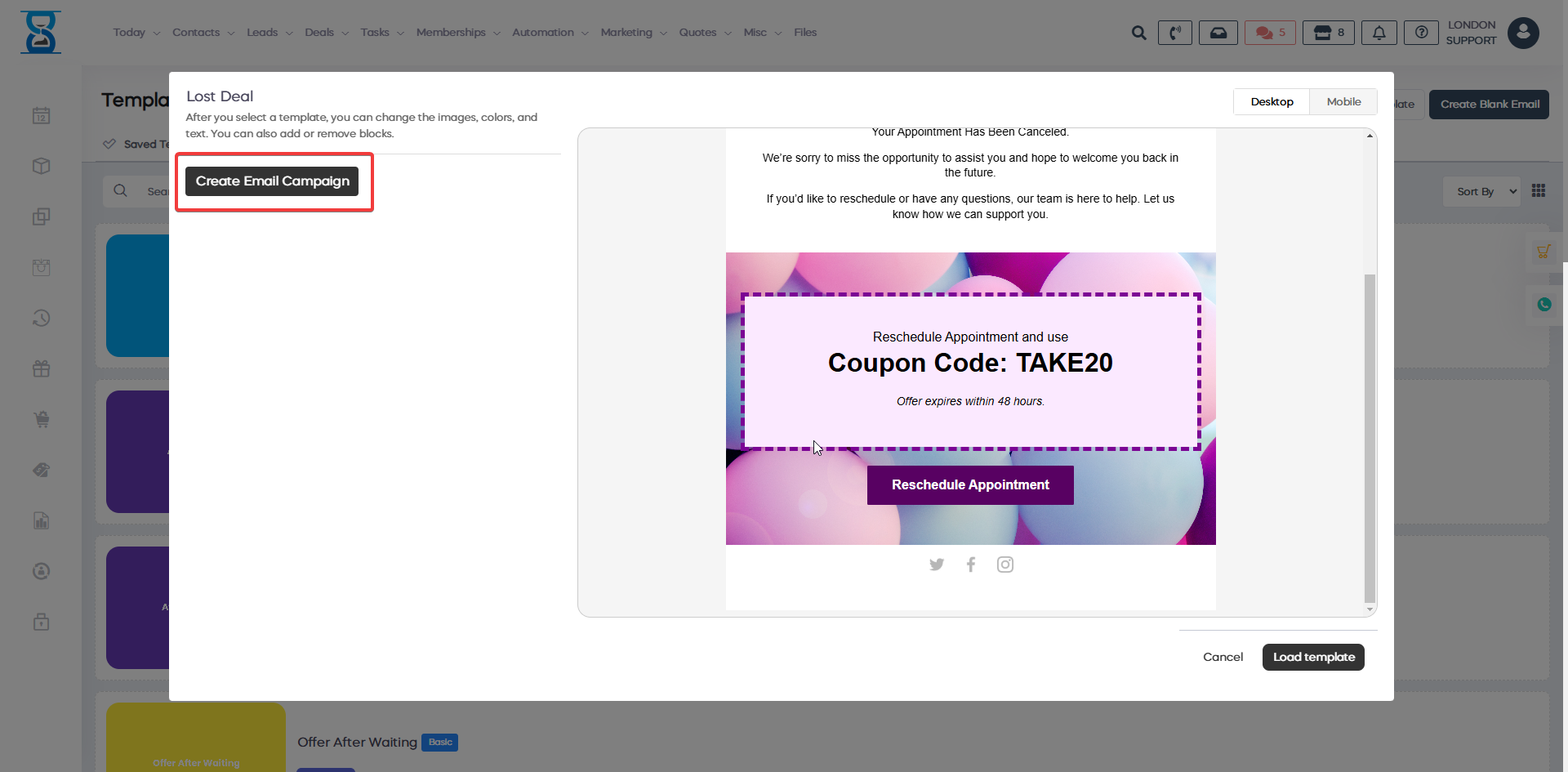
Select Template Library and press preview on the template you like.
After that, press Create Email Campaign, and it will use the template you select for the campaign.
Â
When you will create an email marketing campaign to target all the clients with laser hair removal you will see the list you have created.
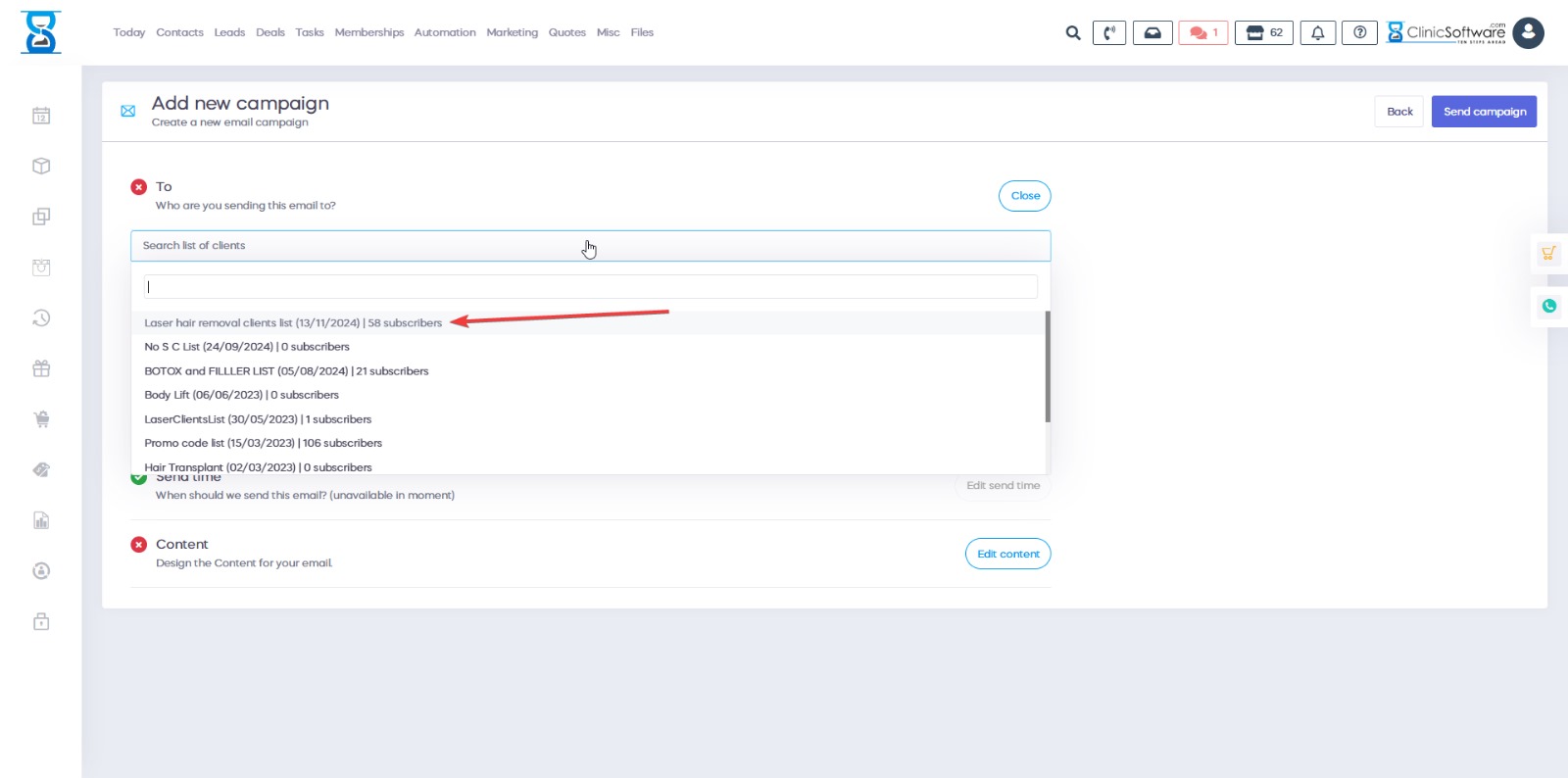
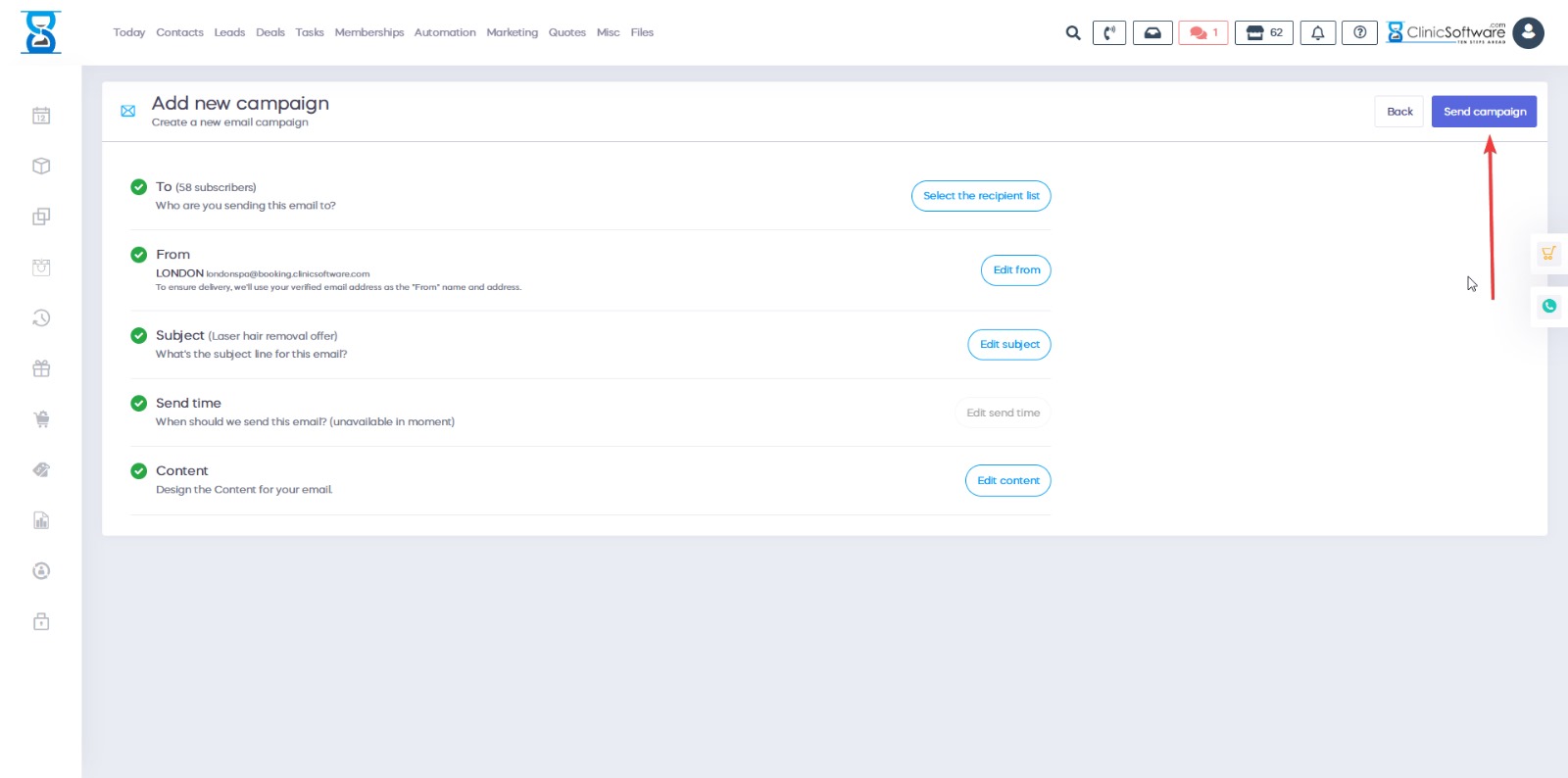
You will complete the list, the subject and the content and after that you hit SEND CAMPAING to send the campaign.
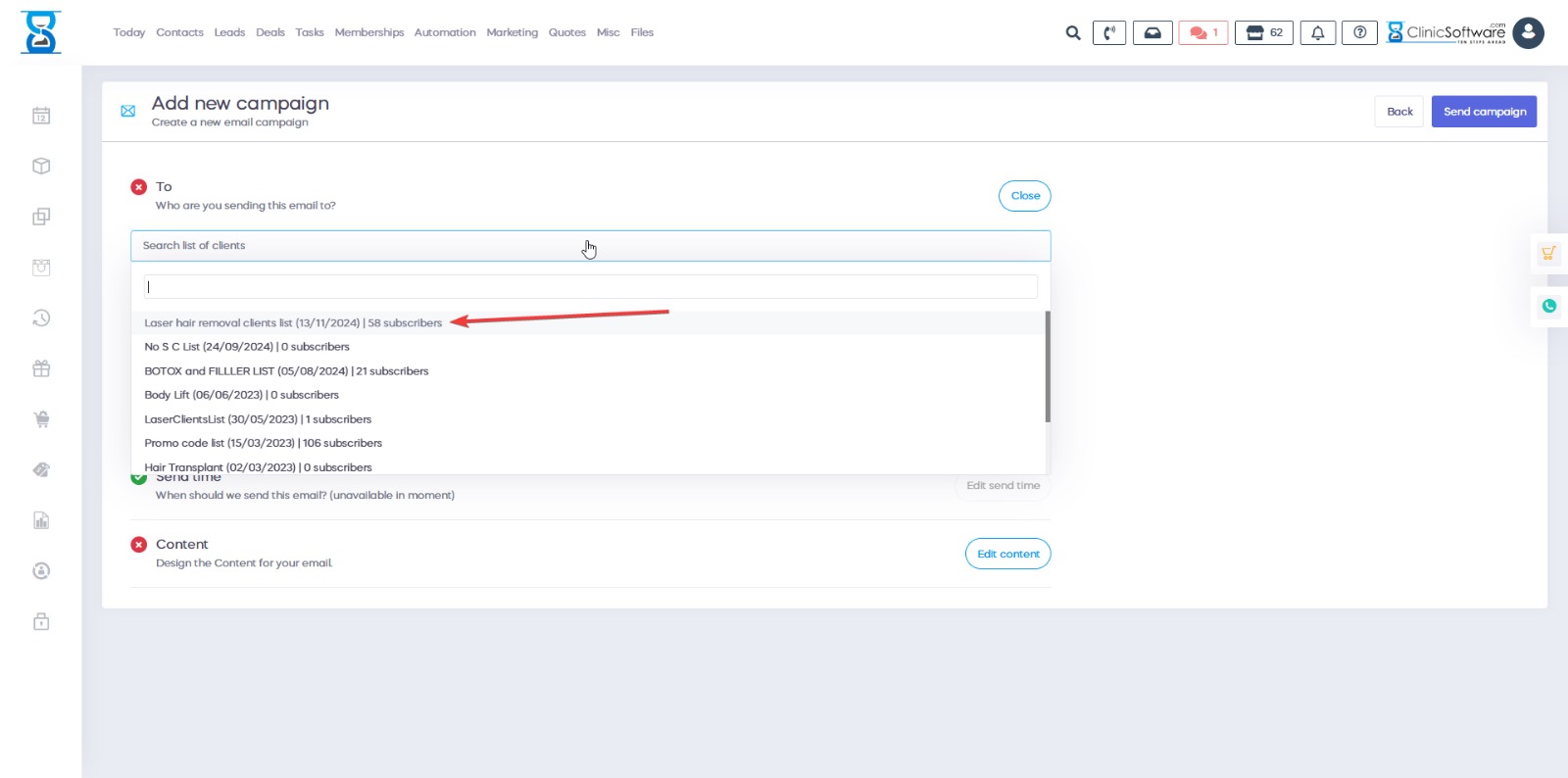
You will complete the list, the subject and the content and after that you hit SEND CAMPAING to send the campaign.
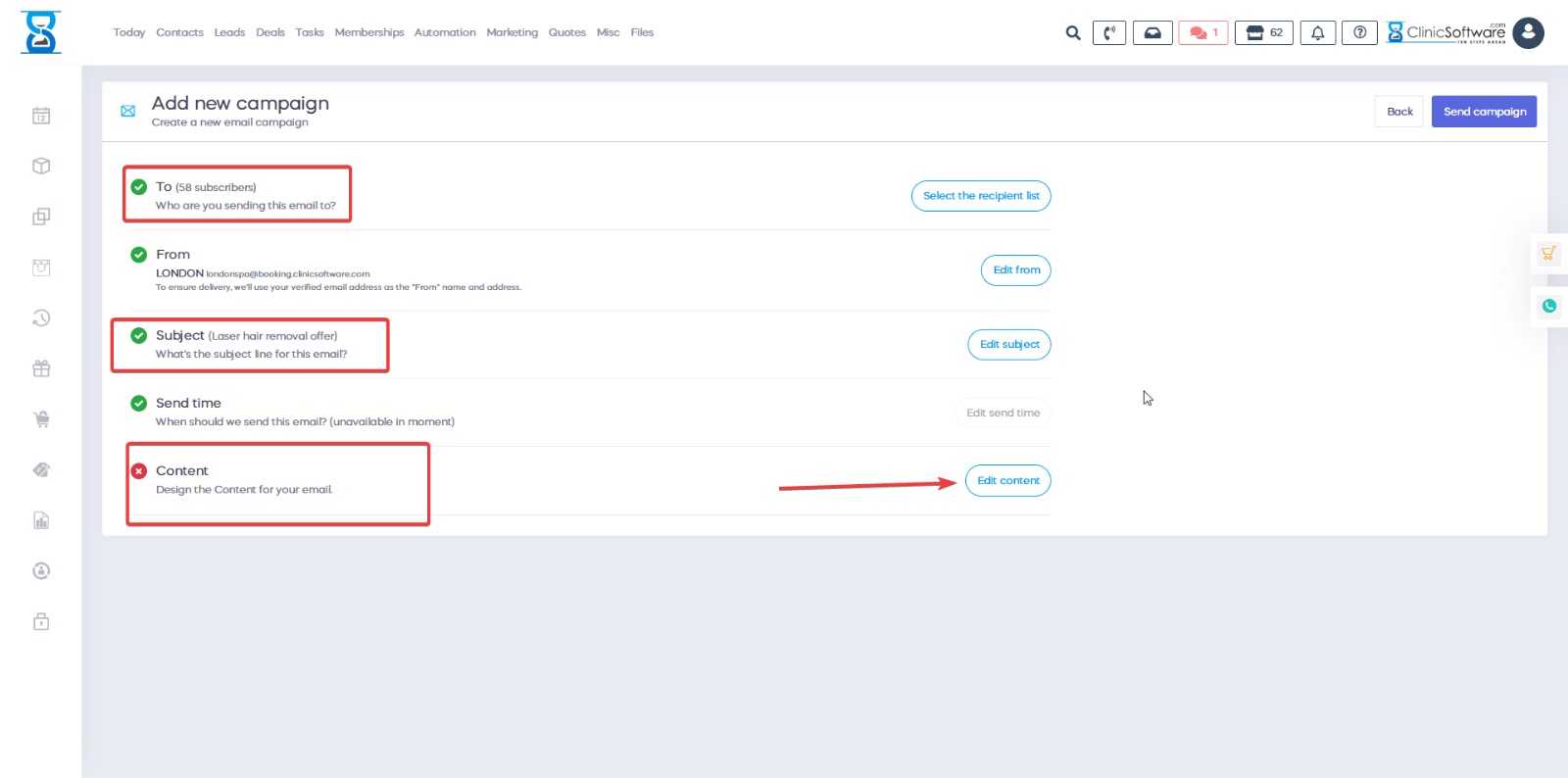
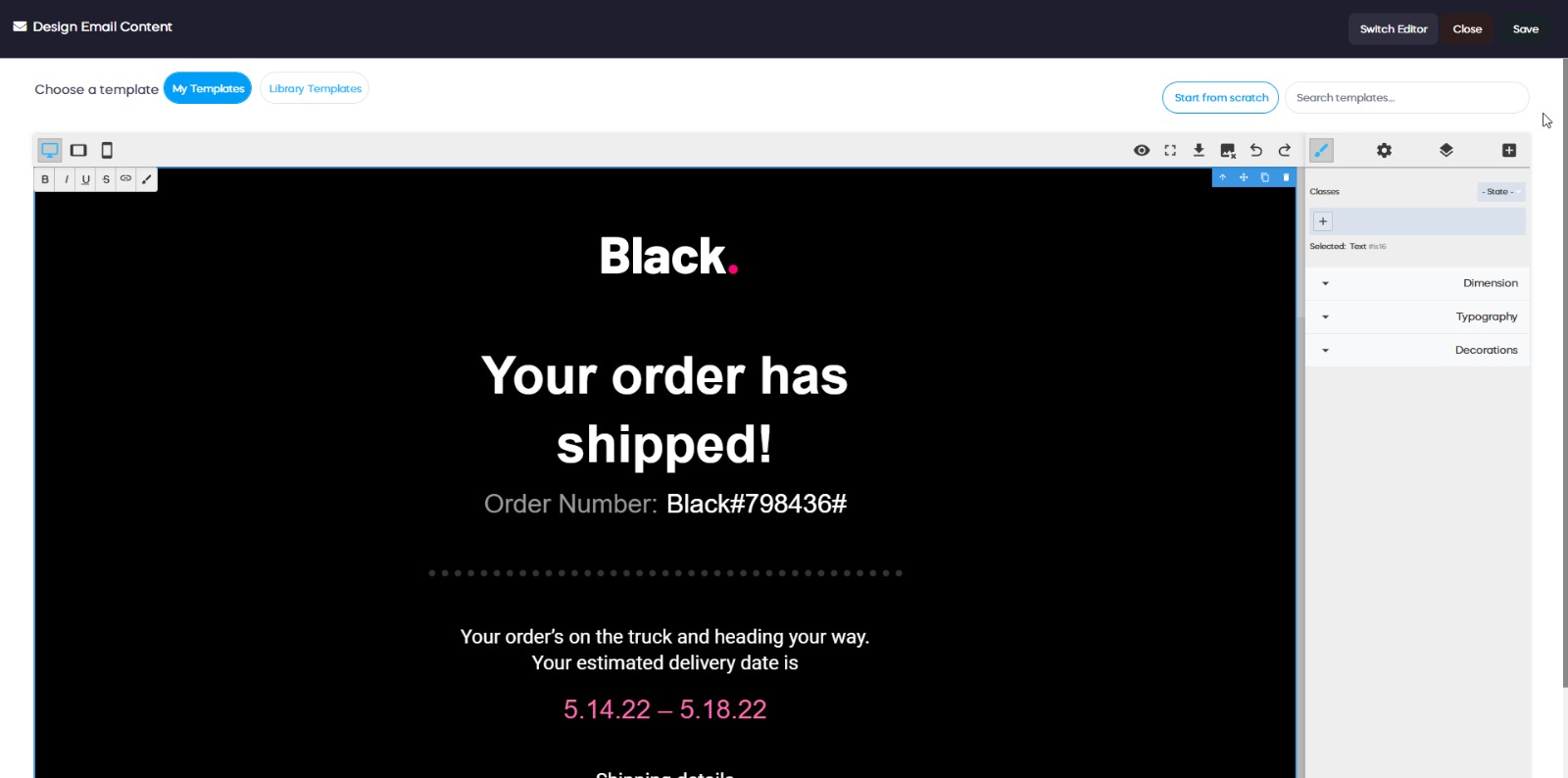
When you click edit content you will see a drag and drop editor and the capability to choose a template you want to use with your campaign.
After that you hit Send campaign at the top right.
Â
For any other questions please email UkSupport@ClinicSoftware.com or open a ticket at www.Support.ClinicSoftware.com .